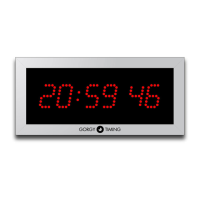
C. Wi-Fi Configuration Web Page « Wi-Fi Configuration »
► To select an access point, simply click on it to have it fill in the SSID and MAC fields.
► Wi-Fi password: Enter the password for the selected Wi-Fi. The clock takes a few seconds to
change operating mode and then shows a "Success" message once the connection is re-
established.
If the "Force to connect to this MAC address" box is checked, then the MAC address is set during the
connection.
If the clock was in access point, then it changes IP address (automatically assigned by DHCP server
or manually configured) and the connection to the Wi-Fi GET_LEDI_xxxx is no longer possible. The
terminal (PC, Smartphone, tablet...) is thus disconnected from the Wi-Fi access point of the clock. The
clock has connected to the desired access point, so it is necessary to be on the same network as it to
detect it and access its new IP address.
If the clock was not in access point, in the same way according to the operating mode:
- Manual: the clock keeps the same IP address
- Dynamic/IP address assignment by DHCP server: the clock may have changed its IP address.
In both cases, the use of "GT Network Manager" can again be useful.
If the connection is lost, the clock tries to reconnect but if the reconnection is not possible, due to the
distance between the clock and the access point or to a loss of network, then the clock returns to the
access point at the address 192.168.0.2. At this point, the procedure for connecting to a network must
be repeated.


 To Next Page