7.2. WI-FI SETTINGS BY WEB PAGE
The manual configuration of the clocks can be done through the product web page.
7.2.1. Firmware 1.X.X.X versions
A. Connection to the Wi-Fi "Access Point
► First, you need to connect a terminal (PC, Smart-phone, Tablet... ) to the product's Wi-Fi "Access
Point".
► 1- Using the system tools, perform a detection of the Wi-Fi networks in range.
► 2- Choose the Wi-Fi product to configure and use the encryption key written on the back of it
to connect to it.
B. Access to web interface of the clock
When the computer is connected, it should receive an IP address like 192.168.2.x/24 by DHCP.
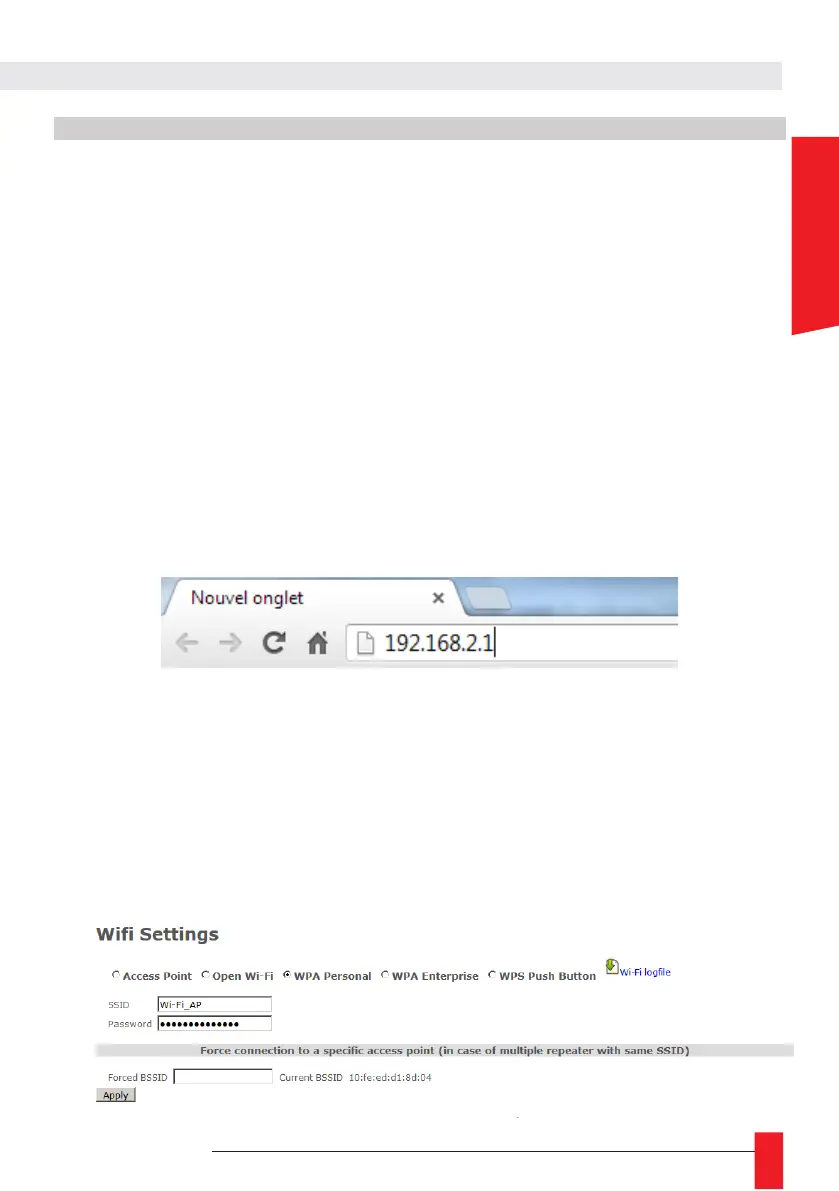
► To access the configuration interface, open a web browser (Firefox, Chrome, Internet Explorer, ...)
and enter the following IP address: 192.168.2.1 in the address bar.
► The browser will then ask the user to identify themselves. The default credentials are:
login: root
Password: gtmt
C. Wi-Fi setting web page
► To tell the clock which Wi-Fi network to connect to, open the "Wi-Fi Settings" web page, choose
the target Wi-Fi type (Open Wi-Fi, WPA-Personal, WPA-Enterprise...) and fill in the SSID (Wi-Fi
network name) and Shared Key (Encryption Key) fields. A user name is also required in WPA-
Enterprise mode.


 To Next Page