GSE Scale Systems - 277
Chapter 30 Model 574 Simulator Software Technical Reference Manual
processed, the window disappears.
As with the 574 itself, the simulator need not be in any
particular mode when the setup file is begun to be
processed. As long as the 574 or simulator is not in an
intermediate mode (such as at the prompt to key in the
access code in one of the ID modes, or in the middle of
an entry, etc...) then the file may be loaded, assuming the
file uses the standard format established by GSE, ie it
starts with the access code "23640%i%e" and proceeds
with the parameter names and selections.
30.6 Setpoint Window
A window which displays the status of all 32 setpoints
appears in the upper right corner of the screen whenever
one of the setpoints first change state. The window may
be toggled on and off with the [F2] key. The setpoints
are represented by the numbers 1 through 32 arranged in
eight rows of four numbers. The state of each setpoint is
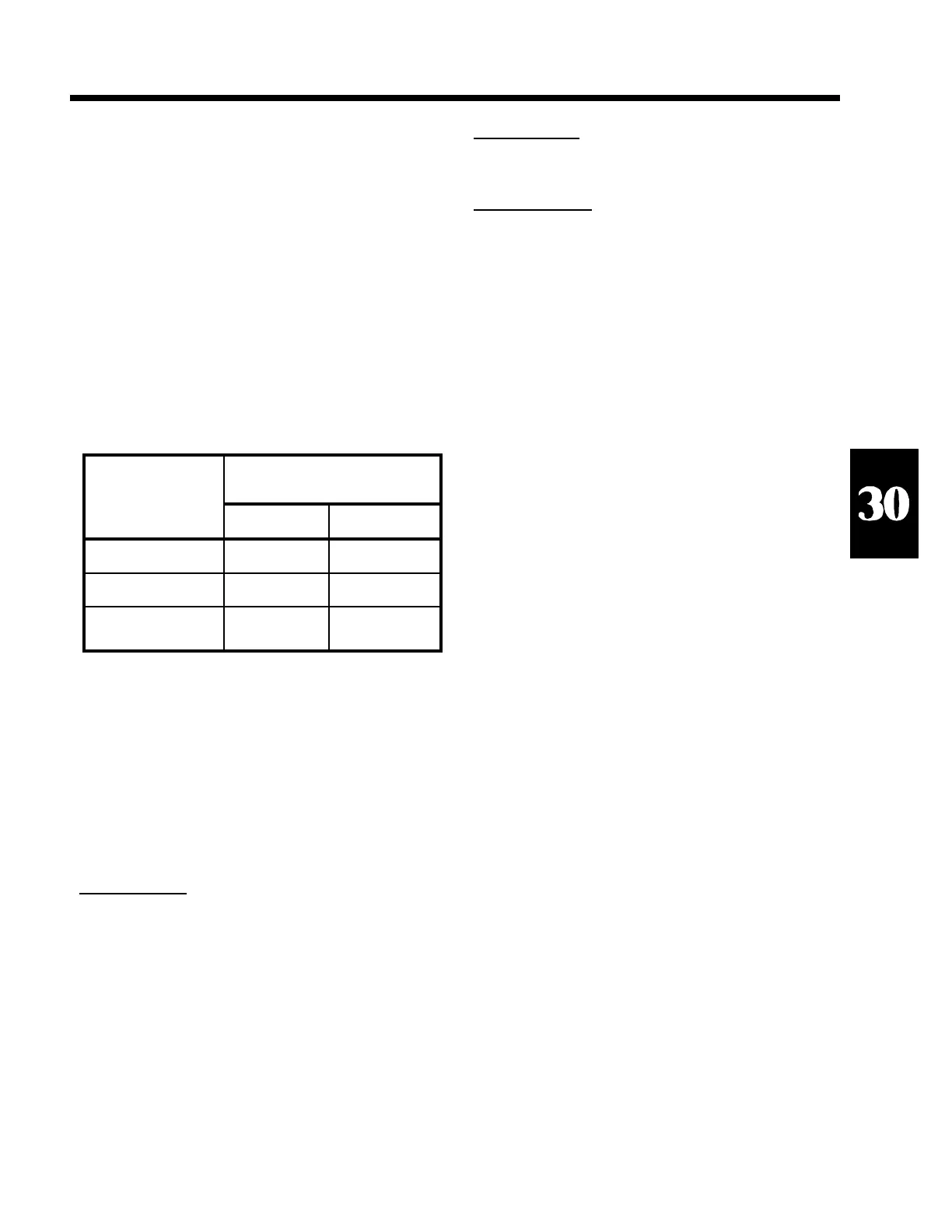
indicated by the color of its number. Refer to table 48.
Setpoint Inputs:
Change state of setpoint inputs by
holding down [ALT] key then keying in setpoint input
number to be changed (on numeric keypad, with
Num-Lock on!). (except for setpoint input 3, use [ALT]
[3] [3] instead.
For example to change setpoint input 8 from active to
de-active, press
and hold the [ALT] key and press [8] on the numeric
keypad, then release
the [ALT] key.
Setpoint Status:
Refer to the setpoint status window
([F2]) to check on the status of any setpoint at any point
in time.
Invoking Macros:
Invoke Macros 1 through 10 with
[SHIFT-F1] through [SHIFT-F10]. (Other macros may
only be invoked with the standard 574 methods such
as %0 for Macro 0, or using the macro menu, etc.)
30.7 Terminating The Program
The simulator program is normally terminated by
pressing the [ESC] key. This causes a message to appear
asking if you are sure you want to exit the simulator
program. Press [Y] or [y] to exit the program or any
other key to continue running the simulator.
After the program terminates, several lines of
information are displayed on the screen which indicate
our address and the version of the simulator that was
running.
If for some reason the simulator appears to have locked
up your computer, pressing [^C] may still be functional
aborting the simulator program.
30.8 Additional Benefits
Other features which make the simulator a valuable tool
are listed below:
• Alpha input possible without scrolling through the
alphabet or hooking up and external device.
• It forces you to create a computer disk file with the
setup provided to a customer. This can be useful
during repeat sales, attempting to simulate problems,
or setting up a loaner or replacement unit during
servicing.
• Portions of previously created instrument setups
may often be re-used in other applications, reducing
future setup efforts.
• You don't need to have an indicator available to
begin setting up an application or experiment with a
new idea.
• The state of all 32 setpoints is shown in a window
allowing for easy verification of the status of any
setpoint.
SECTION - 30.8
Current State
Setpoint Setup In-Active Active
Disabled Black Gray
Output Dark Red Bright Red
* Input Dark Green Bright Green
Table 48 Setpoint Status Color Chart
* Hardware inputs are not applicable on the Model 574.



 To Next Page