GSE Scale Systems - 67
Chapter 5 Weighing Mode Technical Reference Manual
Chapter 5
Weighing Mode
5.1 About The Weighing Mode
The front panel keys have specific functions depending
on whether the system is in either the weighing or
counting mode. The front panel keys take on a different
function in any of the 574’s modes of operation
depending on which mode is selected (weighing,
counting, accumulation, etc.). This chapter will define
the front panel key operation for the weigh mode.
5.2 Weighing Mode (Key Operations)
SCALE SELECT
Pressing the <SCALE SELECT> key will
toggle through all enabled scale inputs. One
scale input is accessed at one time. Selecting
the smaller sample scale platform will help
establish more accurate average pieceweights.
The main scale platform can also be selected
for sample routines. A third scale (remote bulk
floor platform) can also be selected or toggled
to by pressing this key. The third scale is
generally selected after the average pieceweight
is established on the smaller platform.
Additional scale input boards must be installed
and enabled for proper use of this key.
ZERO
Press <ZERO> to zero the current quantity/
weight reading. When the meter is at Center
Zero the international center-of-zero indication
will appear on the upper line of the dot matrix
display. This indication is a right and left arrow
pointing to a circle. If a Custom Unit’s name is
greater than 2 characters, the Center Zero
indication is not displayed. If in the quantity
mode pressing <ZERO> will set the current
mode to a gross zero quantity. If in the weigh
mode, pressing <ZERO> sets the current mode
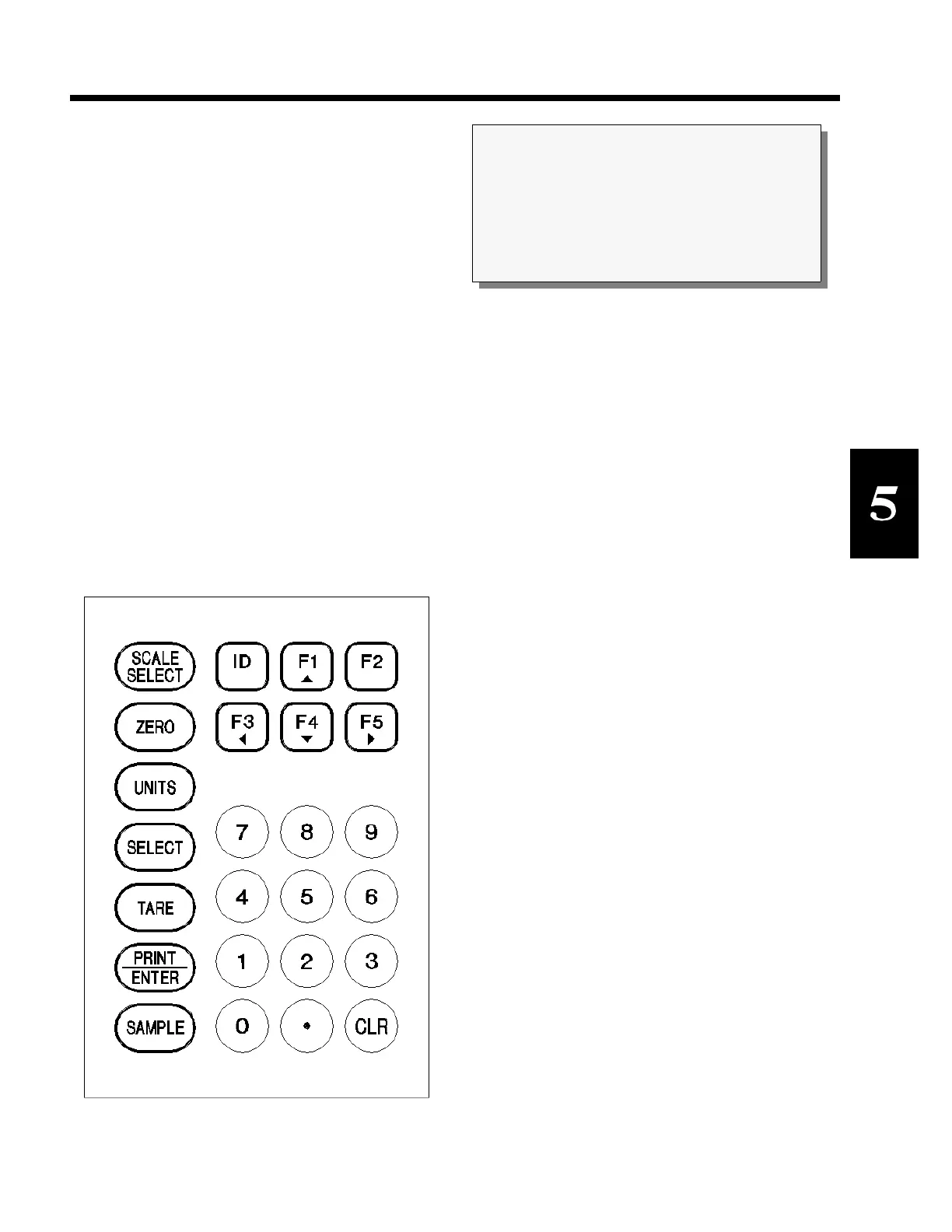
to Gross Weight. Refer to figure 10, Model 574
Keyboard.
UNITS
Pressing the <UNITS> key in the quantity has
no effect. Pressing <UNITS> from the weigh
mode will toggle the displayed units through the
available selections. Converted units are
automatically rounded to the appropriate
increment. If the "lb/oz" units selection is used,
the first digits of the numeric display will read
the value for pounds, the last digits will read
ounces, and since the upper line of the dot
matrix display is used to show the units, there is
no center zero indication. As with other units
designations, the characters showing units will
SECTION - 5.2
NOTE :
When motion exists, the units designation will go
out and any Zero, Tare and Accumulate operations
are postponed until motion ceases. Print operations
are also motion inhibited if selected (Parameters
212, 222, 232 and 242.
Figure 10, Model 574 Keyboard



 To Next Page