smart phone or tablet without extra setup on your network's.
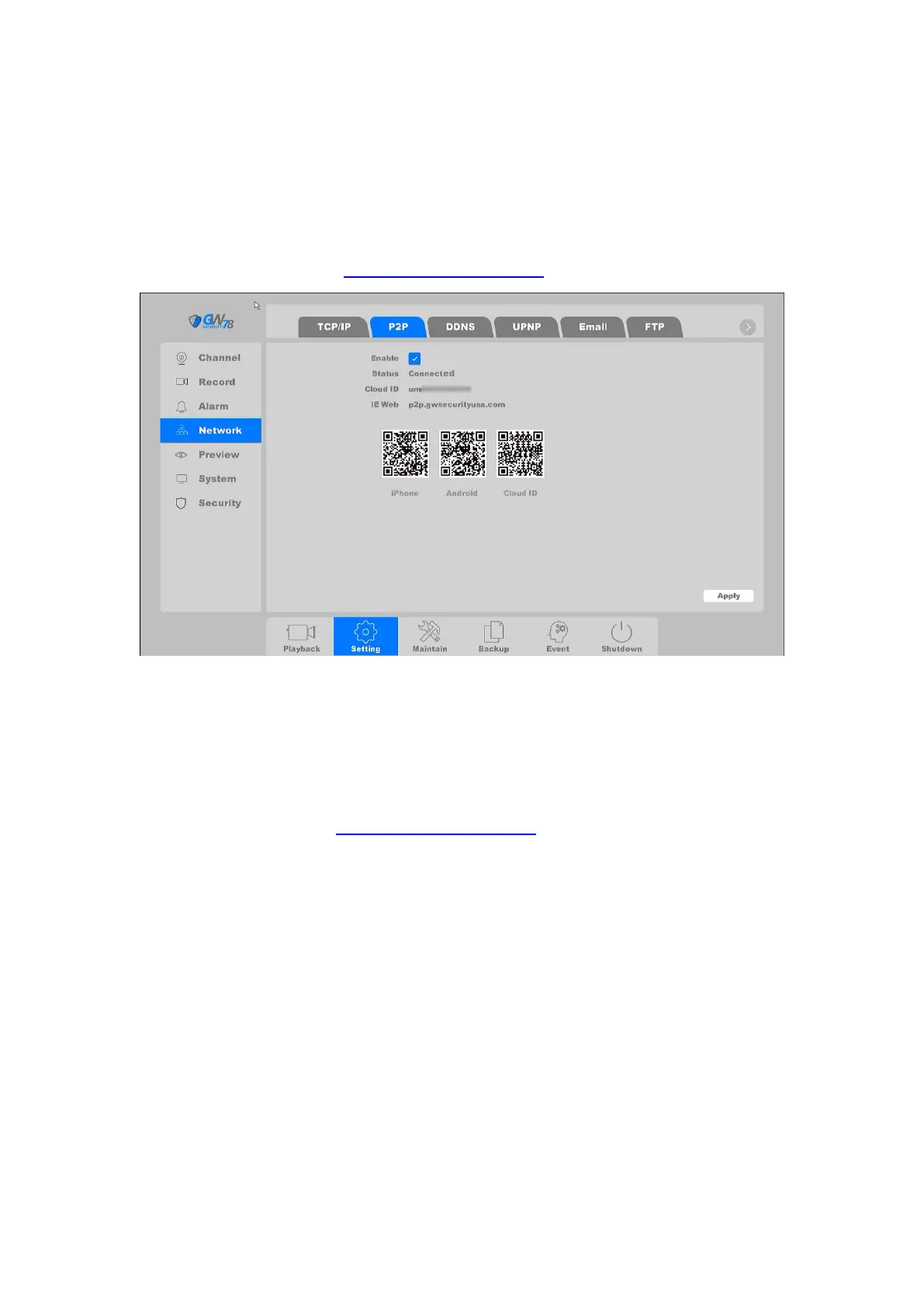
Click on "Setting -> Network ->P2P”, as shown in figure 4-26. This page shows the iPhone or
Android APP download links, and the cloud ID Identification code.
NVR can be connected to Cloud service and users can visit the NVR by its Cloud ID through
Cellphone APP or the website: http://p2p.gwsecurityusa.com.
Figure 4-26 P2P Setting
Enable: P2P Function enabling toggle.
Status: Display P2P status.
Cloud ID: P2P Identification number.
IE Web: The P2P web address.
You can visit NVR by entering http://p2p.gwsecurityusa.com in the Web Browser of your
computer, and click the option By Device, fill in the blank with the serial code Cloud ID, and
Username, Password of NVR.
4.3.3.3 DDNS
DDNS is a service that can be used to automatically update DNS records if client PCs get their IP
settings from a DHCP Server. If DDNS function is enabled on your NVR, you can access the NVR by
domain name provided by either your Internet Service Provider (ISP) provider or a third-party
DDNS service.
Click on "Setting -> Network ->DDNS ", as shown in figure 4-27.



 To Next Page