6-9
Chapter 6: Thermal Transfer Printers
Printing Continuous Labels
If you wish to print continuous labels with TagPrint Pro and a HellermannTyton thermal transfer printer, read through
the instructions in this section first.
TagPrint Pro can print continuous material if you have defined it as such in the label definition. (See Chapter 5 for
instructions on defining your label). When using a HellermannTyton thermal transfer printer, continuous labels will
print in such a way that any blank space will be eliminated following printed items.
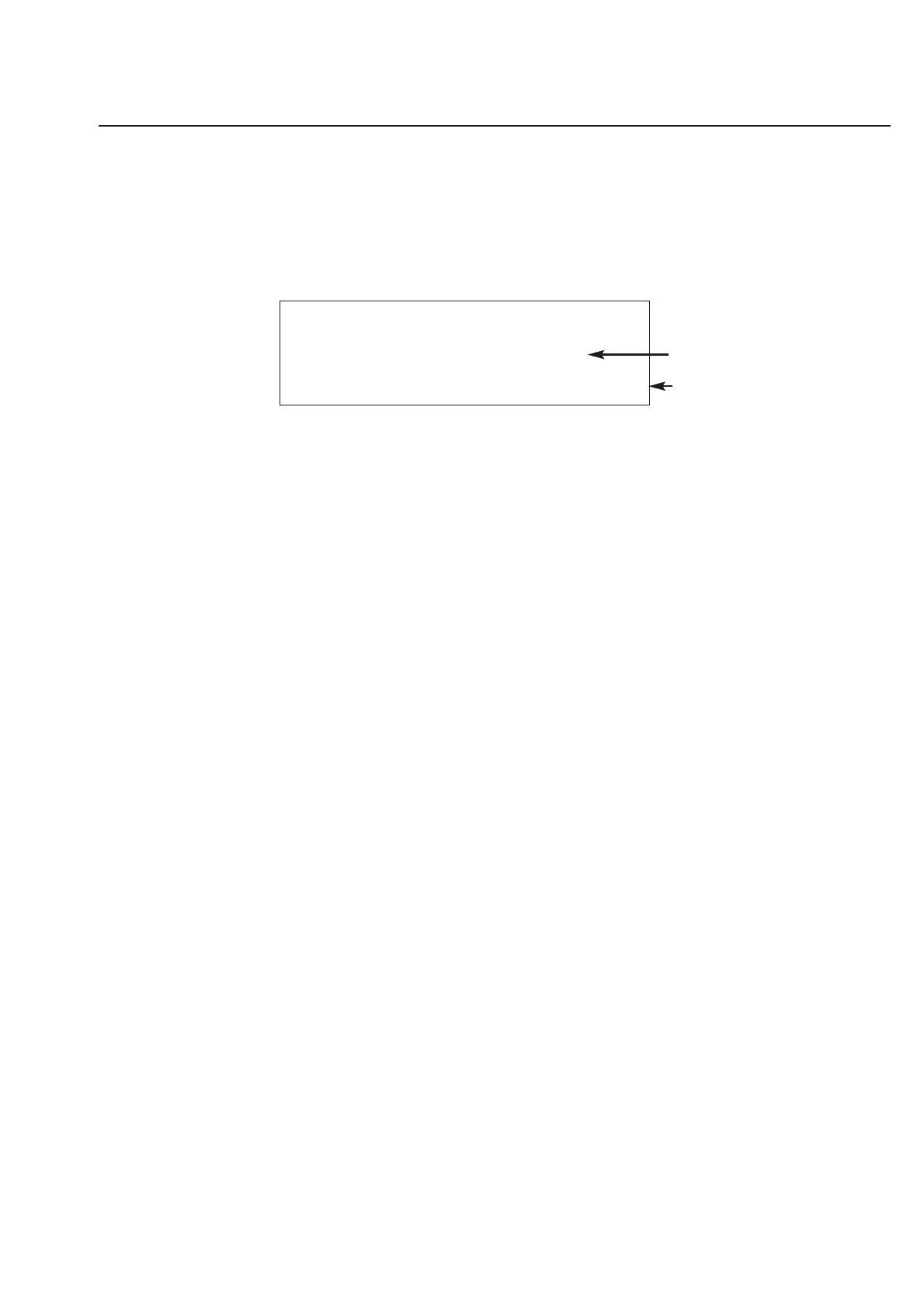
For example, if you were printing the label shown above, the blank space to the right of the “g” in the word
“Printing” will be cut off. The blank space to the Left of the “C” in the word “Continuous” will remain, however. In
addition, about 1/16
th
of an inch of blank space is added on to the end of each label. This is done in an effort to con-
serve material, especially in cases where the printed text of the label varies in length.
If you wish to keep the printed length of the continuous material consistent, you must include a dot or a line on the
edge of the label design. A small dot is sufficient where you do not wish to see the separator.
Troubleshooting Your Printer
On occasion, your thermal transfer printer may stop functioning normally. Most problems are not major and can be
easily fixed. Following is a list of things to try before you call for tech support of the product:
My Printer is Skipping Labels
If the printer is skipping labels, the gap sensor settings are probably not correct. This can be caused by the printer
gradually losing its settings or by changing the label material type in your printer. Try doing a manual auto-gap reset
on your printer. You can do this by using the following directions:
TT320SM printers
1. Load problematic labels in the printer.
2. Turn off the printer.
3. Hold down the green button on the top and while you continue to hold it down, turn on the
printer.
4. Let go of the green button after about 1 or 2 seconds.
5. The printer will dispense 2-4 rows of labels depending on the size of labels loaded, print some
information, then stop. At this time your printer will be in dump mode.
6. You will want to take your printer out of dump mode by tapping the green button
once. The printer will print “Out of dump.”
TT1000 printers
1. Load problematic labels in the printer. Hold in the “Cancel” and “Pause” buttons on the
printer.
2. Release the “Cancel” button followed by the “Pause” button.
3. The printer will dispense 2-4 rows of labels depending on the size of labels loaded, print some
information, then stop. At this time your printer will be in dump mode.
4. You will want to take your printer out of dump mode by tapping the “Cancel” button
once. The printer will print “Out of dump.”
TT1210 printers
1. Hold down the feed key while turning on the power. Release after 1 or 2 seconds.
Now run your labels through TagPrint Pro and they should stop skipping. If skipping still occurs, repeat this procedure
one or two more times. If problems still persist, call for technical support of your printer.
HellermannTyton
Continuous Printing
Print ends here.
To print full label make a line here.



 To Next Page