2-33
Chapter 2: Label Design
Show Grid
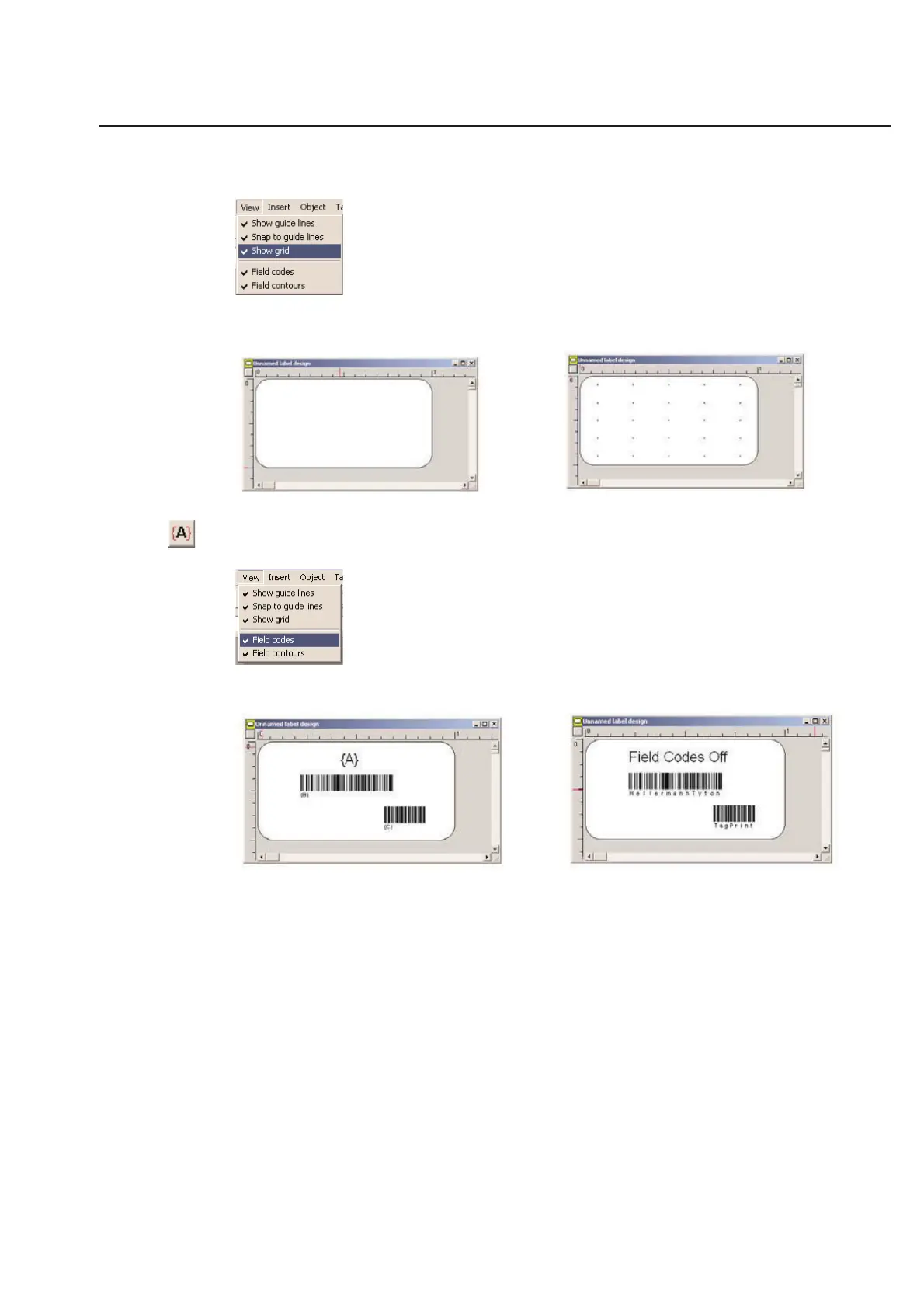
TagPrint Pro allows you to show a grid on the label design that will not print with other objects. You may turn the
grid on/off by checking/un-checking the Show grid option in the View menu. The grid is useful in designing larger
labels where placement and proportion are important.
The first illustration shows the grid off. The second illustration shows the grid on.
Field Codes
Field codes allow you to easily see where information is coming from the table. You can toggle the Field codes
on/off by checking/un-checking the Field codes option in the View menu.
The first illustration shows the field codes on. In that example, you can easily see which columns of the data table will
print on the label design. The second illustration shows the field codes off. That example shows the actual informa-
tion off the table. When the field codes option is off, the label design will show the data from the table row that is
currently selected. If there is no data in the current row, no data will show on the label design.
Autoscale Indicator
TagPrint has an autoscale indicator that appears as a RED slash mark in the upper right hand corner of the text box.
When this appears, the software is forcing the current font size to fit within the defined text box on the label. If a 40
point font is selected, which would not fit on a small text box, the software is forcing all the characters to be printed,
to show up in the text box in a printable form. This will not affect printing as long you simply want and expect to
print all characters in that box regardless of a particular font size.



 To Next Page