4-1
Chapter 4: Printing
Chapter 4: Printing
This chapter provides information on how to print the information from your label design.
Preparing to Print
When preparing to print, please keep these points in mind:
• All items on your Label Design must remain within the bounds of the label. If an item remains even a little bit
off the label, the software will give you the following reminder:
To fix this problem, simply place all objects within the confines of the label border.
• If you are using information from a table in your Label Design, you must have a table open to print. This allows
the software to print on the label. If you do not have a table open and try to print, you will receive the follow-
ing reminder:
To fix this problem, simply open a table that has your information in it or create a new table with the appropri-
ate data.
• Make sure that your printer is connected to your computer with a cable and that the printer is on. You will also
need a valid Windows driver installed on your computer for your printer. If you do not have this, contact the
manufacturer of the printer you want to use.
• If you share your printer with other people over a network, make sure they know you are printing to the printer
with your labels. Many a label has been wasted because it had a memo or letter printed on it by an unknowing
co-worker.
Preview Before Printing
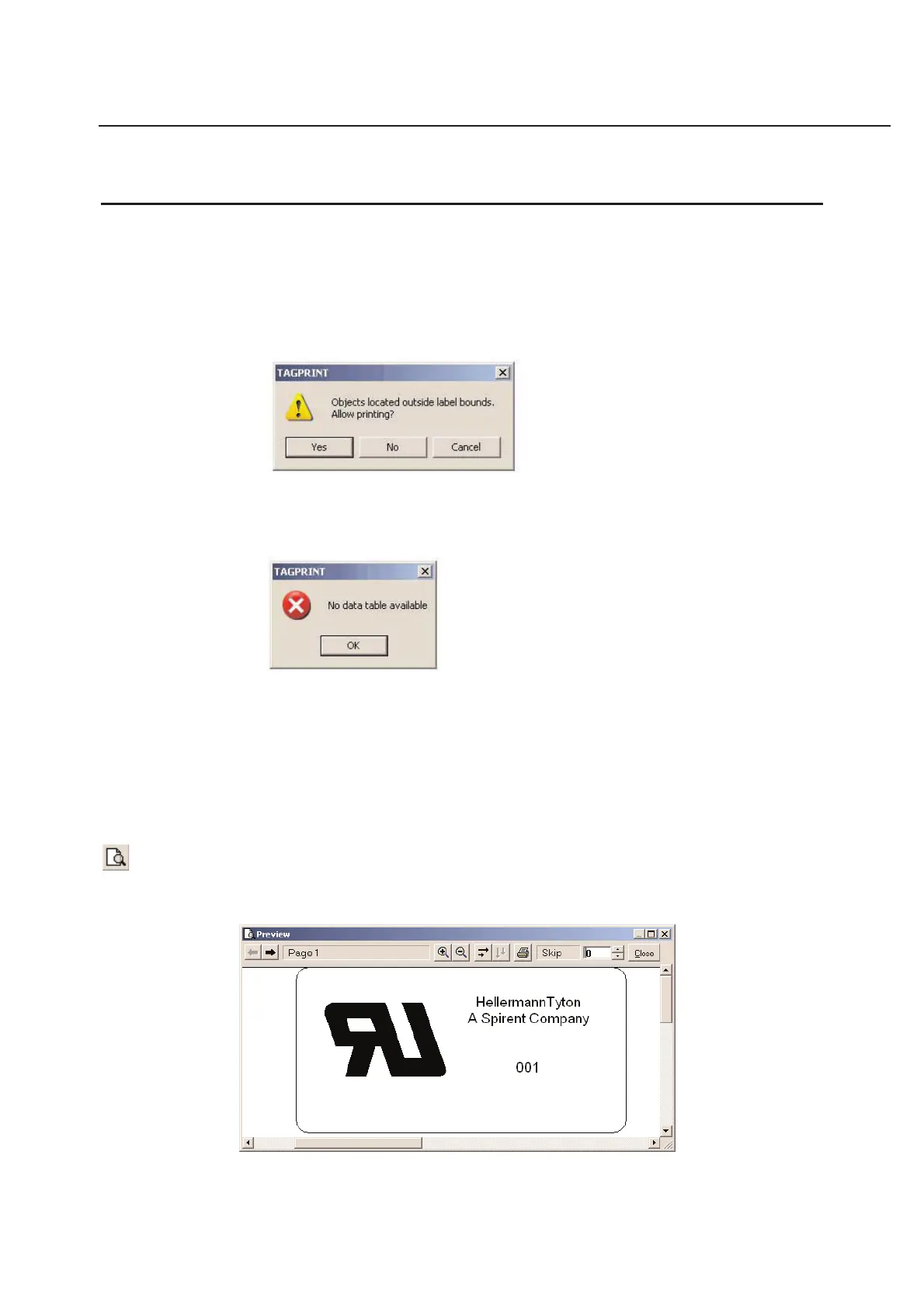
Print preview allows you to see how the label will look when it’s printed. To switch to preview mode, either click on
the Print Preview Tool, or choose Print Preview... from the File menu.



 To Next Page