2-16
Chapter 2: Label Design
Table Image
Use the table image tool just like the fixed image tool. The only difference is that after you draw a table image box,
you will not see any dialog box appear. This will not appear because you are choosing the images in the table. By
drawing the box, you are simply telling the software where you want table-based images in to be drawn.
Note: To specify a column in the table as an image column, see the section on Column types in Chapter 3.
Image Properties
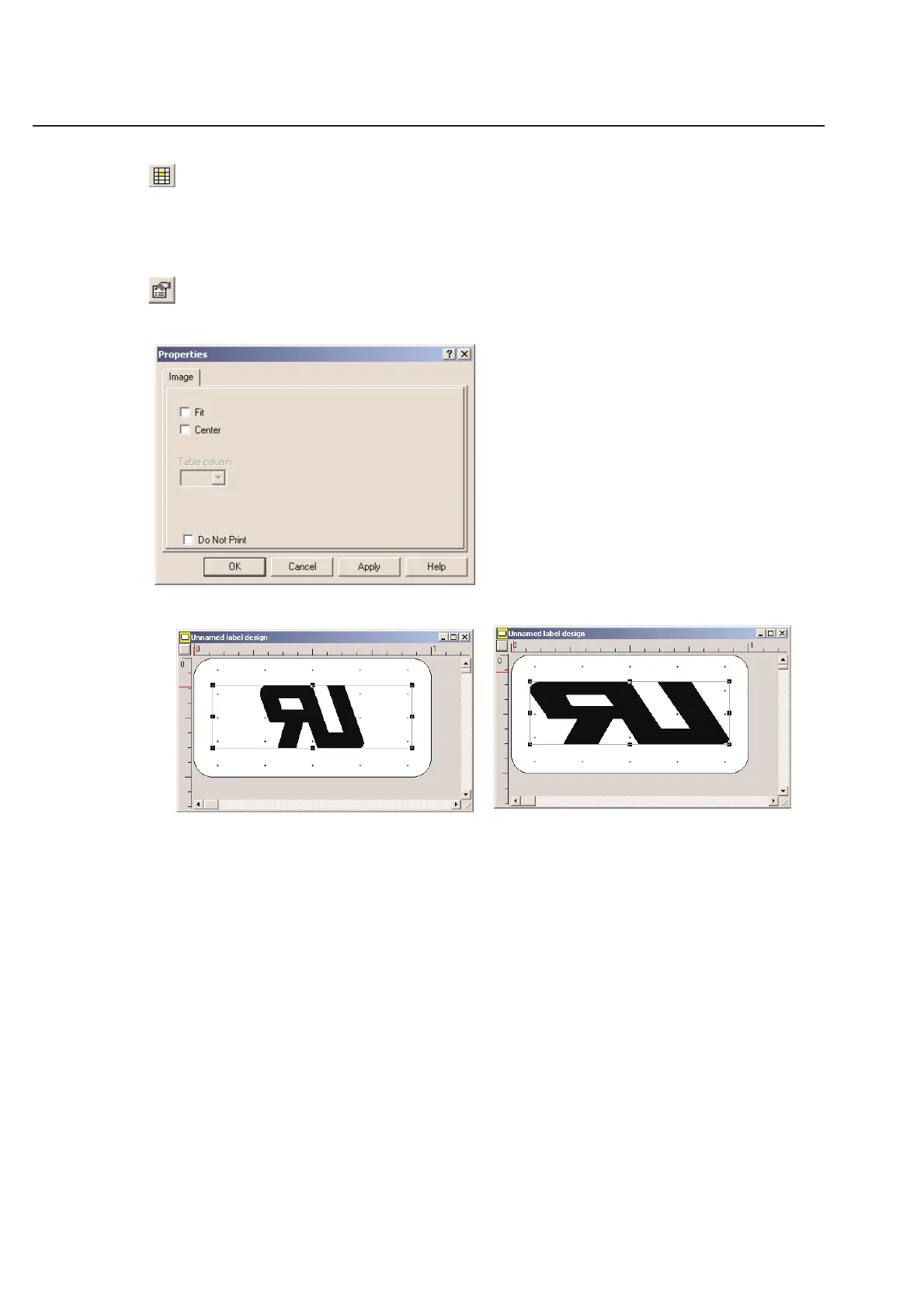
You can point your mouse cursor on the image and then right click the mouse button to bring up the Properties box.
You may select:
Center: Centers the image within the box. Fit: Forces the image to fit the box with as little wasted
This is the default setting. space as possible
Table column: Selects the image column in the table where you referenced the correct images. This option is only
available when you are using the table image option.



 To Next Page