2-11
Chapter 2: Label Design
Tracking Text - This increases or decreases the space between the characters.
Allow Word Wrap - You can turn the word wrap on and off. This will force the text onto one line when you are
done editing the text box. The Auto Size overrides Allow Word Wrap. In order to have the Allow Word
Wrap deselected, you should also deselect Auto Size.
Fixed Text
The Fixed Text tool will add text on your label design that stays the same on every label. Once a fixed text box is
drawn, it will show a blinking cursor where you may enter any text you like. Click outside of the active text box to
confirm any changes.
Variable Text
The Variable Text tool will read information from the table to create labels that change from one to the next. When
printed, information from the table will print where you place this variable text box. You may format the variable text
box to control the appearance of text from the table.
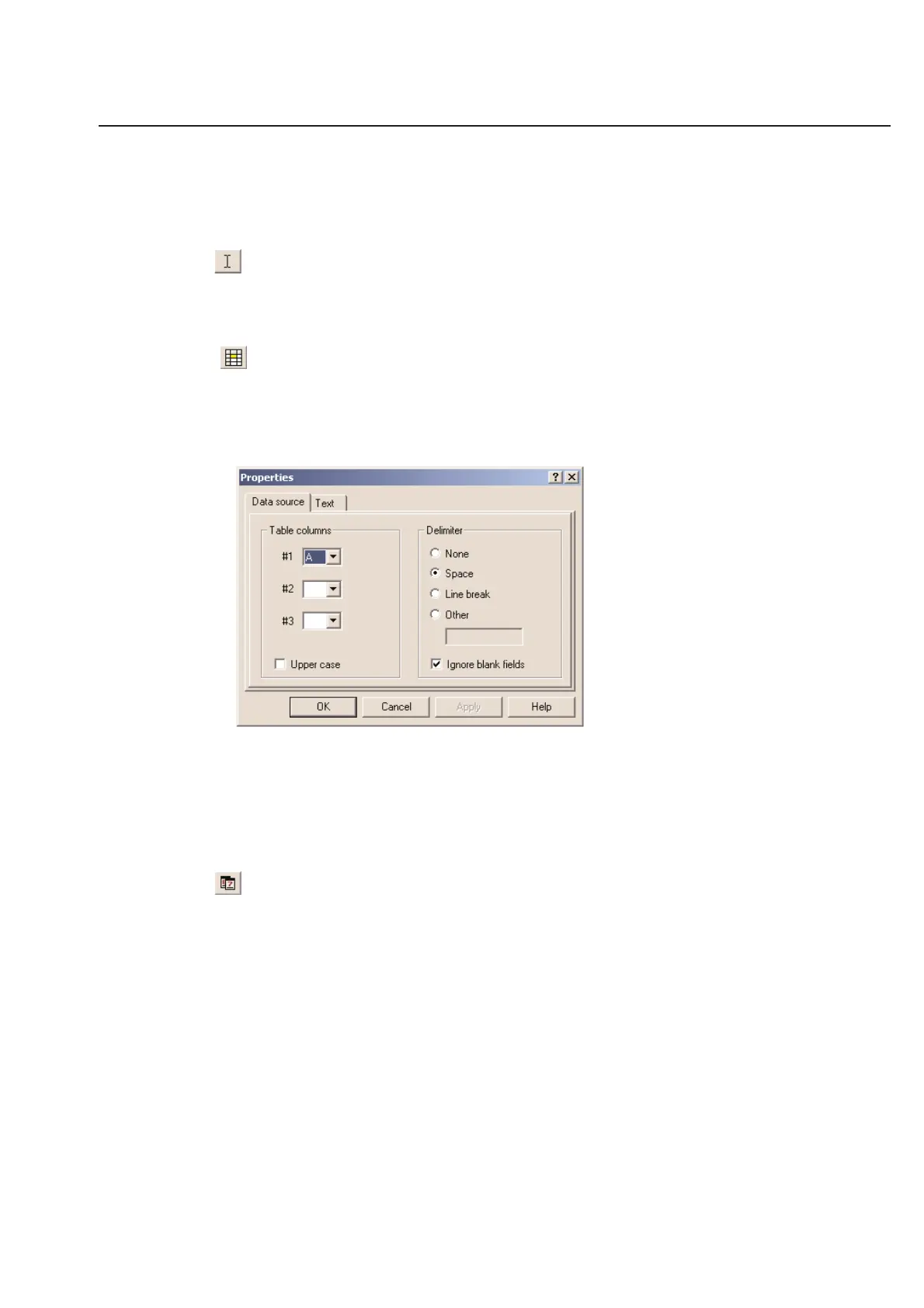
The variable text properties box helps you control the information that will be printed.
You can specify which column or combination of columns that will print in the variable text box. This is a very
powerful feature that will save you lots of time when working with complex part numbers or serial numbers.
When you choose a combination of columns to print in the same text box, you must also choose a delimiter. The
delimiter will print between the characters that you have entered in the table.
If you check Ignore blank fields, the software will not use table fields that have nothing entered.
Date
The Date Text tool will insert the current date on your label design. This is very useful feature for any application
which needs the date of manufacture printed on the label. You will not need to update a fixed field every day.
The date Properties box will allow you to control how the date is displayed on your label design.



 To Next Page