2-35
Chapter 2: Label Design
Label Design Pop-up Menu
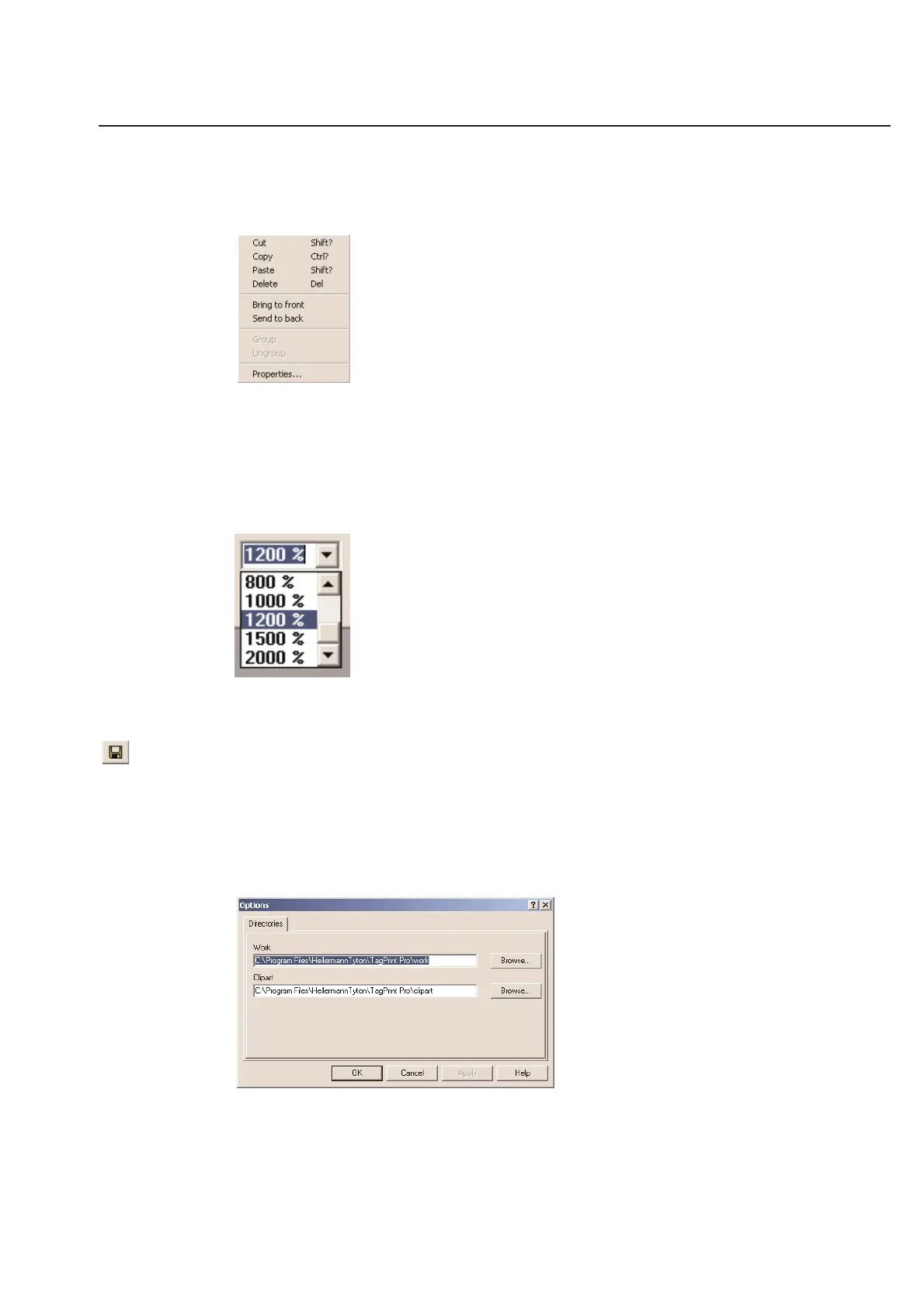
When you are working in the label design, you may want to access the shortcut pop-up menu to save time. Many of
the most popular TagPrint Pro tools are listed in this pop-up menu.
To access the shortcut pop-up menu, you must click the right mouse button somewhere on the label design itself. The
menu will appear on the screen. Simply click on one of the active items in the menu to use the shortcut. If you do
not wish to make a selection, click with the left mouse button somewhere else on the label design.
Zoom Feature
The Zoom feature allows you to zoom the label up to 2000%. Additionally, you can manually set the zoom to
10,000%.
Saving a Label Design
To save a label design you must first make sure the window is currently active. To make sure simply click somewhere
on the label or on the grey area surrounding the label. To save the file, either click on the save tool icon or choose
Save in the File menu. If the label design has not yet been saved, the Save as... dialog box will appear.
The default location to save your work is listed in the Options dialog box. You can open the options dialog box by
clicking on the Options menu of TagPrint Pro.
The default work folder is located in the same place as the tagprint.exe application. If you wish to change the default
save location, simply click Browse... and choose a new folder.



 To Next Page