2-23
Chapter 2: Label Design
Scissors Show Up on My Barcode Box
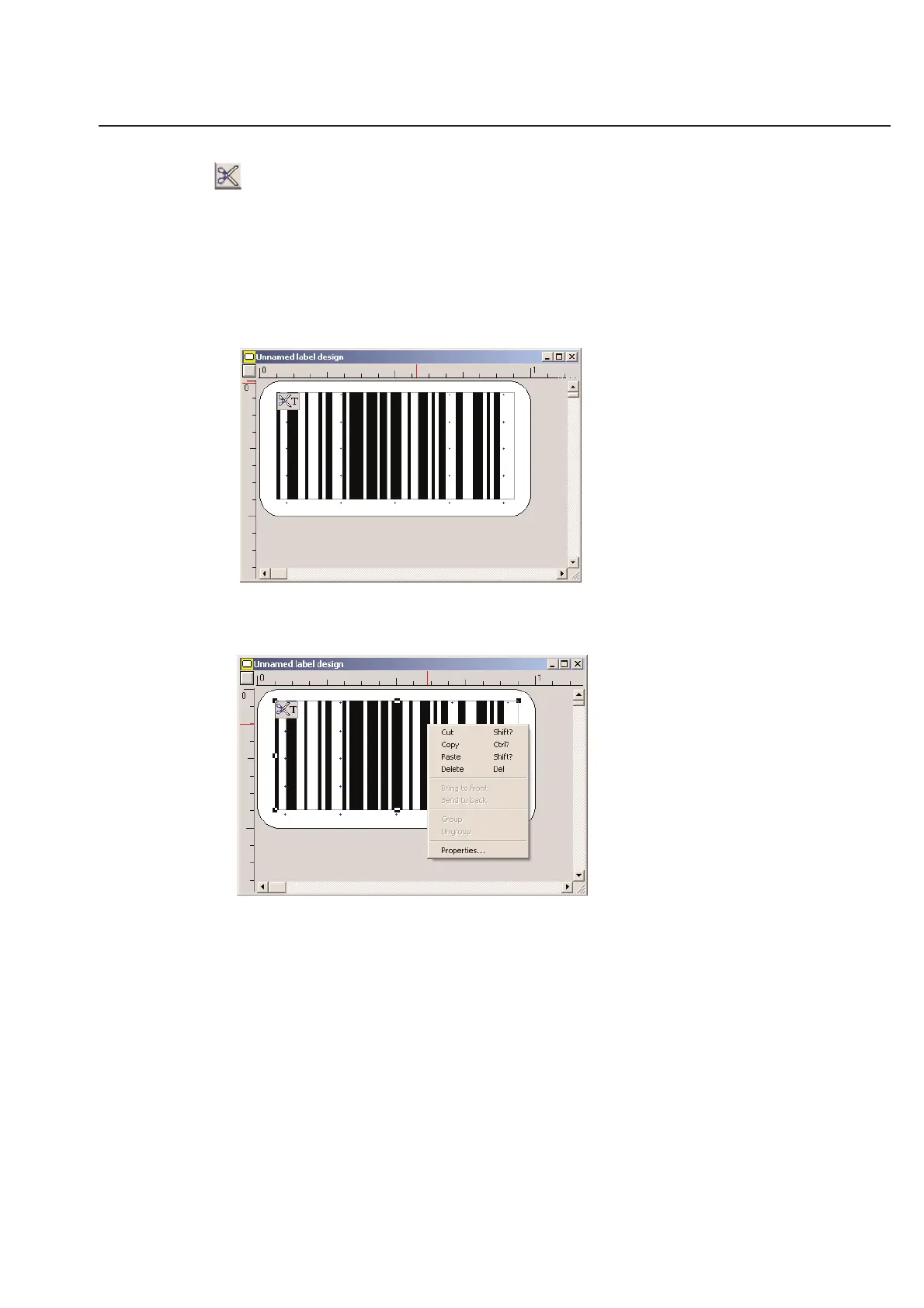
If you have drawn a barcode on your label design and a scissors show up, you need to make some adjustments. The
first step would be to enlarge the barcode's box to accommodate the barcode. Second, try changing the barcode set-
tings to create a shorter or more dense barcode. Third, select a label that can accommodate the number of characters
that you wish to use. Fourth, reduce the number of characters you use in the barcode.
Note: Be especially careful with variable barcodes that read from the table. Make sure the longest entry displays on
the label design without scissors. The scissors system will appear indicating that most of the barcode is not visible on
the label. This would not be a readable barcode if printed. A barcode in this situation may look as follows:
Click once on the barcode to highlight it, then right click your mouse button to bring up the barcode pull down menu.
Select Properties... from this menu.
The following menu will appear. This controls the properties for your barcode.



 To Next Page