Barcode Tool
The barcode tool is used to create boxes that contain barcodes. You may select a constant barcode or one that reads
from the table. Constant barcodes remain the same on every label, while variable barcodes read from the table and
have the option of changing from label to label.
Creating and Printing a Barcode
The addition of a barcode is done manually in TagPrint Pro by first creating an unnamed label design per the
instruction associated with creating a new Template and Table.
Once the blank unnamed label design is created, there are a series of icons vertically listed on the far left side of the
screen.
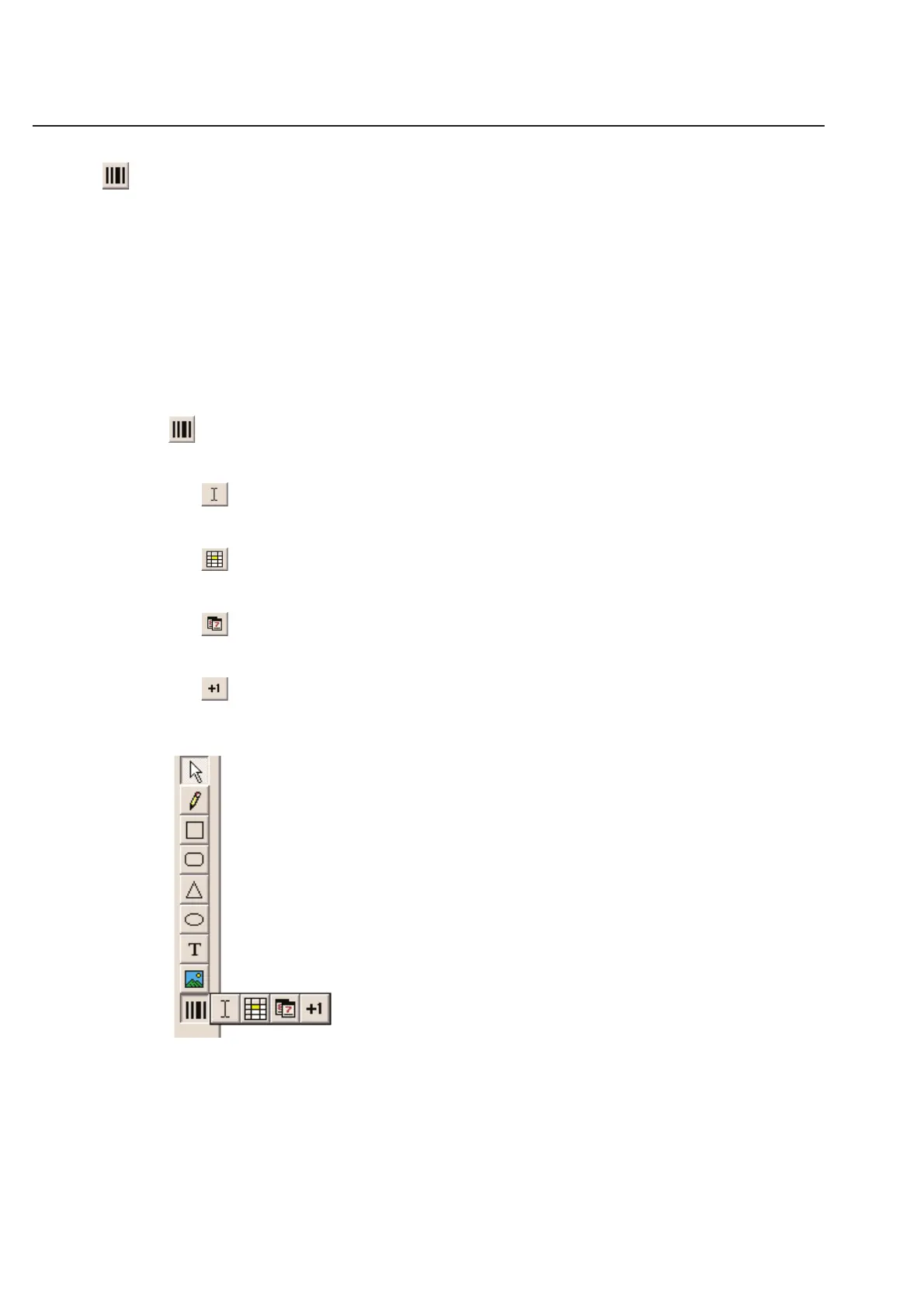
The Barcode icon that appears last (at the bottom) of this vertical row appears like a small barcode. Click once
on this icon and you will see two familiar symbols.
Constant Barcode icon - One represents a constant barcode, is used when the barcode information will
stay the same on every label.
Variable Barcode - A variable barcode that changes from label to label.
Example: A serialized barcode or a barcode based on random data from a table.
Date Barcode icon - Will insert the current date on your barcode. The date Properties box will allow you
to control how the date is displayed on your label design. One represents a constant barcode.
Increment Barcode - With this barcode tool, TagPrint Pro will automatically increment numbers for you.
Simply input the starting number and TagPrint Pro will remember where you left off. Utilize the
Properties box to integrate changes.
2-20
Chapter 2: Label Design



 To Next Page