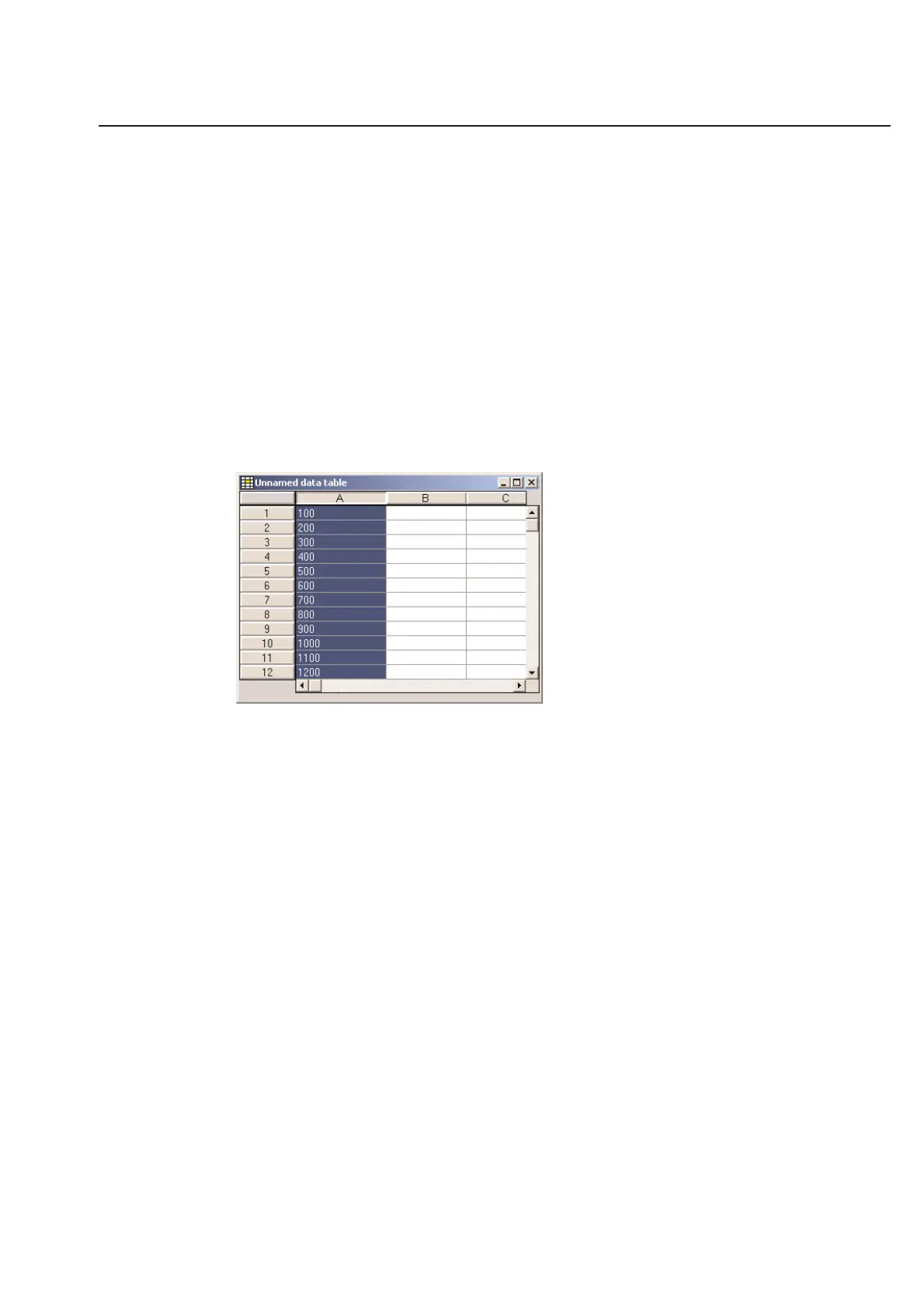
Table Columns
Table columns are labeled in TagPrint Pro with capital letters. This is very similar to popular spreadsheet programs. In
TagPrint Pro, each column represents a separate piece of information for each label. If you wanted to place 3 different
variable items on your label design, you would need 3 corresponding columns.
The Label Design text box that features an {A} will therefore take its data from column A in the table. A text box that
features a {B} will take its data from column B and so forth.
You can edit table columns in much the same way that you can with the rows. Additionally, you can configure
columns to specify the number of times to print a label and for importing variable graphics.
Warning!! DO NOT attempt to copy and paste an entire column. Instead, select only the text you wish to have
moved.
Selecting Columns
You can select columns in the same fashion that you select rows. Simply click with your mouse on the letter above
each column. The selected row becomes highlighted to indicate its status.
You may select multiple columns one at a time by clicking on the respective letters to the top of the row.
Alternatively, you may select a number of columns by holding down the Shift key and clicking on any 2 column
letters. All the columns between and including the columns you selected will then be highlighted. You may deselect
columns by clicking on each column a second time.
3-7
Chapter 3: Table



 To Next Page