2-29
Chapter 2: Label Design
Group Objects
The Group option in the Objects menu is yet another useful tool for designing your label design. This is useful for
objects on your label design that need to be placed a certain way in relation to one another. Any type of drawn
objects can be grouped. You can mix and match barcodes, text, graphics, and drawn items.
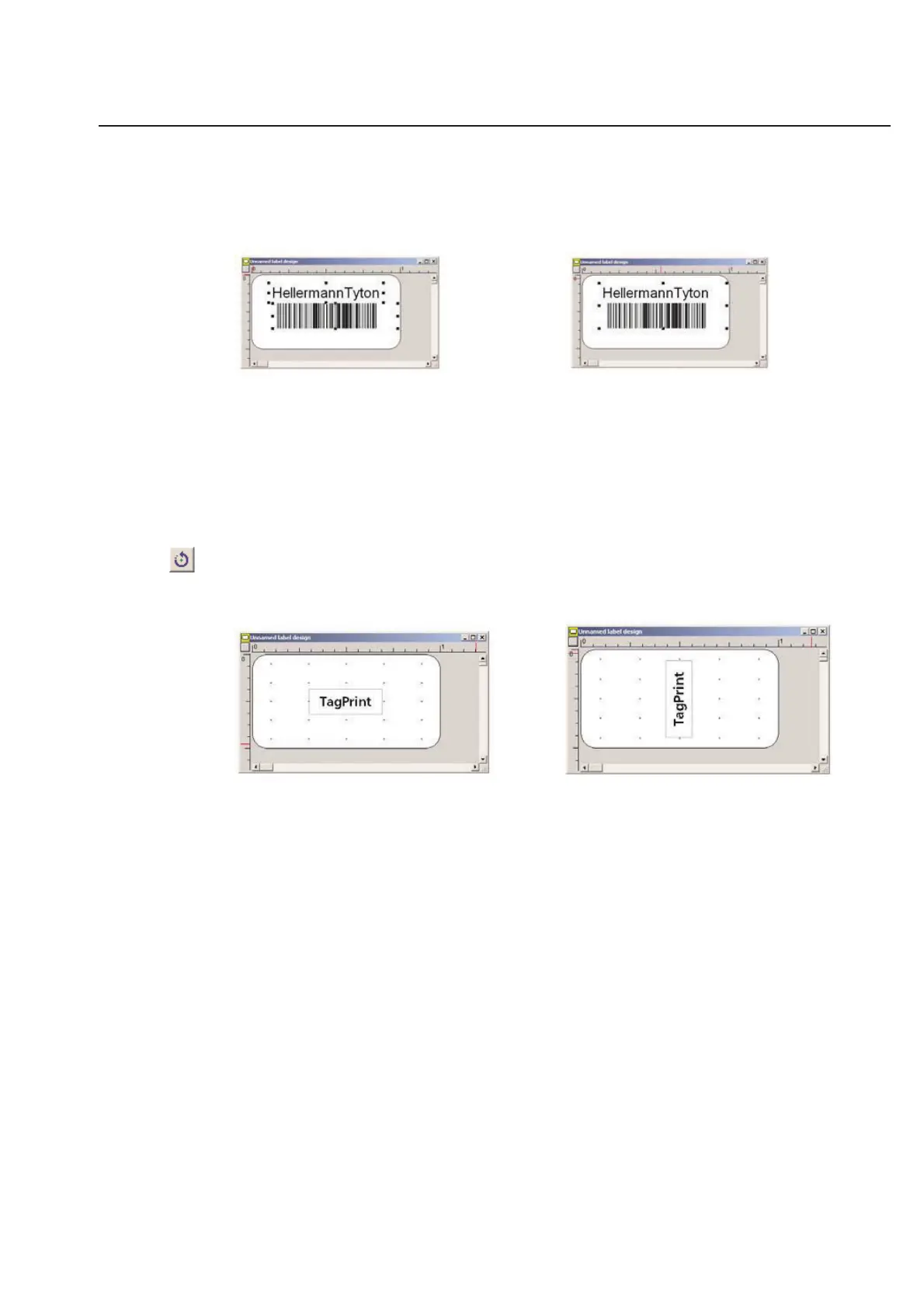
Above is one example of an application where you may want to group objects. In the above case, the human
readable text for a barcode is added above the barcode. To group the objects, highlight all the items you want to stay
together. Next, choose Group from the Objects menu. The objects will now act like one item as illustrated on the
right.
Ungroup Objects
You can ungroup objects in much the same way as you grouped them. First, highlight the single item that contains
the grouped objects. Next, choose Ungroup from the Objects menu. The objects will ungroup and act as individual
items once again.
Rotate Left
TagPrint Pro allows you to rotate nearly any item on your label design. All barcodes, text, objects, and graphics
(excluding the .wmf format) can be rotated on the screen and printed the same way.
To rotate an object, it must first be selected. After it is selected, either click the icon shown above, or choose Rotate
Right or Rotate Left from the Object menu. The object will be rotated 90 degrees at a time.



 To Next Page