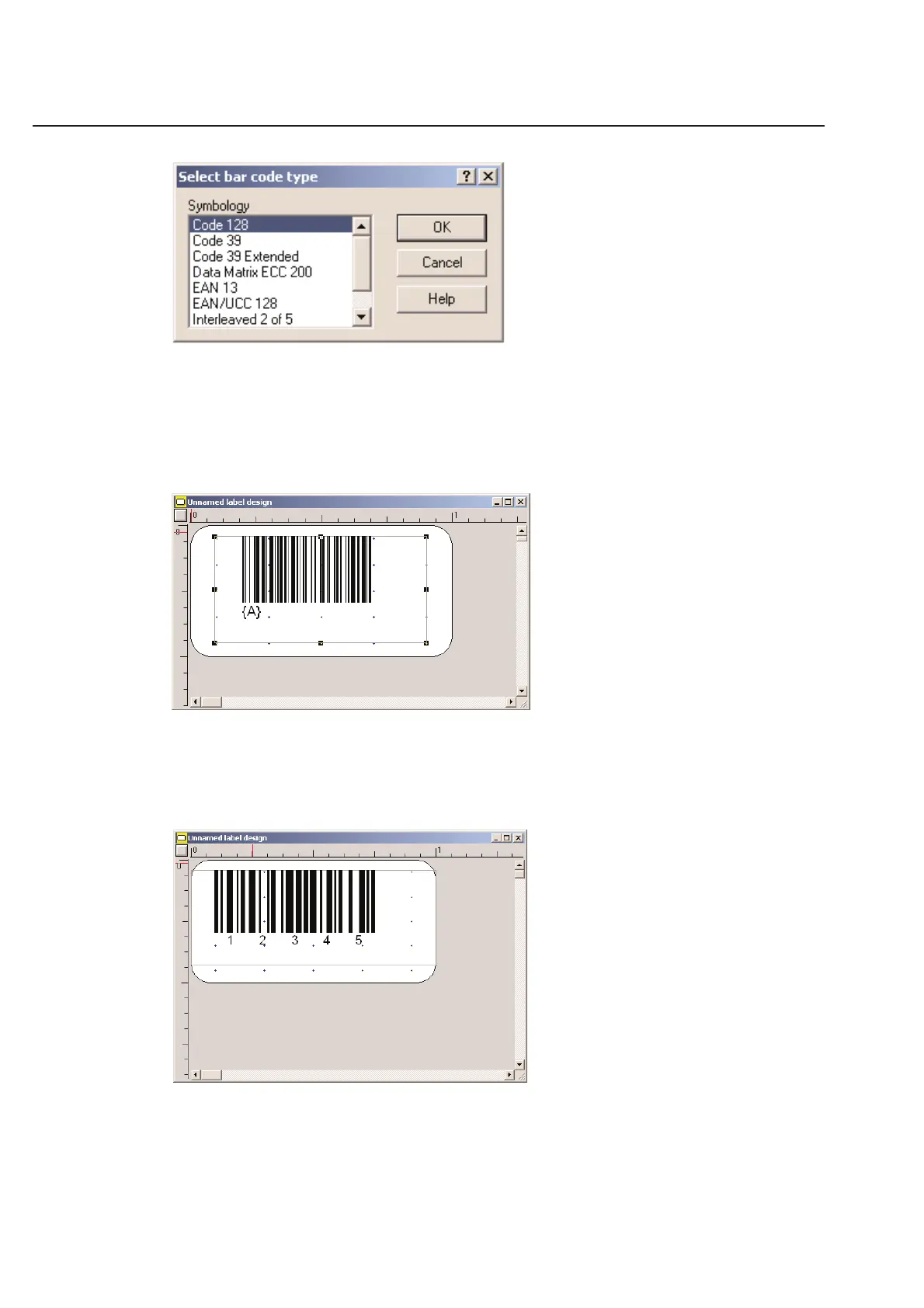
Once you have chosen the barcode symbology, simply draw a box on the label where you want the barcode to appear.
Make sure the box is large enough to hold the barcode you need to use. When the box is the size you desire, release
the mouse button. The following will appear:
A sample barcode will be displayed with an “A” in brackets. The {A} signifies that your variable barcode is reading
from column A in your table. You will not see the actual data from your table on the label design at this time. To
insert variable data into the barcode, you will need to open a table. Refer to Chapter 4 on tables.
Changing Text Size
The human readable font size can be altered just like normal text. Click on font size and change the size of the font.
2-22
Chapter 2: Label Design



 To Next Page