3-1
Chapter 3: Table
Chapter 3: Table
The Basics
The table is used to print labels with different text on each label. The table is a kind of table/database with rows and
columns just like popular spreadsheet programs. Text, barcodes, and graphics on the label design can be linked to a
table column where each row is a separate label.
Text can be entered in the table from the keyboard, or pasted from other Windows applications using the clipboard
(cut and paste). Advanced numerical sequences can be created using the powerful sequence tool. There is an option
for importing data from ASCII text files.
Table Window
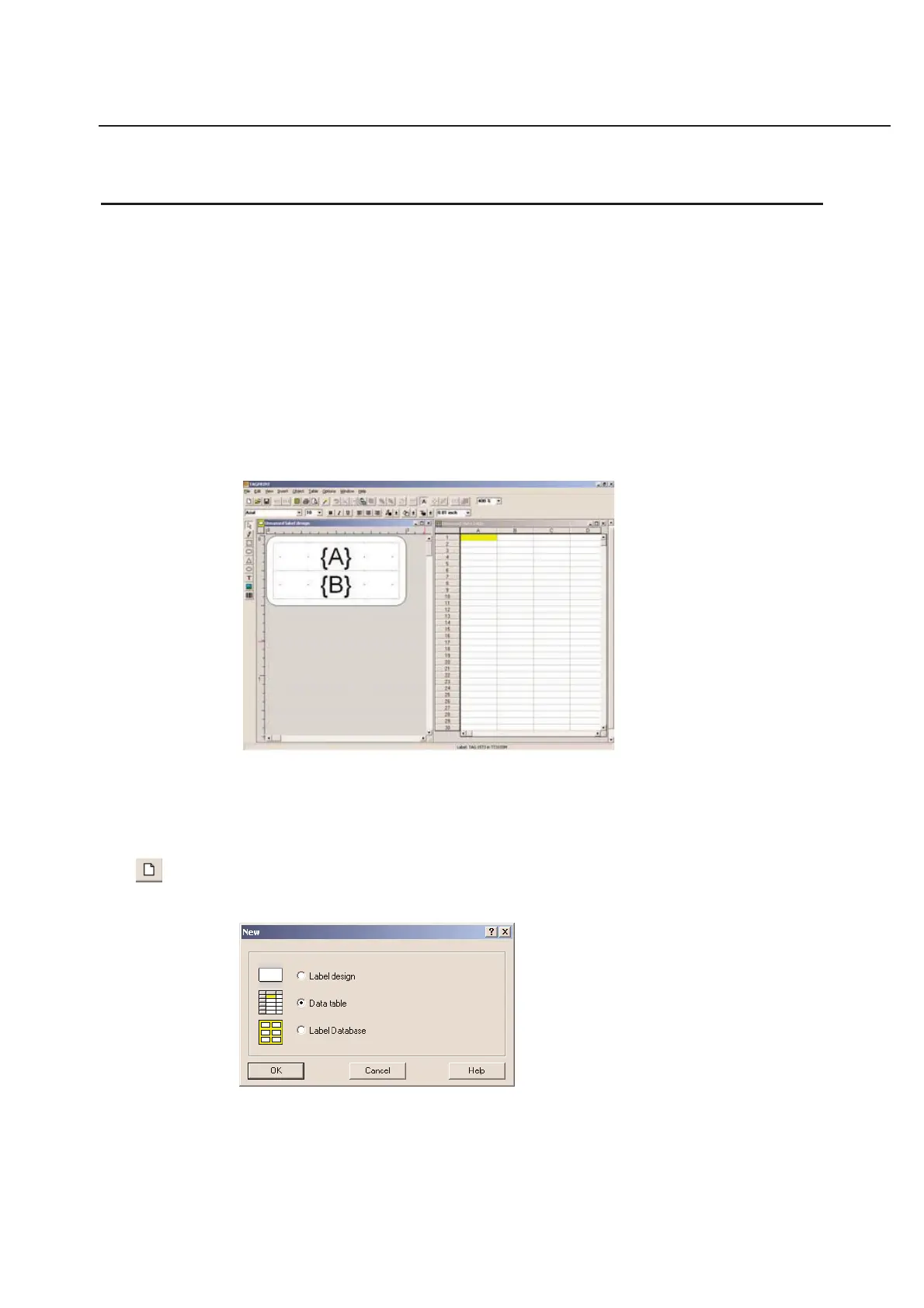
A table window contains a table with row buttons, column headings, and cells. The title of the window will show the
name of the table or the text Unnamed table if the table is new and has not yet been saved.
The rows of the table are enumerated starting with (1). The maximum number of rows is dependent on the available
memory. The columns are named A, B, C, etc. The maximum number of columns is 100 and the maximum number
of characters per column is unlimited.
A table can be minimized and shown in the main window.
New Table
To create a new table, go to the File menu and choose New... The following dialog box will appear.
Choose the Data table, option and click OK. A blank new table will appear on your screen. It is possible to have
multiple data tables open at the same time.



 To Next Page