3. Configuring the Heska Element COAG
™
Analyzer
3.2.5.4. Set the Language
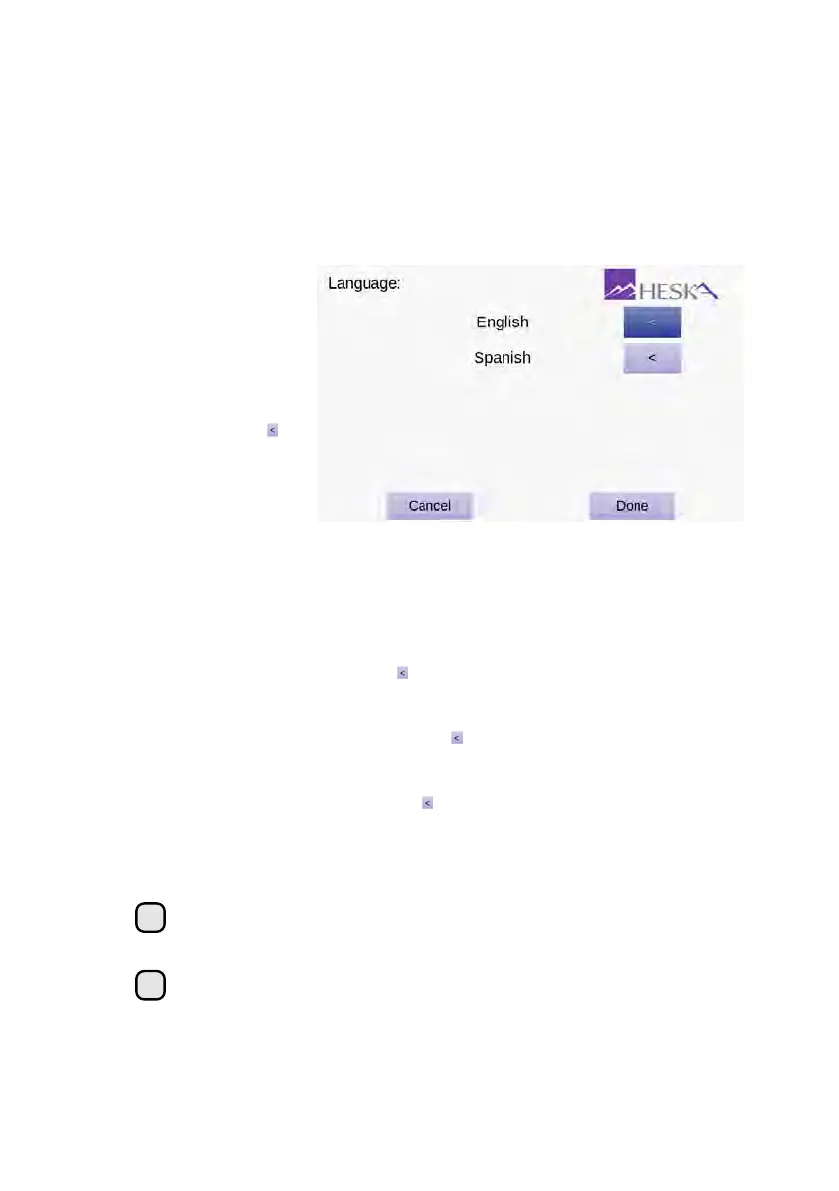
The screen for selecting or displaying the language used by the graphical user interface
is shown in
Figure 3.11
. The currently active language is indicated by a dark purple
arrow button to the right of the language name. Currently, English (the default language)
and Spanish, are supported.
Figure 3.11:
Language
Menu. The currently
active language is indi-
cated by a dark purple
arrow button to the right
of the language name.
Touch the purple to
the right of another
language option to
change the language of
the user interface.
To select a different language for the graphical user interface:
1. From the Home Screen, touch Setup (this opens the Settings Menu).
2.
From the Settings Menu, touch to the right of the Regional Setup category (this
opens the Regional Setup Menu).
3.
From the Regional Setup page, touch to the right of the Language entry field.
Figure 3.11 shows the Language screen.
4.
To change the language, touch the to the right of the desired language so that it
changes from purple to dark purple.
5. Touch Done to accept the change and return to the Regional Setup screen.
i
The purple arrow button to the right of the language options turns dark purple
when the designated language is selected.
i
Touching
Cancel
clears any undesired change(s) and touching
Done
confirms
the change(s).
24


 To Next Page