4. Memory Database
The
Resend
button is only visible if the Analyzer is connected to a LIS. Use the
Resend
button to syncronize the results in the LIS if you have changed the Analyzer configuration
(language, time format, etc.) or if the connection to the LIS has been corrupted. All test
results will remain in the Analyzer’s database and only a copy will be transmitted to the
LIS.
Touch the Done button to return to the Analyzer’s Home Screen.
To view details for a particular test, follow the steps below:
1. From the Home Screen, touch History (this opens the Memory database).
2. Touch the H and N buttons to scroll through the files in the database.
3.
Touch the on the right hand side of the screen corresponding to each file or the
result line to review the detailed test results. The test result is retrieved in the same
format as it was originally obtained.
i
If a printer is connected to the Analyzer, the test result can be printed by
touching the on-screen Print button.
4.2. Performing a Database Search
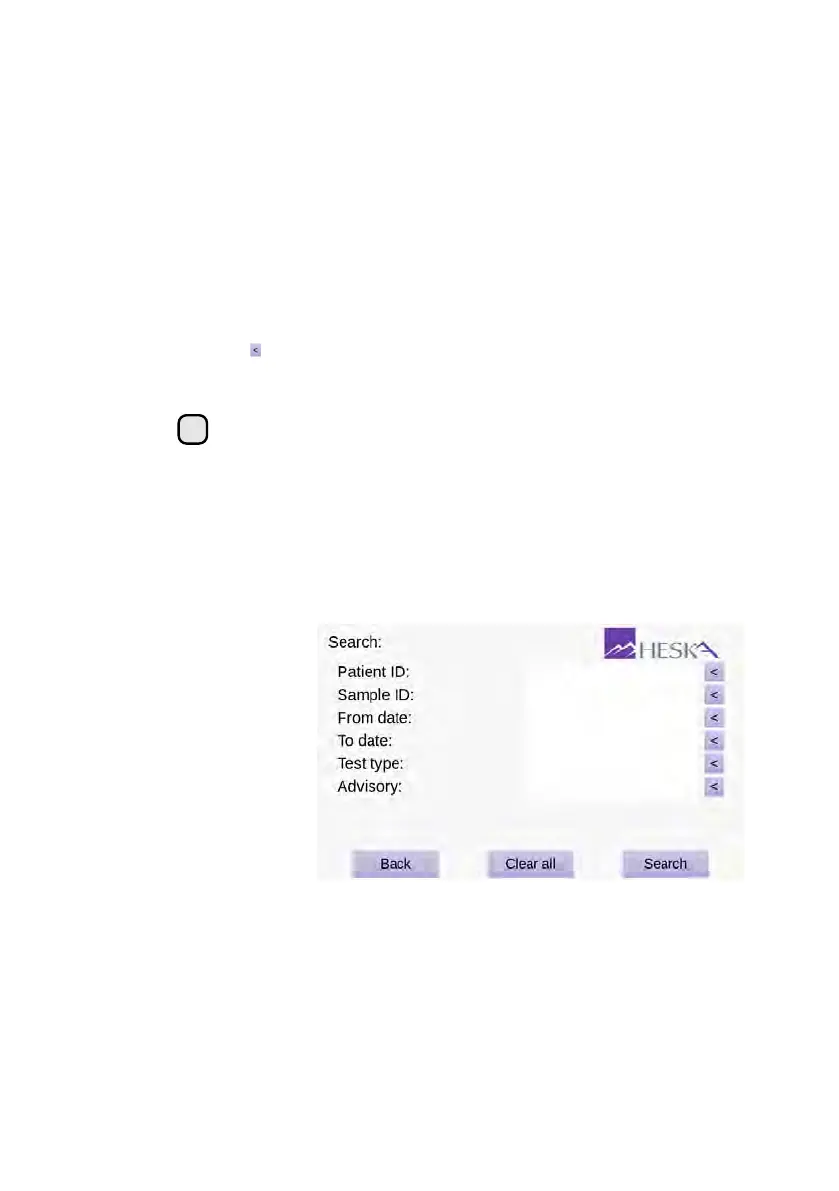
It is possible to search the results database for a particular result based on a number of
search criteria. To access the Search menu, touch the
Search
button on the Memory
screen, see Figure 4.1. Figure 4.2 shows the results history search interface.
Figure 4.2:
Results
Search. A search for
a particular result can
be carried out using the
Patient ID, Sample ID
or test date and type as
search criteria.
The available filters for a database search are listed below. It is possible to combine one
or more search criteria when performing a database search.
Patient ID
Supply a text string for filtering the results based on the user-supplied Patient
IDs. See Section 4.2.1 for details.
38


 To Next Page