Part 2 - Conguration
42
Self-Diagnosis
Use this option to congure self-diagnostic settings.
This feature is also supported when connected to the
NVR from a remote program.
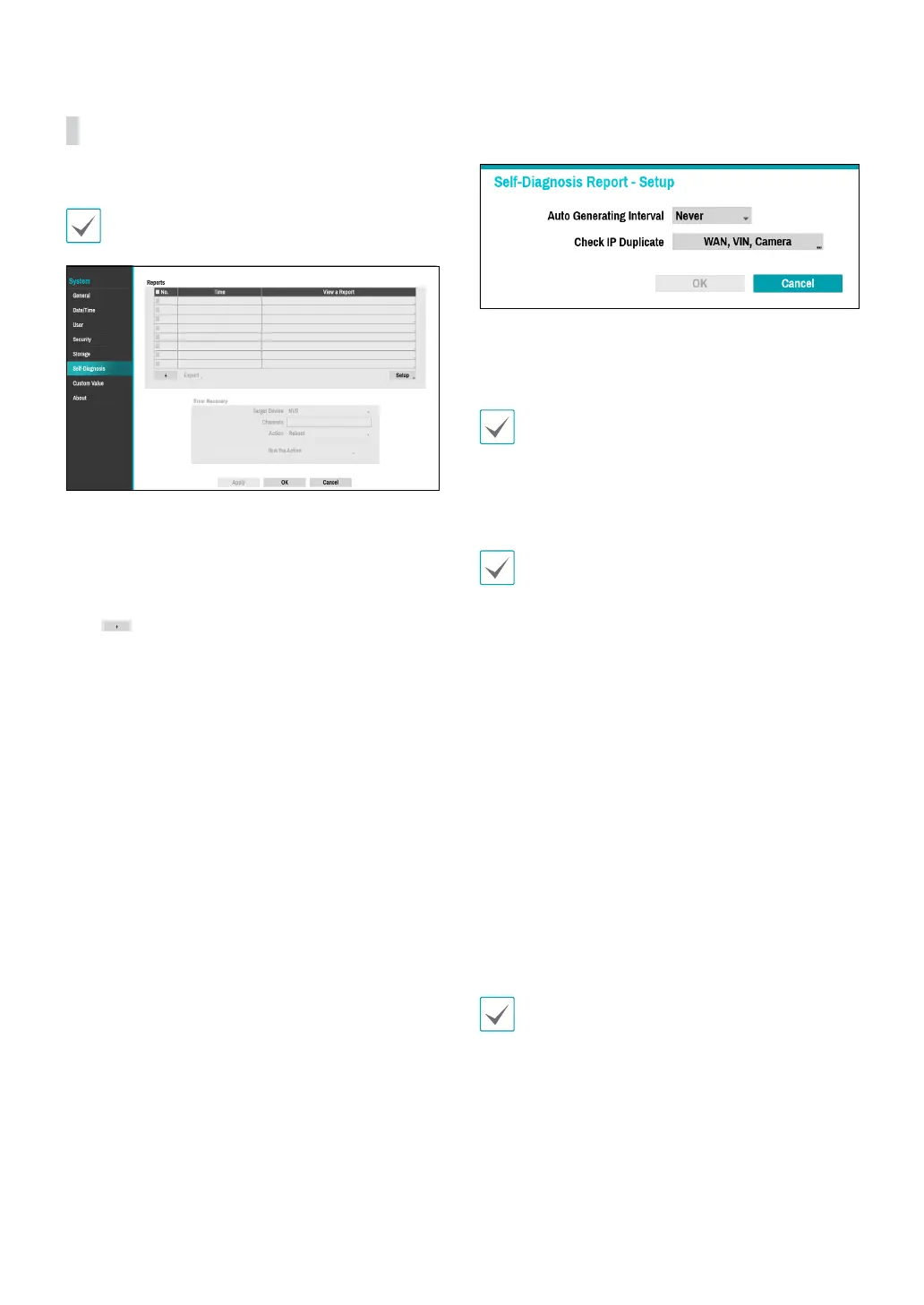
● Reports
– No.: Selects which reports to export.
– Time: Displays when you started the self-diagnosis.
– View a Report: Briey displays whether the report
is “Good” or “Bad”.
–
: Click the + icon at the bottom left corner of
the screen to run the self-diagnosis.
– Export: Saves the Saves the reports to a storage
device, such as the USB port and NetFS site, by
converting them to HTML format. You can export
more than one report at a time by selecting
multiple reports.
● Setup: Set Auto Generating Interval and Check IP
Duplicate.
– Auto Generating Interval: Set the interval to
automatically generate self-diagnosis report.
– Check IP Duplicate: Check if there are IP address
conicts of WAN, VIN, camera.
• These settings can be periodically checked for IP
duplication, but Camera IP duplication checks have
a long verication cycle, so you can run a self-
diagnosis to check the results immediately .
• Check IP duplicate function can only be checked on
the VIN network.
• The reports are stored in up to 24 les. If you have
congured Auto Generating Interval as one-day
period, only the reports from the last 24 days can be
viewed.
• If the NVR is turned o, the reports will
automatically turn o.
• The reports are organized by recent date and time.
● Error Recovery: When a problem is detected on the
target device, click the Run the Action button to
resolve the problem.
– Target Device.: Selects which device to run Error
Recovery.
– Channels: Select the camera channel if a camera is
set to the target device.
– Action: Select the type of action to run the Error
Recovery.
– Run the Action: Click the Run the Action button
when a fail is detected on the target device to
resolve the problem.
Once Run the Action function have made to the
camera, the camera will reboot automatically.



 To Next Page