Part 2 - Conguration
95
Network Setup
Refer to the Menu Use on page 33 for basic
information on using the Setup menus.
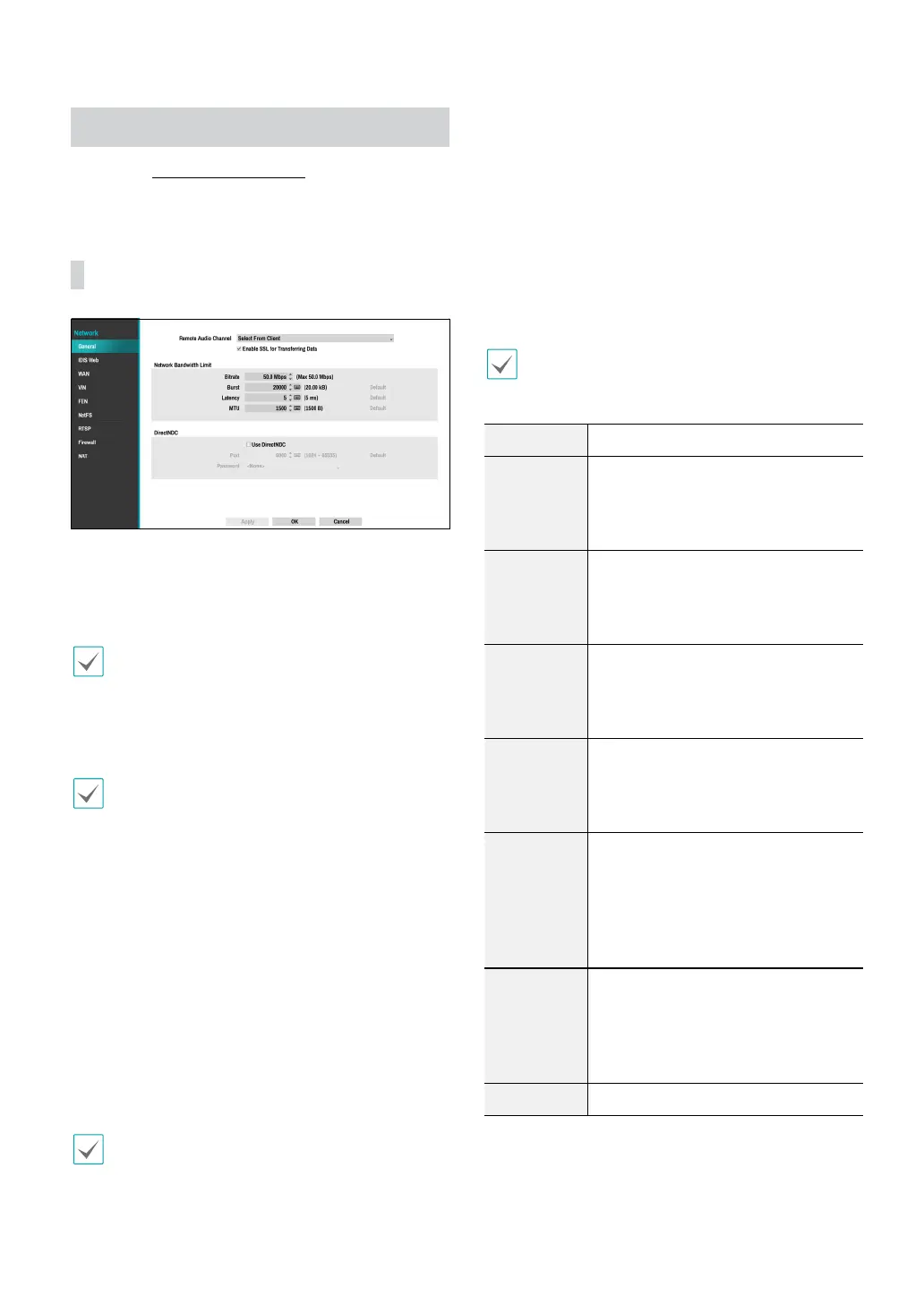
General
● Remote Audio Channel: Transmits the selected
channel’s audio to the remote program. Select Select
From Client to stream audio of the channel selected
on the remote program.
Audio skipping and sync issues can occur under poor
network conditions.
● Enable SSL for Transferring Data: Applies SSL
(Secure Sockets Layer) protection on remote viewing
and recording data transmissions.
• If using the SSL feature, it will not be possible to
connect to the NVR from a remote program or a
network keyboard that does not support SSL.
• Changing the SSL setting temporarily severs all
remote connections to the NVR in order to apply the
change.
• This product contains content developed by
OpenSSL Project for use in Open SSL Toolkit (http://
www.openssl.org/).
● Network Bandwidth Limit: Congure the network
bandwidth sent to the remote locale.
– Bitrate: Set the size of the bandwidth.
– Burst: Set the burst-byte or buer byte size.
– Latency: Set the latency.
– MTU: Set the maximum transmission unit (MTU).
If you congured Network Bandwidth Limit, the live
video may not display smoothly in a remote program.
● DirectNDC: Use Direct Network Display Control (NDC)
by clicking the Use DirectNDC button to toggle
between On and O. You will be able to change the
settings if Use DirectNDC is enabled. DirectNDC
service allows you to access the NVR and control it
remotely using a PC or mobile devices via Ethernet.
– Port: Congure the port number of the DirectNDC
server.
– Password: Congure the Password to connect to
the NVR from a remote locale.
Up to three users at a time can access a NVR remotely
via DirectNDC service.
Key Function
←
Press the ← to move to the left in the
menu. This is the same as pressing the
Left arrow button on the front panel or
the remote control.
→
Press the → to move to the right in the
menu. This is the same as pressing the
Right arrow buttons on the front panel
or the remote control.
↑
Press the ↑ to move up in the menu.
This is the same as pressing the Up
arrow button on the front panel or the
remote control.
↓
Press the ↓ to move down in the menu.
This is the same as pressing the Down
arrow button on the front panel or the
remote control.
Enter or
Return
Press the Enter or Return key to select
the highlighted item or complete
an entry that you have made during
system setup. This is the same as
pressing the Play/Pause button on the
front panel or the remote control.
Character
Input,
Delete,
BackSpace,
Space
They play the same role as a keyboard
input.
Esc Press the Esc to escape the sequence.



 To Next Page