Part 2 - Conguration
45
● No.: Select the registered camera number and click
the Add Camera button to register the camera.
● MAC Address: Displays the scanned camera’s MAC
address.
● Address: Displays the scanned camera’s IP address.
● Model: Indicates the camera model.
● Protocol: Indicates the scanned camera’s protocol.
● Name: Displays the scanned camera’s IP name.
● Status: “Registered” indicates the camera is registered
to the NVR and “Not registered” indicates the camera
is not registered to the NVR.
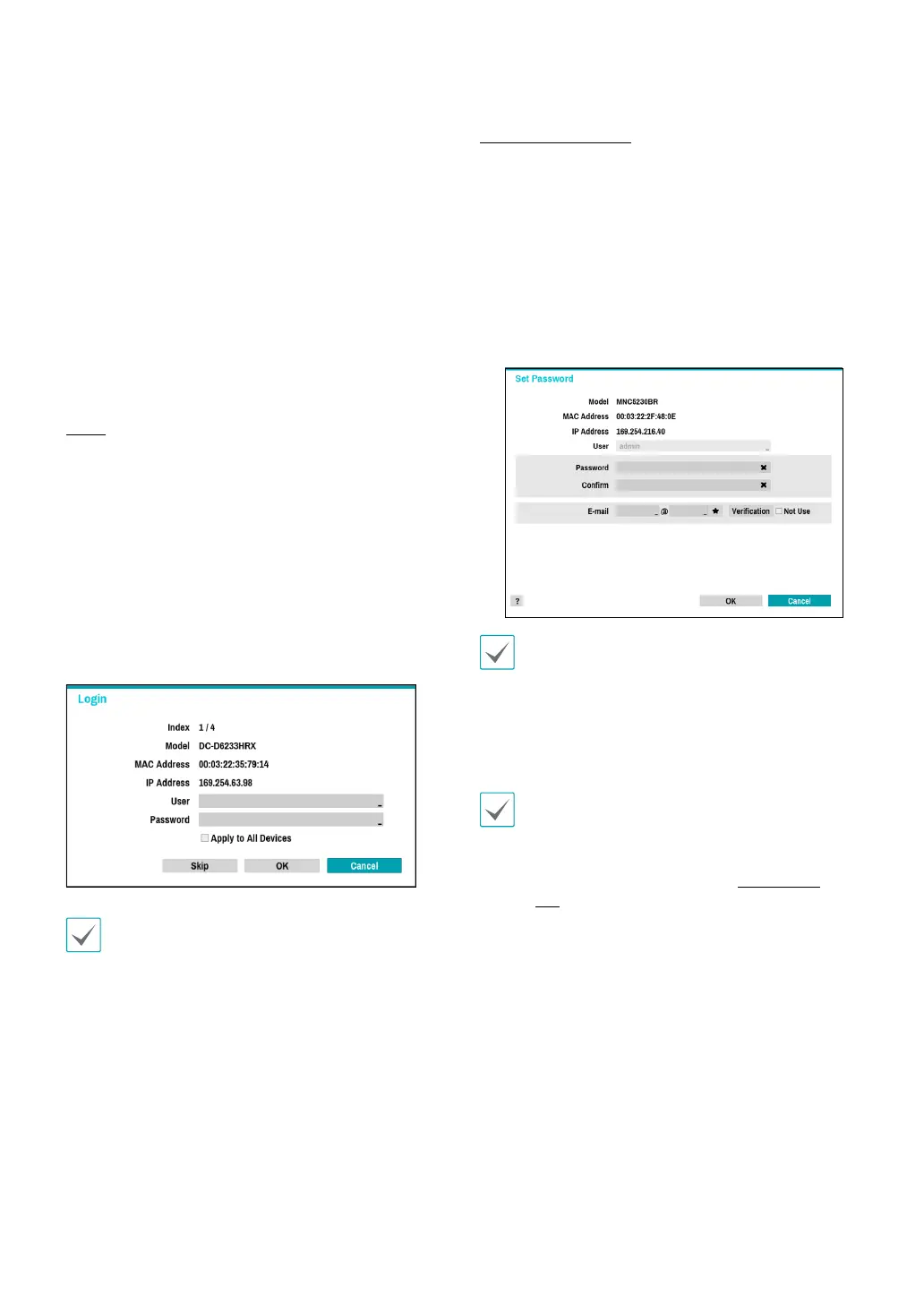
Login
If the password is set or you want to register third party
cameras, registering a device requires an authorized
user login.
1
Select the desired deivce from the list and click the
Add Camera button, then the login window will
appear.
2
Select a user, enter the password, and then select
OK.
• By selecting Apply to All Devices, you can
apply the same authentication information to
all of the network devices in the list.
• When you select multiple network devices
from the list and click the Add camera button,
a window for the network device will appear.
Select Skip to skip the authentication settings
for the current network device and to display
the Authentication window of the next network
device.
• For IDIS cameras, a user and password may not
be required.
Set Camera Password
For IDIS protocol cameras that support changing and
nding the camera password, you must set the camera
password at the time of initial camera registration. A
mobile phone and email information are used to change
and nd the camera password.
1
Select the dedeivce from the list and click the Add
Camera button, then Set Password window will
appear.
Only the camera that does not set password of the
camera which supports the password setting function
is displayed.
2
Enter the password, mobile phone, and e-mail
address, and then select OK.
• If you do not authenticate your email address, you
may not be able to nd your password unless you
enter the correct information.
• FEN setup is required for authentication. For more
information on FEN setup refer to FEN on page
101.
• By selecting Apply to All Devices, you can apply
the same password, mobile phone and e-mail
information to cameras that require password
settings in the scan list.
• When you select multiple network devices from the
list and click the Add camera button, a window for
the network device will appear. Select Skip to skip
the authentication settings for the current network
device and to display the Authentication window of
the next network device.
3
When the password is set, the login window will
appear.



 To Next Page