102 - Inepro Back Office Suite
Steps
Detail Panel
The Detail Panel is a panel that shows the details of the current object. For instance if the object Users is active, the details
of that user are seen in the detail screen on the right side of the screen. At the bottom one or more tabs are visible with
detailed information about the current record, click each tab to examine all the specific information about this User (or
device, account, etcetera).
Adding, Editing or Deleting anything in the Detail Panel is not possible!
Divider bars
The divider bars are used to divide different parts of the detail screen. Use them to hide certain parts or to make those
area's bigger or smaller.
Read more about the Detail Panel and the Divider Bars in the chapter:
Detail Panel and the Divider Bars on page:
Context Menu
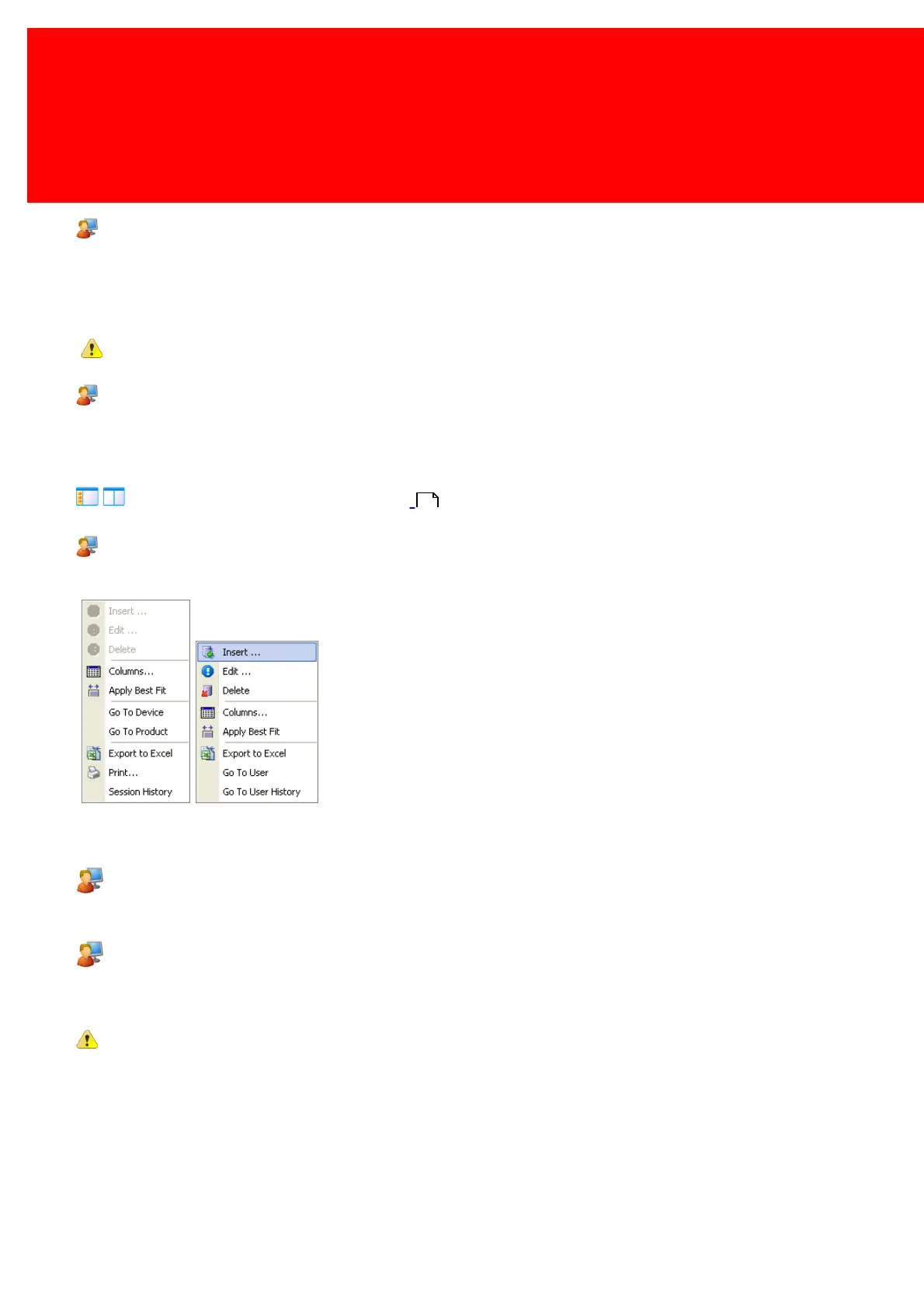
The context menu is a menu that will show options that are relevant to the active object in the program.
In the context menu the options are also available on the toolbar and links to other parts of the program:
Go To...
This is a shortcut to another relevant part in the software.
Session Log
This log will contain all transactions that were made in a session. A session is started when the card is inserted and ends
when the card is removed. Even 'Card Inserted' and 'Card Removed' are logged as transactions. The data can be filtered.
A session log does not have to contain one user. A user could go to a vending machine, try to purchase a product and
walk away to complain when the product can not be delivered. Another user can then purchase a higher priced product and
pay for it with partly his and partly the other user's money. This will not be a session nested in a session but count as one
session (it will end when the first user presents his card to the PayCon). The money from the first user would have
'disappeared'. The administrator can track the money and the user who took it via this session log.
111


 To Next Page