189
Configure DocuPRO Devices
Configure Accounting Template
Prerequisites:
§
DocuPRO
§
Windows printer queues
§
DocuPRO has been restarted after printer installation
Where
§
Main Menu\Basic\DocuPRO
Configure Accounting Template
Configuring the DocuPRO accounting template, will set the DocuPRO behaviour. Printer pools and the interaction between
the user and DocuPRO is set here.
The Accounting template
A group of settings that determine how the printer and printer jobs will react on the commands of the server.
The DocuPRO software offers some different modes of functionality. The most important modes are shown in this chapter.
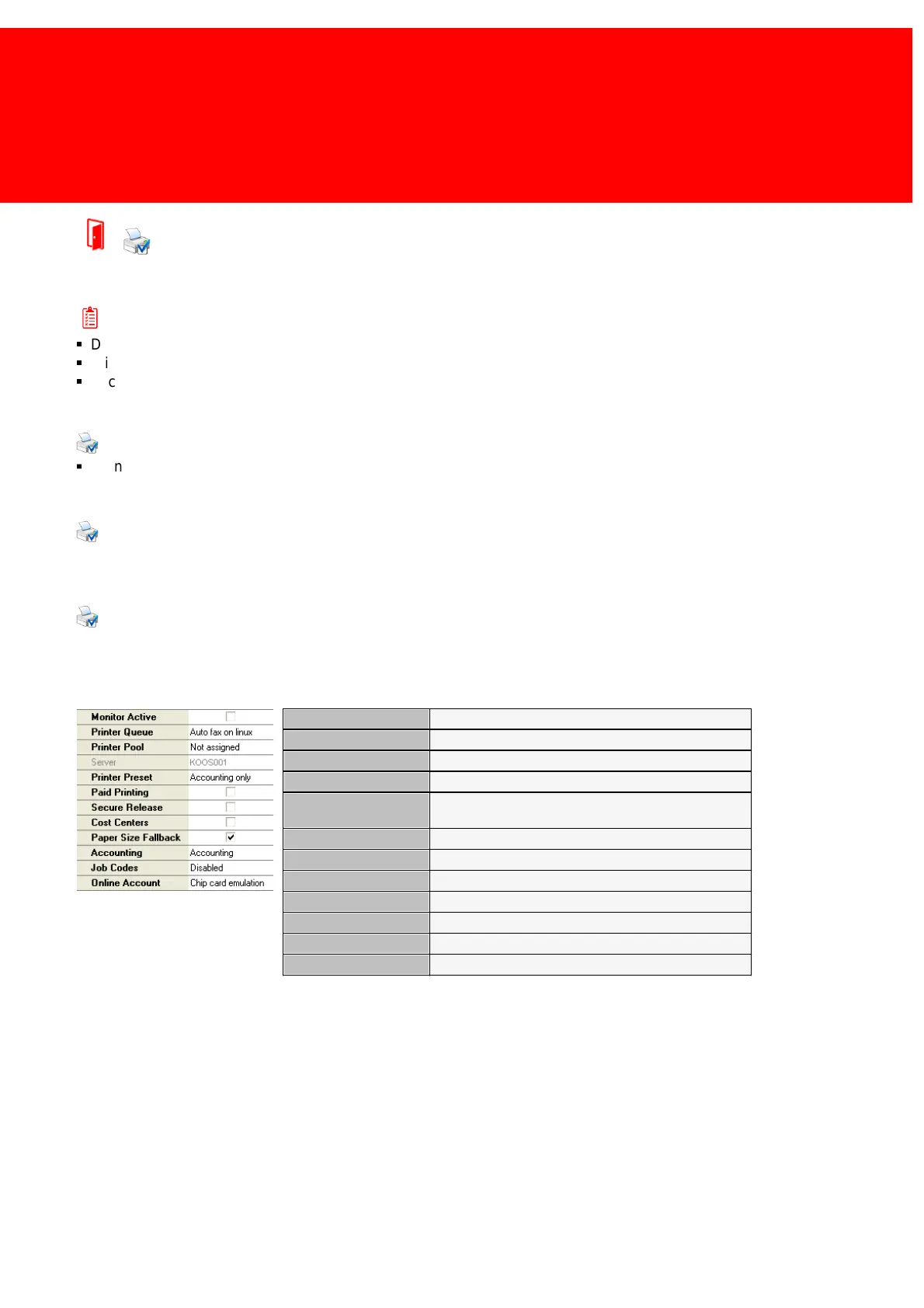
Monitor printer activities
The pool the printer belongs to
To what server is the printer connected
What template does the printer use
Does the user have to pay?
Can the printer fall back to a smaller paper size?
Silently / Chip card emulation / Client side conformation
The Paper Size Fall back setting
When the printer can not print on the specified paper it will fall back to a smaller size. For example if it is set to true and A3
is printed while there is no A3 paper left, then the print job would be printed on A4 paper. Also if a Paper Type is used that
is not recognised the width and height of the paper will be calculated and the price of the paper type that is the most like
the paper used will be charged.


 To Next Page