48 - Inepro Back Office Suite
Steps
Print and Create User Cards
Prerequisites:
§
Card Printer connected & configured (For printing or printing and creating)
§
Admin Terminal connected & configured (for creating or printing and creating)
§
Card Layout defined
Where
§
Main Menu\Basic\Cards
Print and Create User Cards
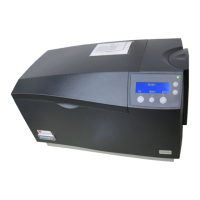
The card printer enables the printing of cards and connects them at the same time to the Users in the Inepro database in
batches.
This means cards can be printed for every User in the database without having to create every card manually with the
Administrative PayCon and the design of the User cards can be edited.
From the card menu (If a card printer is connected the card can also be printed)
1. Press 'Add Card' Icon
2. Put the Empty card on the PayCon if the must not be printed, if it does choose 'Create <Card technology> card with Card
Printer' (Where <Card Technology> is the card technology chip card or Mifare.
3. Change user or user code to the desire user
4. Check and if not correct change the other information press next
5. Check and if not correct change the purses, press next
6. Check and if not correct change the Card Layout
7. Finish (if chosen, the card will now be printed)
Create and print card from the User menu
1. Select the User(s)
2. Right click (one of) the user(s)
3. Pick 'Create Card => Create <Card Technology Type> card with a card printer (Where <Card Technology Type>) is
either a proximity card or a chip card.


 To Next Page