EasyManua.ls Logo

Inepro Back Office Suite - User Manual

Inepro Back Office Suite
248 pages
Print Icon
To Next Page IconTo Next Page
Loading...
© 2020 Inepro B.V. All rights reserved
Technical Manual | Inepro Back Office Suite
Inepro Back Office Suite

Table of Contents

Questions and Answers

  • B
    Brian HigginsAug 20, 2025
    What to do if Inepro Payment Terminal shows 'Credit too low'?
    • R
      Robert MitchellAug 20, 2025
      If the Inepro Payment Terminal displays 'Credit too low', there might be several reasons: * The terminal might not have products assigned to it. Use the configuration tool or the Administrator card to check the terminal's settings. * The card's credit is below the minimum allowed amount set in the PayCon. Reload the purse at the nearest reloader. * The minimum allowed credit set in the PayCon might be too high. Lower the minimum allowed credit value in the PayCon settings.
  • R
    Raymond HooverAug 22, 2025
    What does 'Connection failed' mean on Inepro PayCon and how to fix it?
    • J
      Jeremiah WilkinsAug 22, 2025
      A 'Connection failed' message on the Inepro PayCon indicates a problem with the connection. Here are potential causes and solutions: * The PayCon service might have stopped. Check if the PayCon service is running and restart it if necessary. * The network cables could be damaged or disconnected. Verify the physical connection between the service and the PayCon. * The DocuPRO service might not be running correctly. Check if it is running and restart it. * The 'server' IP-address in the PayCon might not point to the machine the services are running on. Set the server IP-address in the PayCon to the correct server. * The ports needed to connect with the PayConServer might be closed. Verify that all necessary ports for the Inepro System are open.
  • M
    Miss Victoria YoungAug 25, 2025
    Why are transactions from the Inepro Back Office Suite not sent to the database?
    • J
      Jennifer DyerAug 25, 2025
      If transactions from the Inepro Payment Terminal aren't being sent to the database, consider the following: * There may be no network connection between the terminal and the server. Check the network connection by pinging the terminal from the server. * The wrong PayConService Server might be set in the PayCon. Ensure the server address in the PayCon is set to the correct PayConService server address. * There might be no transactions to be sent. Check for transactions in the PayCon under 'DB settings -> Transaction Log -> Size'. * The transactions might have been sent but contain values that cannot be inserted into the database. On the server, open PayConServer and select 'File -> Retry Failed transactions'.
  • S
    smcintoshAug 26, 2025
    What does 'Card locked, ' mean on Inepro terminal and what to do?
    • W
      Wayne MorenoAug 26, 2025
      If the Inepro terminal displays 'Card locked, ', it means: * The user's card was locked because it was removed too quickly. The user should present the card again at the terminal. * The card was not correctly deleted from the lock list. Remove it from the lock list by going to the PayCon menu and editing the card.
  • E
    Elizabeth PerkinsAug 27, 2025
    Why can't I move credit from one card to another on Inepro Back Office Suite Payment Terminal?
    • A
      Alex GreenAug 27, 2025
      If you're unable to move credit between cards on the Inepro Payment Terminal: * Check if reload functions are enabled in the current local manager. The button might not be visible if they aren't. * Ensure the current employee has the necessary rights to reload credit to a card. Have authorized staff change the employee's authentication level if needed. * Verify the new card was printed/created correctly. Ensure the old card is not permanently blocked.
  • J
    Jeremy TaylorAug 29, 2025
    How to fix 'Unknown Card (9)' error on Inepro terminal?
    • R
      Robert GrahamAug 29, 2025
      If the Inepro terminal displays 'Unknown Card (9)', it indicates that: * The card has not been created correctly. Place the card on the Administrative terminal to check if the card window displays 'New Card' or 'Edit Card'. * The PayCon also shows 'Unknown Card (9)' at the Administrative PayCon. A new card must be created for this user.
  • K
    Kathryn Nelson DVMAug 31, 2025
    How to solve '... Not Allowed' message on Inepro terminal?
    • C
      Cindy ShawAug 31, 2025
      If the Inepro terminal displays '... Not Allowed', consider the following: * The terminal may not have products assigned. Check the terminal configuration using the configuration tool or an Administrator card. * The card may not have a valid budget with enough credit. Check the available purses on the card and their credit balances. * There might be a conflict with deduct/permission rules. Review the applicable deduct/permission rules for the situation.
  • M
    Michael ChenSep 2, 2025
    Why new prices are not updated in the Inepro terminal?
    • R
      richardlowerySep 2, 2025
      If new prices set in the manager aren't updating on the linked Inepro terminal: * Allow at least 5 minutes for the prices to update before checking. * Verify that the price values were correctly changed in the Inepro Back Office Manager. * If the device is a vending machine, the prices might be stored in the machine itself. Contact the vending machine vendor to change the prices.
  • H
    hernandezsamanthaSep 4, 2025
    How to fix "spool file not found" error in Inepro?
    • M
      Megan WaltersSep 4, 2025
      If the error logs display "spool file not found", it may be because: * Windows File Pooling might be enabled. Check if Windows File Pooling is on and disable it.
  • C
    Clarence HarrisSep 6, 2025
    How to solve card reload issues in Inepro Back Office Manager?
    • C
      Chelsea AndersonSep 6, 2025
      If you're unable to reload a card in the Inepro Back Office Manager: * Check if the reload functions in the local manager are enabled and enable them if they aren't. * Ensure the staff account used has the right to reload cards. Have authorized staff change the authentication level of the staff account. * If there is an error message, contact the Inepro Support Desk.

Summary

Introduction

Inepro Back Office Suite Overview

Provides an overview of the Inepro Back Office Suite and its modules, outlining their functions.

Overview IBOS

Hardware Installation

Device Setup Procedures

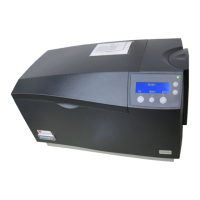
Details the installation steps for administrative terminals, card printers, license boxes, and other devices.

Software installation

Installation Process and Prerequisites

Covers software installation prerequisites, recommended work plan, and wizard steps.

Wizard and Initial Setup

System Model Determination

Guides through determining the system model and network configuration for IBOS.

Network Configuration Options

Details various network setups, including stand-alone, central server, and multi-site configurations.

Core Configuration Tasks

Admin PayCon & Card Printer Setup

Covers the setup of Administrative PayCon and Card Printers for the system.

Authorization and User Rights

Details how to assign authorization rights and manage user profiles within the system.

User and Card Management

Explains how to manage users, create, print, and replace cards and tags.

Device Management and Settings

Covers configuration of accounts, tags, products, prices, templates, sites, and devices.

System Settings and Features

User Interface Configuration

Details how to customize the user interface, including toolbars and panels.

System Settings

Covers global and per-server settings for modules like AbsencePRO, DocuPRO, PayCon, and AccessPRO.

Discounts and Permissions

Explains how to create and manage discounts, permissions, and their order of application.

Reload Functions and Account Linking

Details enabling reload functions and linking accounts/tags to users.

Advanced Tasks and Data Management

Server Replacement and IP Changes

Provides instructions for replacing servers and updating IP addresses and hostnames.

User Data Management

Covers manual user data insertion and removal from the system.

Data Import Procedures

Explains importing user data via CSV, LDAP, and manual entry.

Terminal Configuration

Details configuring terminals, PayCons, DocuPRO devices, copiers, and vending machines.

USB Stick Procedure

Balance Scheduler

Covers scheduling balance adjustments for users, accounts, or departments.

Scheduled Tasks

Scheduling Tasks

Explains how to schedule tasks, such as report generation and data imports.

Troubleshooting

Common Issues and Solutions

Provides solutions for common problems, errors, and system behavior issues.

Appendices

Field Names and Glossary

Defines key field names and provides a glossary of terms used in the manual.

Discount Order List (Appendix A)

Lists the order numbers for discount combinations to manage their application.

Flowcharts (Appendix B)

Presents flowcharts illustrating system processes like the Output Manager.

Inepro Back Office Suite Specifications

General IconGeneral
ManufacturerInepro
FunctionalityManagement, monitoring and reporting of transactions, users, devices and cashless payments
CompatibilityVarious payment terminals and systems
FeaturesUser management, transaction reporting
IntegrationAPI integration with other systems