132 - Inepro Back Office Suite
Steps
Link an Account and a tag to a User
Prerequisites:
§
None
Where
§
Main Menu\Basic\Accounts
Link a Tag to an Account
Users are identified by their card or tags. To links a User to a tag follow these instructions:
1)Create Account + Tag
a)Go to Accounts
b)Click 'Add Account'
c) Change user or user code to the desire user
d)Check and if not correct change the other information press next
e)Check and if not correct change the purses, press next
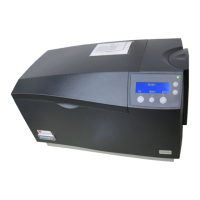
f) Present a tag to the Administrative Terminal, and it will be linked
g)A message box will pop-up to confirm this.
2)Link to a Tag
a)Go to Accounts
b)Double-click an Account or select it and click 'Edit Account'
c) Press 'Next' twice to get to the Tag screen
d)Present a Tag to the Administrative terminal


 To Next Page