135
Cards - Acounts - Tags
Replace a Card / Tag
Prerequisites:
§
None
Where
§
Main Menu\Advanced\Site Types
Replace a Card / Tag
When a User has lost his old card or tag, it must be replaced. Follow these instructions to replace a card or tag.
1)Replace Card
a)Make sure the rights to reload credit to a card in IBOS are available and that 'Enable Reload Functions' has been
activated.
b)Go To Cards
c) Double-click a Card or select it and click 'Edit Card'
d)Click 'Move Balance to new card' If the Button is not there, then the reload functions are not enabled.
e)Click 'Yes' if asked if the card must be put on the 'Red List'; this means the card will be blocked.
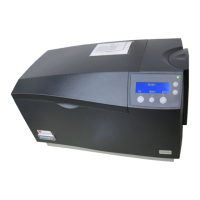
f) Create the card with printer or Admin Terminal.
2)Replace Tag
a)Go to Accounts
b)Double-click an Account or select it and click 'Edit Account'
c) Press 'Next' twice to get to the Tag screen
d)Delete the lost or stolen tag
e)Present a new Tag to the Administrative terminal
f) Put the Empty card on the PayCon if the card must not be printed, else choose 'Create <Card technology> card with
Card Printer' (Where <Card Technology> is the card technology chip card or Mifare).
g)Change user or user code to the desire user
h)Check and if not correct change the other information press next
i) Check and if not correct change the purses, press next
j) Check and if not correct change the Card Layout
k)Finish (if the card print option was chosen, the card will now be printed)


 To Next Page