39
Determine System Model
Define
In this section we will define the values needed in the system.
Attach a Admin PayCon and/or Card Printer
Prerequisites:
§
Admin PayCon connected to either the workstation or network
§
Card Printer connected (if used)
§
Card Printer Licence (if used)
§
Subscription Printer connected (if used)
§
Subscription Printer Licence (if used)
Where
§
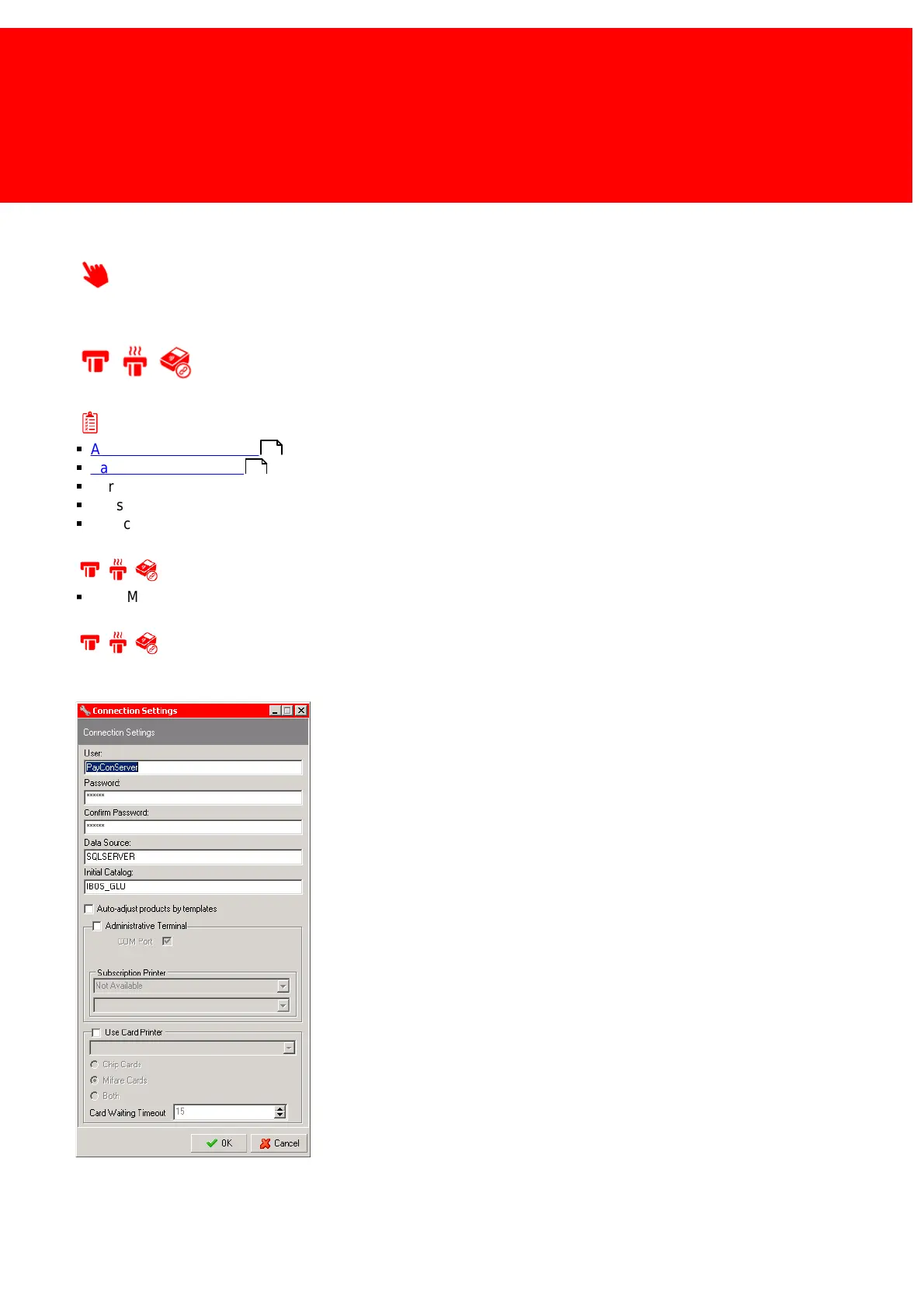
Main Menu\Tools\Connection Settings
Attach a Admin PayCon and/or Card Printer
The Inepro Back Office Suite can be ordered with a card printer and an Administrative PayCon.
1. In the 'Tool' menu, choose 'Connection Settings' and check
'Administrative PayCon'. Select if the PayCon is connected trough a COM
port or via the network using TCP/IP. When it is connected via the
network set the IP-address.
2. Check if the PayCon is connected to the printer.
3. Make sure the printer is installed in windows with the correct printer
drivers and the USB cable is connected to the PC. It should also be
recognised by our software as a printer.
4. Check 'Use Card Printer' and select the kind of Cards that it can create
(Chip Cards, Mifare Cards or both).
5. Press 'OK' and restart the services and the software.
6
6


 To Next Page