138 - Inepro Back Office Suite
Steps
Moving Balance from an Account to a Card
Prerequisites:
§
Account
§
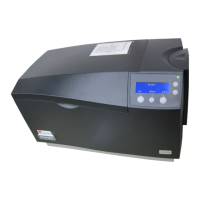
Card printer (optional)
Where
§
Main Menu\Advanced\Site Types
Moving Balance from an Account to a Card
When using a combined system (Stored Value Card / Stored Value Server), it's possible to need a balance transfer from an
Account to a card. Follow the instructions below to do this:
1)Moving Balance from an Account to a Card (Only in a combination system: SVC/SVS)
a)Go to Accounts
b)Double-click an Account or select it and click 'Edit Account'
c) Click "Move Balance to New Card"
d)The message 'Default Tender for customer "<User Name>" is blocked. Select a new tender for the customer in the
customer edit screen.'
e)Put the Empty card on the PayCon if the card must not be printed, else choose 'Create <Card technology> card with
Card Printer' (Where <Card Technology> is the card technology chip card or Mifare).
f) Change user or user code to the desire user
g)Check and, if not correct, change the other information press next
h)Check and, if not correct, change the purses, press next
i) Check and, if not correct, change the Card Layout
j) Finish (if the card print option was chosen, the card will now be printed)


 To Next Page