107
User Interface
How to use the Table Properties Bar
This is the Table Properties Bar:
This toolbar is used to select the data fields to view and to make the field spaces as efficient as possible.
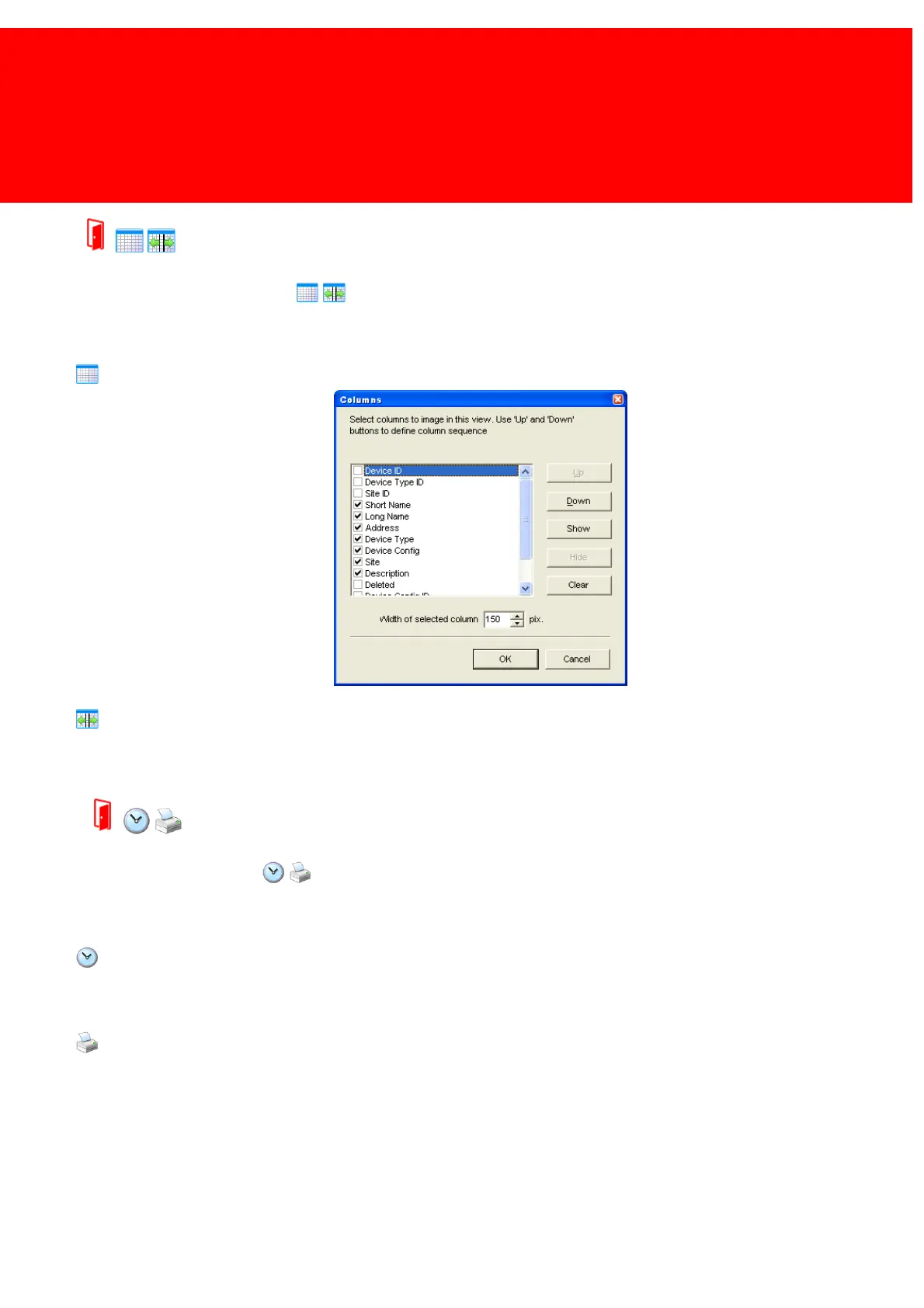
Fields
Use this button to select which data
fields to view, their widths and the
order they should appear.
Apply Best Fit (Set column spacing)
Use this button to automatically set the width of all columns to the smallest possible width while displaying the complete
value and header text. This will often mean that the column width will be made wider in stead of being made smaller.
How to use the Run & Print Bar
This is the Run & Print Bar:
Use this toolbar to run the selected query in 'Device Log' and 'User Log' to print out the results.
Run
Use this button to run the query in 'Device Log' or in 'User Log'. The history of the selected device or selected user in the
selected time frame will be shown.
Print
Use this button to print the result of the query in 'Device Log' or in 'User Log'. The history of the selected device or selected
user in the selected time frame will be printed. In a preview screen the print order can be confimed.


 To Next Page