209
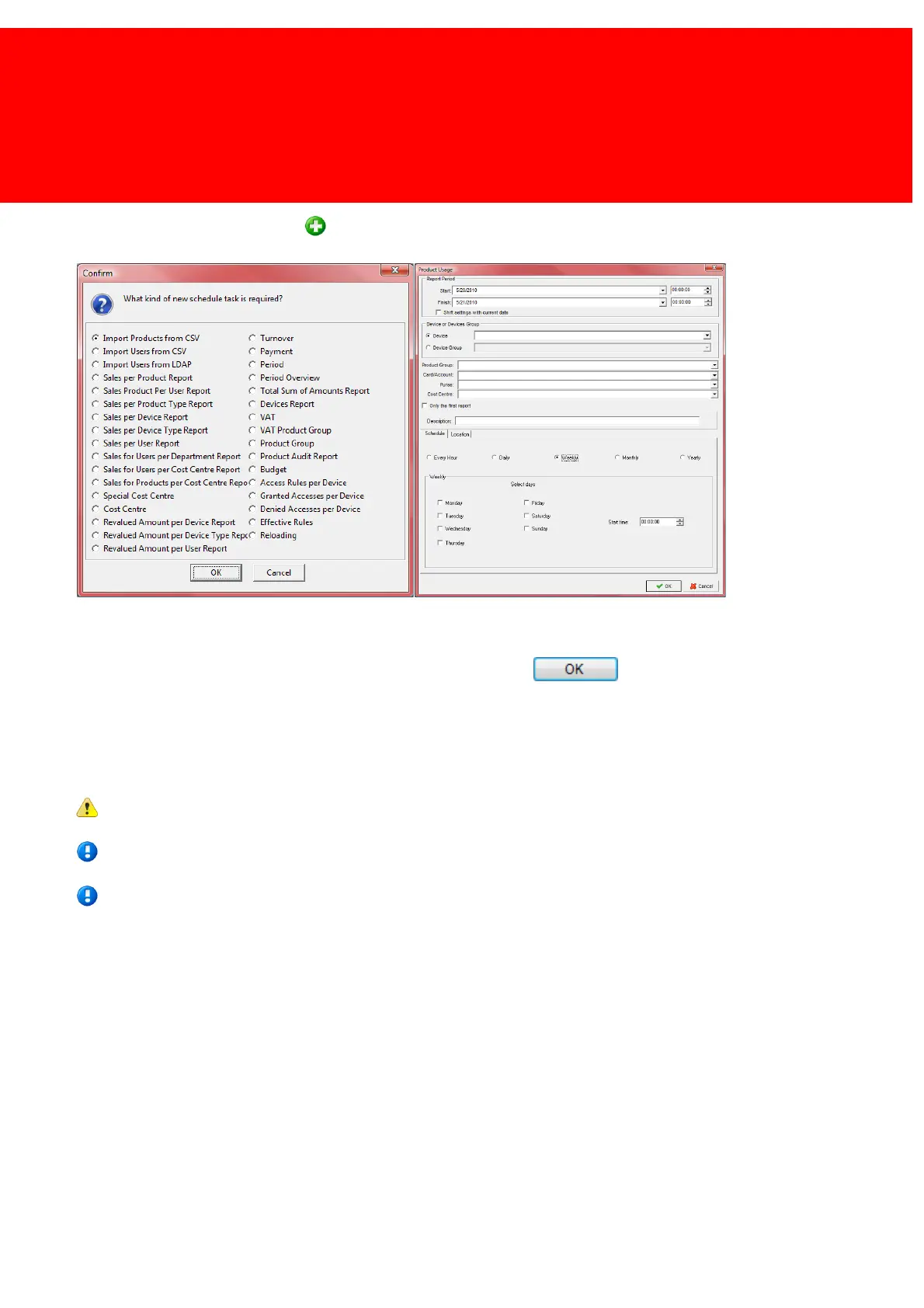
To schedule a new task press the button and pick a task to schedule.
When the task is an import follow the wizard like in the unscheduled version. If the task is a report, the report screen will be
seen as shown here. The start period must be set, just as the schedule frequency and the device and other details.
When finished assign a file name to this scheduled report and press .
Every interval (hour, day, week, month or year) the report file will be replaced with a report that starts at the start time and
date increased with that interval. So if a report has been created with the start date of 07-05-2007 and end date 10-05-
2007 and the interval (scheduler) is set at "month", a report will be generated for 07-05 to 10-05, 07-06 to 10-06, 07-07 to
10-07 etcetera, etcetera.
The existing file will be overwritten.
We recommend using the Inepro Balance Scheduler for scheduling budget or other changes in the balance of user
cards or accounts.
We recommend using the Inepro Data Import Service for importing data from *.csv file or Active Directory.


 To Next Page