Up/Down Controller User Info/Support Blood Glucose Records
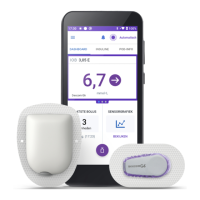
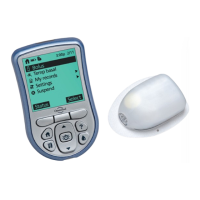
Your New OmniPod Insulin Management System
1
5
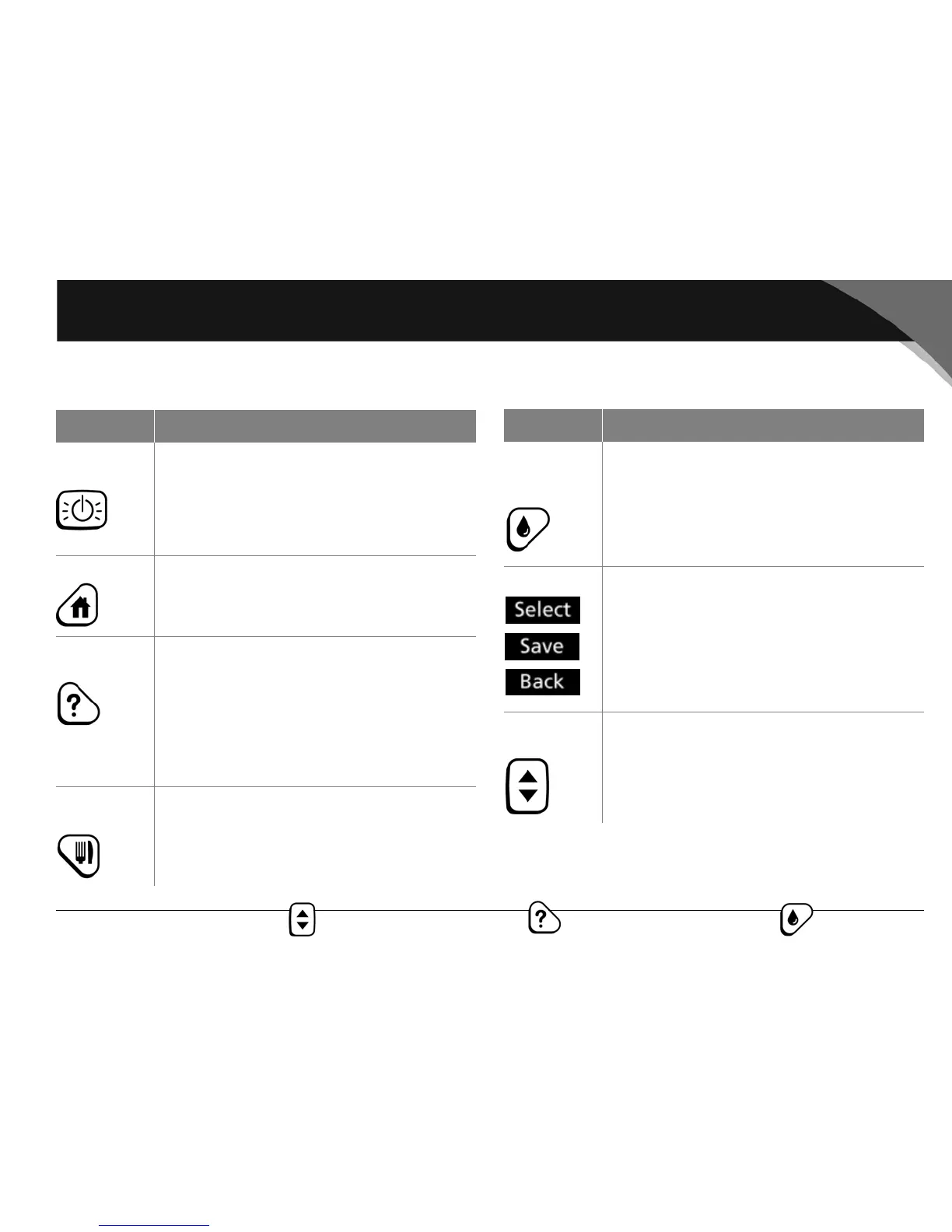
Buttons that program and control the OmniPod System
Button Action
Power/
Backlight
Pressing turns the screen on and off. Pressing
and holding for 2 seconds activates the back-
light, which lets you read the screen in the
dark. To preserve battery life, use the backlight
only when necessary.
Home
Opens the Home screen, from which you can
choose a menu item or view the Status
screens (shown later in this chapter).
User Info/
Support
Opens a User Info/Support screen that dis-
plays additional information about the current
screen you are viewing. The User Info/Support
icon appears at the top of the screen when
there is additional information available to
view (see “Personal Diabetes Manager Icons”
in the Appendices).
Food
Library
Opens the Food Library screen, which displays
a reference library of over 1,000 common food
items. Each item is listed with its carbohydrate,
fiber, fat, and protein content, plus total calories.
Button Action
Blood
Glucose
Records
Opens the Blood Glucose History screen.
Soft Keys
Soft key labels and functions depend on the
menu or screen you are viewing. The label
appears on the screen directly above the phys-
ical button you press. Select, Save, and Back
are just three examples of the soft key labels
on your PDM.
Up/Down
Controller
Pressing scrolls through a list of available menu
options or numbers, so you can pick the one
you want. Holding the button scrolls faster.


 To Next Page