Home Food Library Power/Backlight
3
Understanding and Adjusting Basal Rates
24
Cancel a one-time temporary basal rate
1. On the Home screen, use the Up/Down Controller button
to choose Suspend/cancel; then press Select.
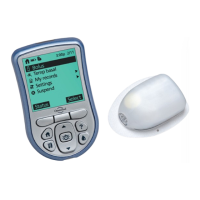
2. Choose Cancel temp basal (Figure 3-12), then press Select.
3. Press Confirm to cancel the temporary basal shown on the
screen.
Create a temporary basal preset
1. On the Home screen, use the Up/Down Controller button
to choose Settings; then press Select.
2. Choose Presets, then press Select.
3. Choose Temp basal presets, then press Select.
4. Choose [add new], then press New.
5. To use the OmniPod System’s default naming system, simply
press Next. The default naming system automatically assigns
program names in numerical order, such as temp basal 1,
temp basal 2, temp basal 3.
Or, to give a different name to the program:
a. Press the Up/Down Controller button to scroll through
the list of characters. An up-and-down-arrow symbol on
the screen indicates the character you are changing.
b. Press the middle soft key to move the underscore to the
next character.
c. Enter each character one at a time. For example, if you
take an aerobics class two nights a week, you might enter
A, e, r, o, b, i, c, s (Figure 3-13). (A blank character or space is
the first and last option in the scrolling menu.)
d. Press Next.
Figure 3-12


 To Next Page