Up/Down Controller User Info/Support Blood Glucose Records
Understanding and Adjusting Basal Rates
3
25
6. Enter the new temporary basal rate (or percent change), then
press Next.
7. Enter the duration of the temporary basal rate, from 0.5 hours
to 12 hours, then press Next.
8. Review the temporary basal name, rate, and duration, then
press Save to accept it.
Enable an existing temporary basal preset
1. On the Home screen, use the Up/Down Controller button
to choose Temp basal; then press Select.
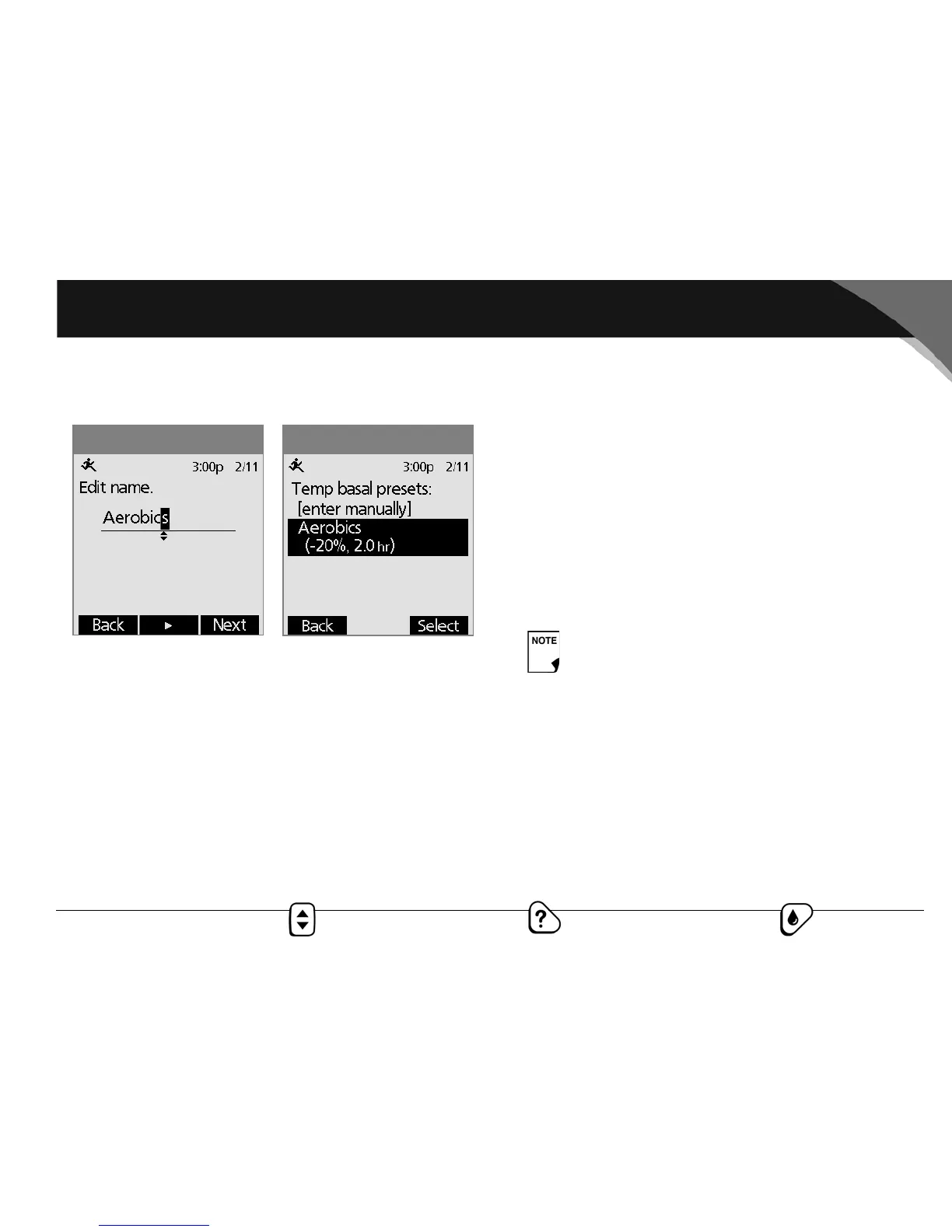
2. Choose the temporary basal preset you want to use from the
list (Figure 3-14), then press Select.
3. If you want, change the duration for the temporary rate, in
half-hour increments, then press Enter.
4. Press Confirm to begin the temporary basal rate shown on
the screen. The pod beeps to indicate that the chosen tem-
porary basal preset is running.
Cancel an active temporary basal preset
1. On the Home screen, use the Up/Down Controller button
to choose Suspend/cancel; then press Select.
2. Choose Cancel temp basal, then press Select.
3. Press Confirm to cancel the currently running temporary
basal preset.
Change, rename, or delete a temporary basal preset
1. On the Home screen, use the Up/Down Controller button
to choose Settings; then press Select.
2. Choose Presets, then press Select.
3. Choose Temp basal presets, then press Select.
4. Choose a temporary preset from the list, then press Edit.
5. Follow the steps in the next section, then press Done.
Figure 3-14
Figure 3-13
If you suspend insulin delivery while a temp basal is
running, the temp basal will be cancelled when you
resume.


 To Next Page