Home Food Library Power/Backlight
4
Understanding and Delivering Bolus Doses
34
■ Cancel Active Boluses
The OmniPod System is extremely flexible, so you can use it to
respond to your changing insulin needs. It is easy to cancel an
active bolus (one that is currently being delivered), even after
insulin delivery has started.
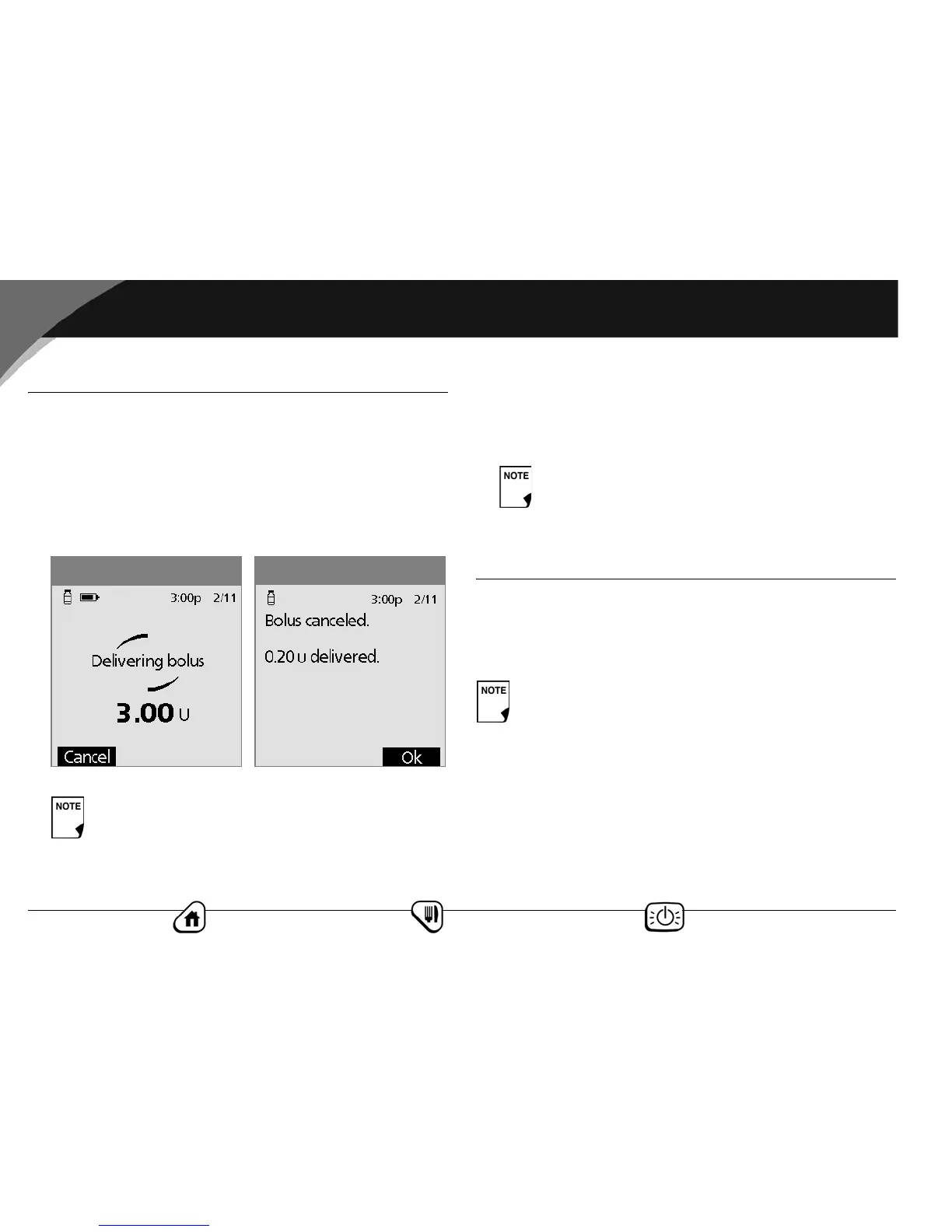
1. Press the Power/Backlight button to turn on the PDM, if it is
not already on. An on-screen message appears as long as a
bolus is being delivered (Figure 4-9).
2. Press Cancel.
The pod beeps to confirm the bolus is canceled. An on-screen
message tells you how much insulin was delivered before
you canceled the bolus (Figure 4-10).
3. Press OK to return to the Status screen.
■ Bolus Presets
Bolus presets are bolus amounts that you program for frequent
use. For example, if you often take the same bolus at lunchtime,
you can create a bolus preset for that amount and name it
“Lunch.”
Create a bolus preset
1. On the Home screen use the Up/Down Controller button to
choose Settings; then press Select.
2. Choose Presets, then press Select.
3. Choose Bolus presets, then press Select.
4. Choose [add new], then press New.
If the bolus has already been completely delivered,
the “Delivering bolus” message and Cancel do not
appear.
Figure 4-10
Figure 4-9
If your suggested bolus contains both a correction
bolus and a meal bolus, the correction bolus is always
delivered first.
Bolus presets are available only when the suggested
bolus calculator feature is turned Off.


 To Next Page