Home Food Library Power/Backlight
4
Understanding and Delivering Bolus Doses
38
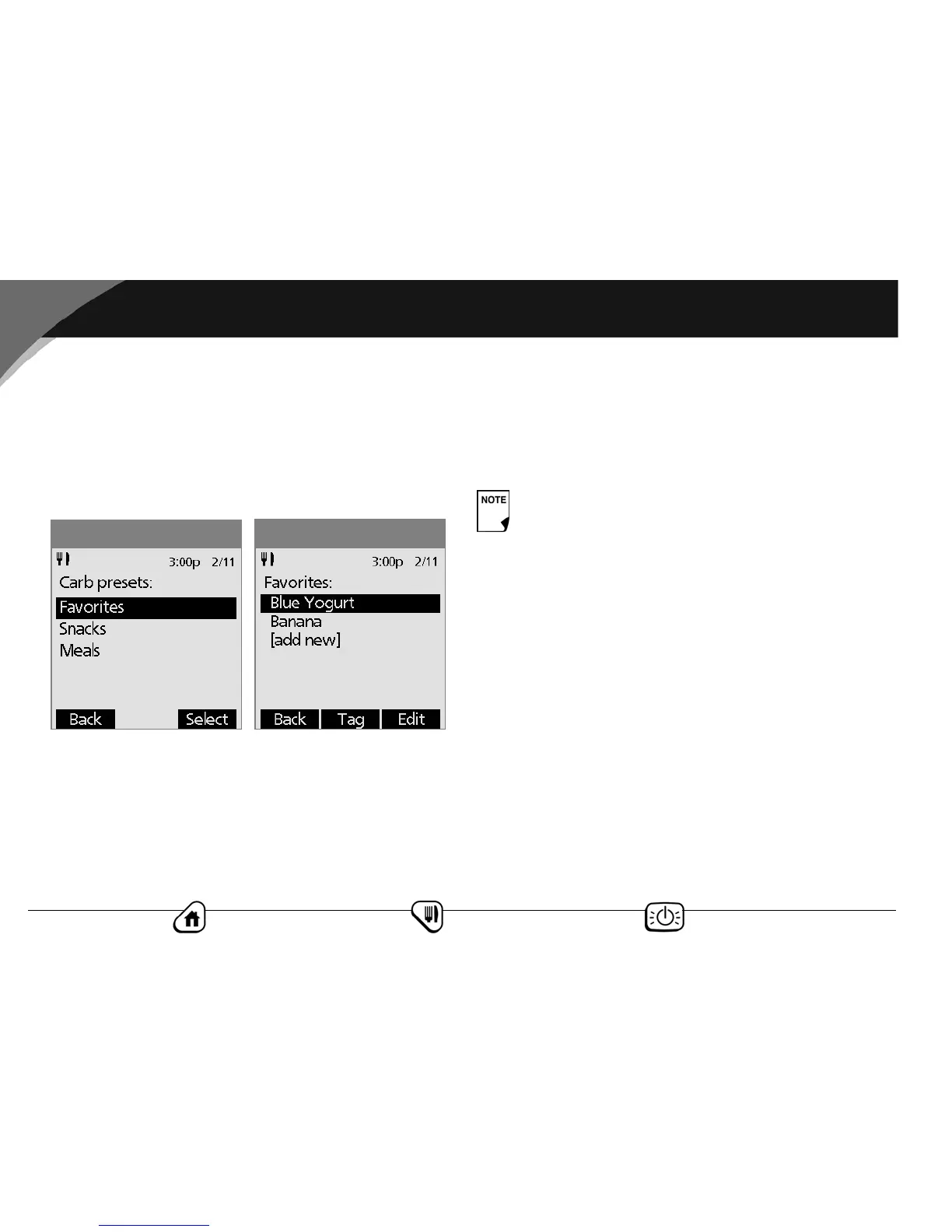
4. Choose the category of the preset you want to change, then
press Select (Figure 4-14).
To change the category for a carb preset
1. Choose the carb preset you want to move to another cate-
gory, then press Tag (Figure 4-15).
2. Choose a new category, then press Select.
To edit a carb preset
1. Choose the carb preset you want to change, then press Edit.
2. Press Edit again on the next screen.
3. To rename the carb preset, press the Up/Down Controller
button to enter the characters that spell out the name you
want, then press Next.
To “erase” characters, press either Up or Down until you reach
the end of the characters, which is a blank.
4. Enter the grams of carbohydrate in the meal, then press Next.
5. If you want, enter the grams of fiber, fat, and protein in the
meal, and the total calories. Press Next after each entry.
6. Press Save to update the preset.
Delete a carb preset
1. On the Home screen, use the Up/Down Controller button
to choose Settings; then press Select.
2. Choose Presets, then press Select.
3. Choose Carb presets, then press Select.
4. Choose the category of the preset you want to change, then
press Select.
5. Choose the carb preset you want to delete, then press Edit.
6. Press Delete.
7. Press Delete again to permanently delete the preset.
Figure 4-15
Figure 4-14
These additional units are not required. If you prefer not
to enter them, simply press Next repeatedly to step
through the screens.


 To Next Page