Up/Down Controller User Info/Support Blood Glucose Records
Understanding and Delivering Bolus Doses
4
37
4. Choose the category for this carb preset: Favorites, Snacks,
or Meals, then press Select.
5. Choose [add new], then press New.
6. To use the OmniPod System’s default naming system, simply
press Next. The default naming system automatically assigns
program names in numerical order, such as carb preset 1,
carb preset 2, carb preset 3.
Or, to give a different name to the program:
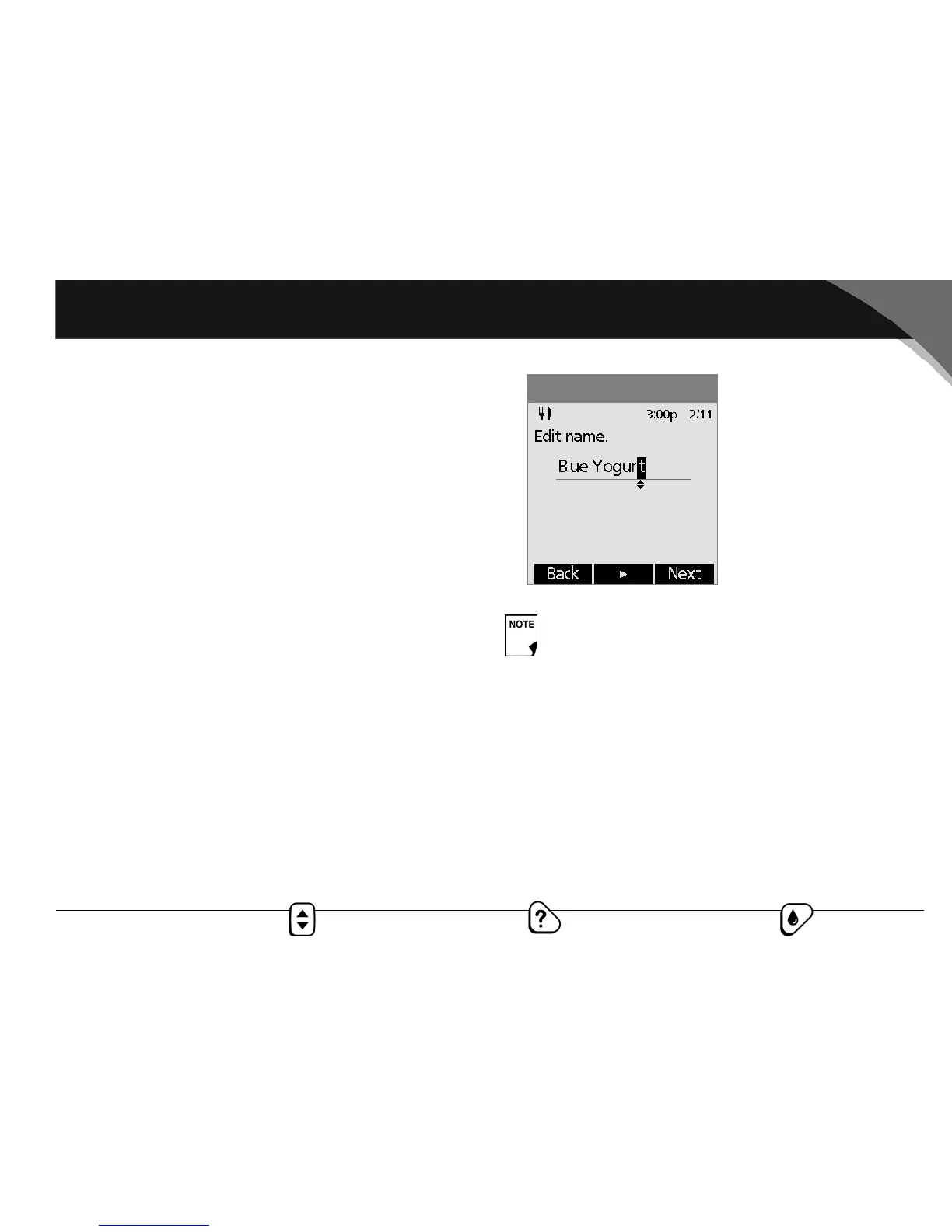
a. Press the Up/Down Controller button to enter the char-
acters that spell the name you want. An up-and-down-
arrow symbol on the screen indicates the character you
are changing.
b. Press the middle soft key (the right arrow) to move the
underscore to the next character.
c. Enter each character one at a time. For example, if you
frequently eat a breakfast of plain low-fat yogurt with
blueberries, sweetener, and cinnamon, you might enter
B, l, u, e, [space], Y, o, g, u, r, t (Figure 4-13).
d. Press Next.
7. Enter the grams of carbohydrate in the meal, then press Next.
8. If you want, enter the grams of fiber, fat, and protein in the
meal, and the total calories. Press Next after each entry.
9. Press Save to add the preset to the category.
Change or edit a carb preset
1. On the Home screen, use the Up/Down Controller button
to choose Settings; then press Select.
2. Choose Presets, then press Select.
3. Choose Carb presets, then press Select.
These additional units are not required. If you prefer not
to enter them, simply press Next repeatedly to step
through the screens.
Figure 4-13


 To Next Page