Chapter 5 — Network Support
130 CK60 Mobile Computer with Windows Mobile User’s Manual
To read the current enabled operating bands, call DeviceIoControl using
IOCTL_NDISUIO_QUERY_OID_VALUE with the parameter
OID_GET_BAND. This returns the enabled bands masked by what the
CK60 supports.
Configuring Ethernet Communications
You can use the CK60 directly in an Ethernet network if you have ordered
the Ethernet option on your CK60 and you insert it into a dock. The
communications dock as an Ethernet connector makes it possible for the
CK60 to communicate with your Ethernet network.
To use the CK60 in an Ethernet network, configure the Network Name
(SSID), Host IP Address, IP Settings (if not using DHCP), and Network
Port parameters on each CK60 in the network. If required for your
network, set the Primary and Secondary DNS Server and Primary and
Secondary WINS Server parameters on each CK60 in the network.
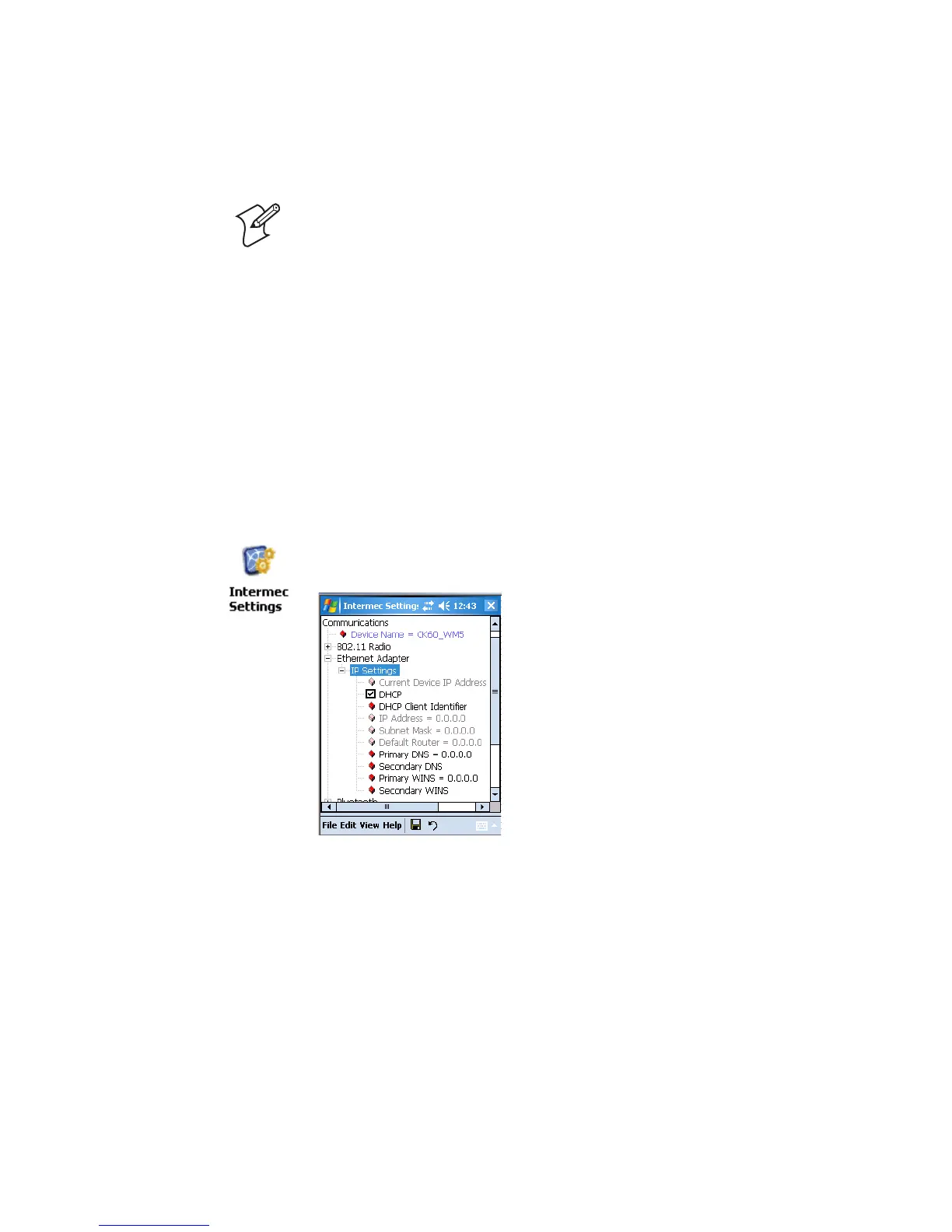
To configure your Ethernet adapter using the Intermec Settings applet
AutoIP/DHCP
Automatic Private IP Addressing (AutoIP) is enabled by default in
Windows Mobile. To remain compatible with other versions of Windows
Mobile, enable this setting. You can configure the registry settings in the
following to set the required AutoIP/DHCP behavior:
HKEY_LOCAL_MACHINE\Comm\PRISMNDS1\TcpIp
Other registry keys that modify the behavior of AutoIP are as follows. You
can find the appropriate settings and behavior of each of the AutoInterval,
AutoIP, AutoMask, AutoSeed, and AutoSubnet keys in Microsoft Help.
Note: If “Registry Restore” is enabled, you must flush the registry before
cold-booting or the change will be lost.
1 Select Start > Settings > the System tab > the Intermec Settings icon.
2 Tap (+) to expand Communications > Ethernet Adapter > IP Settings.



 To Next Page