104
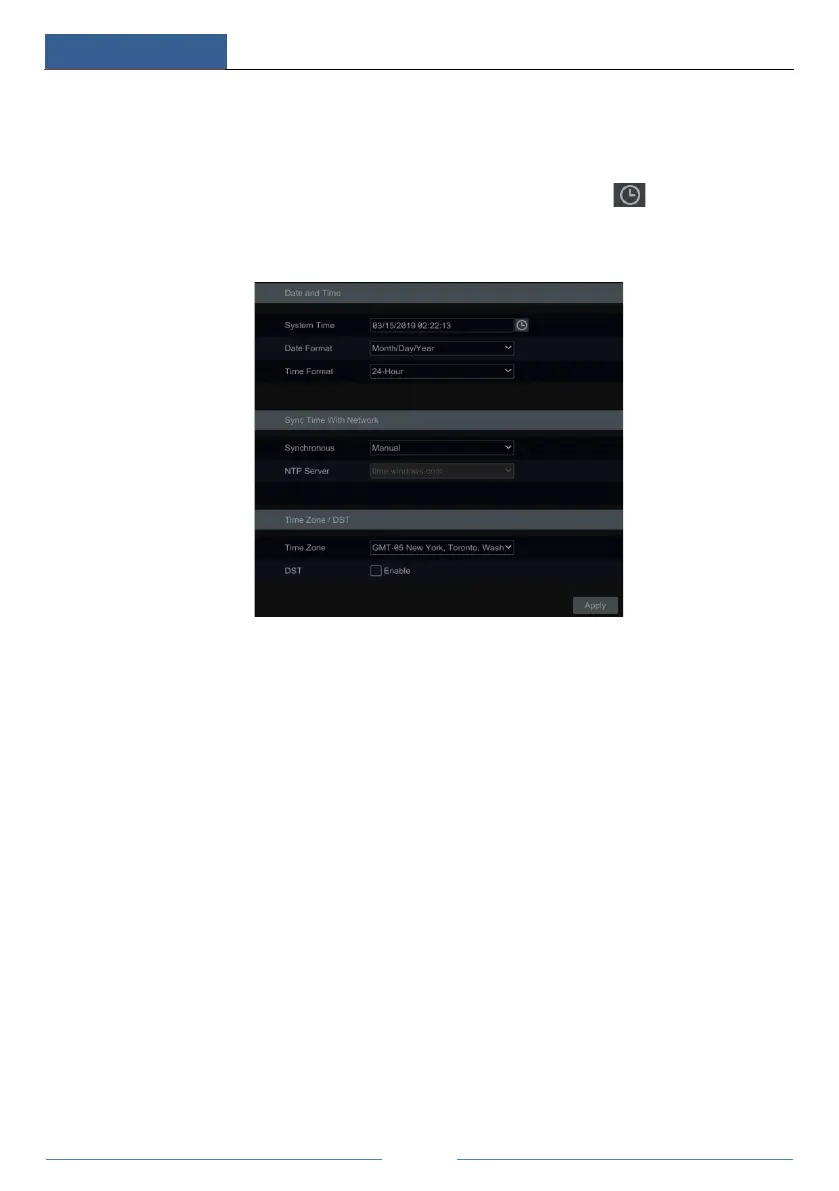
Set the system time, date format, time format and time zone of the DVR. The default time zone
is GMT+08 Beijing, Hong Kong, Shanghai, Taipei. If the selected time zone includes DST, the
DST of the time zone will be checked by default. Click “Apply” to save the settings.
You can manually set the system time or synchronize system time with network through NTP.
Manual: select “Manual” in the “Synchronous” option and then click after the “System
Time” option to set the system time.
NTP: select “NTP” in the “Synchronous” option and then choose the NTP server.
11.2.3 Recorder OSD Settings
Click StartSettingsSystemBasicRecorder OSD settings to go to the following
interface. OSD name and icon can be enabled here.
11.3 Factory Default
Click StartSettingsSystemMaintenanceFactory Default and then click the “Reset to
factory default” button in the interface to reset to the factory default settings(check “Reset
retain Network Configuration” to retain the network settings).
Note: Resetting to the factory default settings will not change time zone.
11.4 Device Software Upgrade
Common Upgrade
You can click StartSettingsSystemInformationBasic to view MCU, kernel version and
firmware version and so on. Before upgrade, please get the upgrade file from your dealer.
The upgrade steps are as follows:
① Copy the upgrade software (.tar) into the USB storage device.
② Insert the USB storage device into the USB interface of the DVR.
③ Click StartSettingsSystemMaintenanceUpgrade to go to “Upgrade” interface.



 To Next Page