115
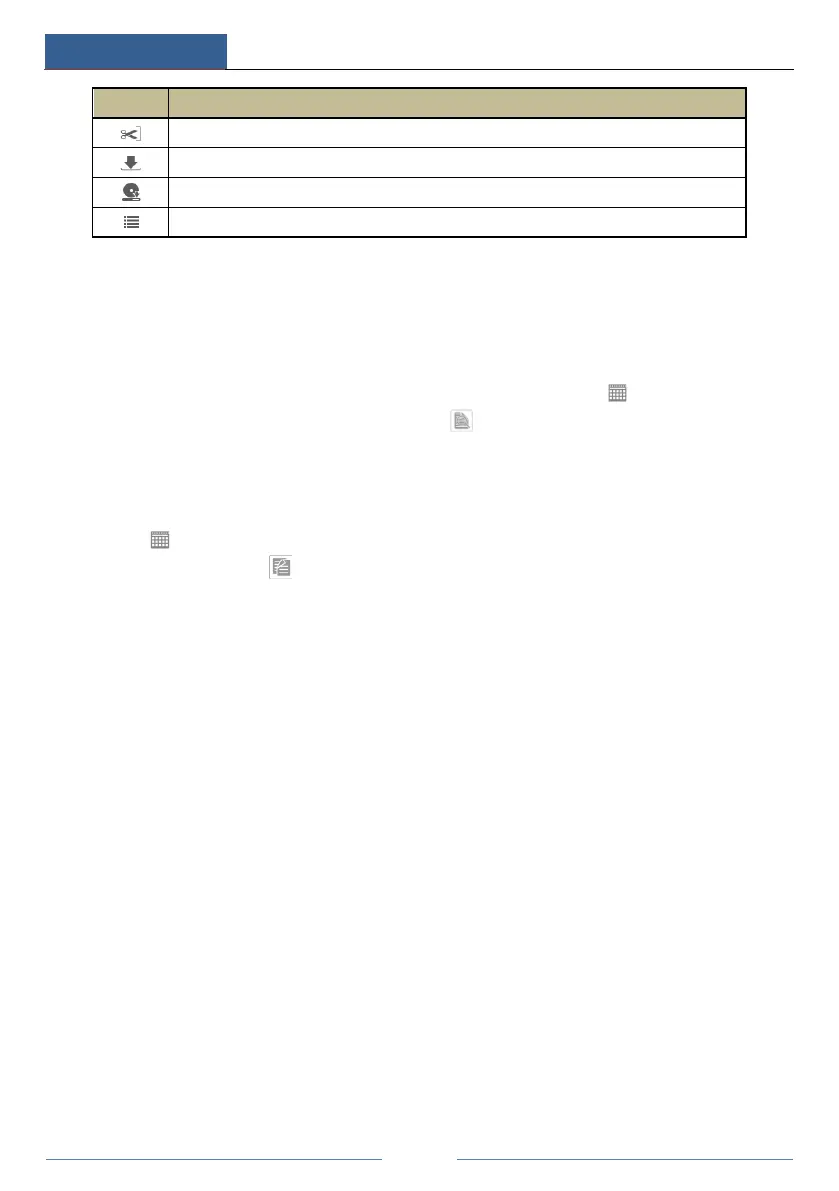
Button Meaning
Backup end time button. Click the time scale and then click it to set the backup end time.
Backup button.
Backup tasks button. Click it to view the backup status.
Event list button. Click it to view the event record of manual/schedule/sensor/motion.
12.4.3 Remote Backup
Click “Backup” in the remote interface to go to the backup interface. You can back up the
record by event or by time.
By Event
Check the record type on the left side of the interface and then click to set the start time
and end time; check the cameras and then click on the right side to search the record (the
searched record data will be displayed in the list); check the record data in the list and then
click the “Backup” button to backup the record.
By Time
Click to set the start time and end time on the left side of the interface; check the
cameras and then click on the right side to backup the record.
View Backup Status: Click “Backup Status” to view the backup status. Click “Pause” to pause
the backup; click “Resume” to continue the backup; click “Delete” to delete the task.
12.4.4 Remote Configuration
Click “Function Panel” in the remote interface and then configure the camera, record, alarm,
disk, network, account and authority and system of the DVR remotely. All of these settings are
similar to that of the DVR. See the configurations of the DVR for details.



 To Next Page