28
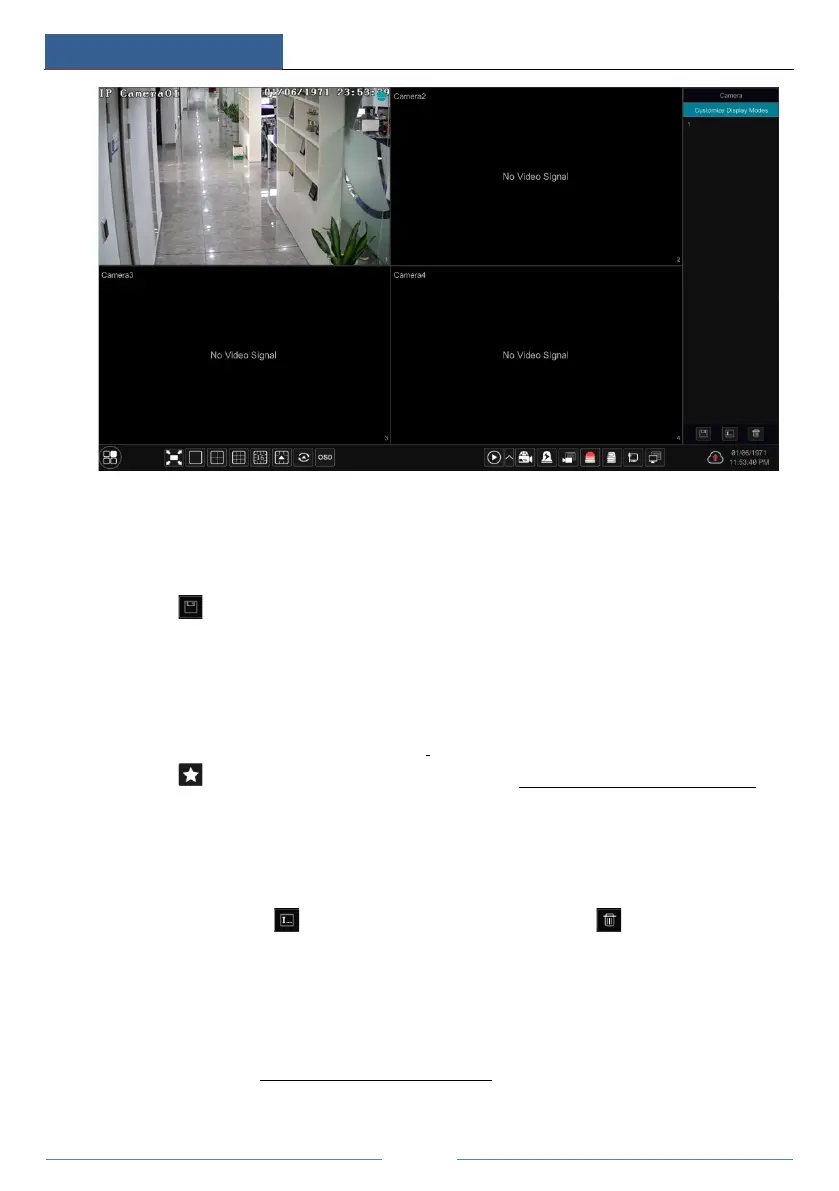
Add Display Mode
Method One:
① Click “Customize Display Modes” in the above interface and then set the screen mode.
② Add the cameras and adjust the cameras’ display sequence as needed.
③ Click under the display mode list and then enter the display mode name in the popup
window, click the “OK” button to save the current display mode.
Method Two:
① Click StartSettingsSystemBasicOutput SettingsMain Output to go to the
interface and then set the screen mode.
② Double click the camera or camera group
in the list to add them to the selected window.
③ Click to save the current display mode (refer to 5.2.3 Scheme View In Sequence for
detail configurations). The display mode will be saved and displayed in the display mode list in
the live view interface.
Edit Display Mode
Click the “Customize Display Modes” tab in the live view interface and then select one display
mode in the list. Click to edit the display mode name; click to delete the display
mode.
5.2.2 Quick Sequence View
You can start quick sequence view if the scheme has not been created. If the scheme has been
created, please refer to 5.2.3 Scheme View in Sequence
for details.



 To Next Page