111
Logout: click it to log out and return to the login interface.
Modify Password: click it to change the password of the current login user. Enter the current
password and then set a new password in the popup window. Click the “OK” button to save the
new password.
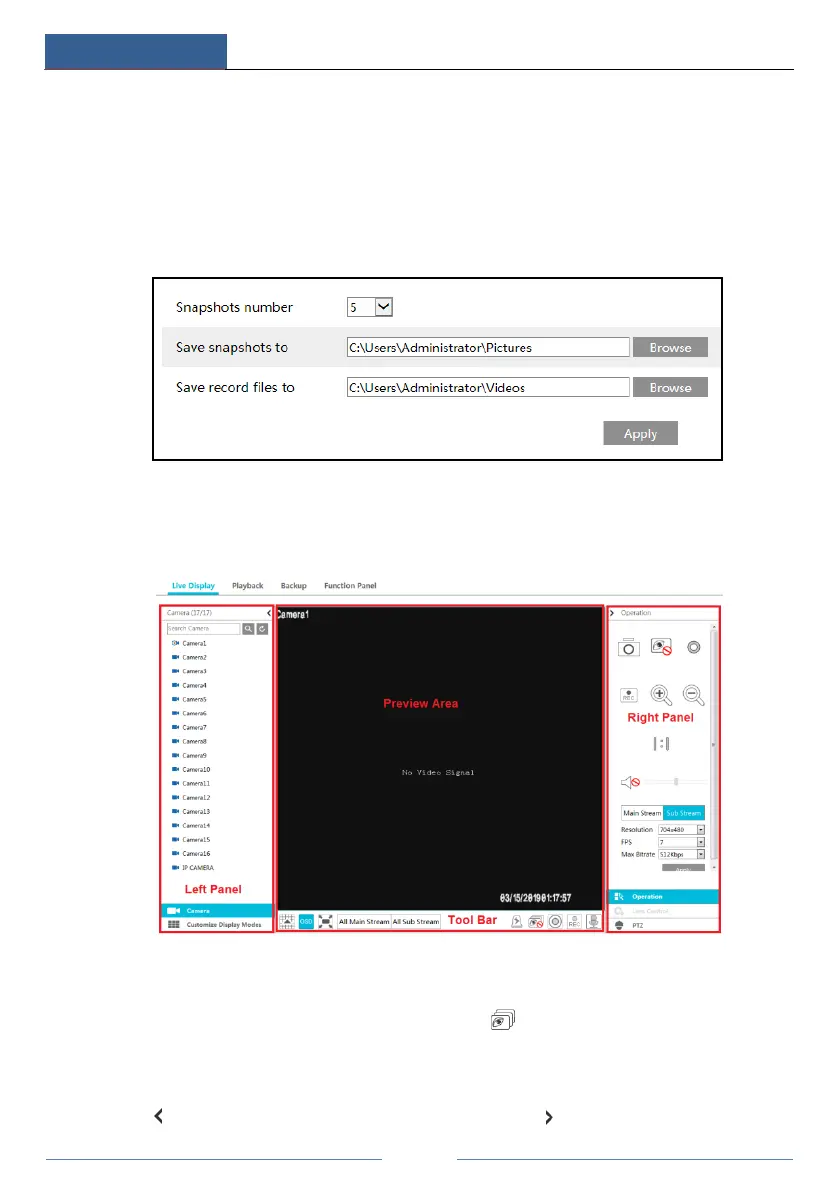
Local Settings: click it to change the local settings. Set the snapshot number and click “Browse”
to set the snapshot path and record path as shown below. Click the “Apply” button to save the
settings.
12.4.1 Remote Preview
Click “Live Display” in the remote interface to go to the preview interface. The preview
interface consists of the four areas marked in the following picture.
Start Preview
Select a window in the preview area and then click one online camera on the left panel to
preview the camera in the window. You can click in the tool bar to preview all the
cameras.
Left Panel Introduction
Click on the left panel to hide the panel and click to show the panel. You can



 To Next Page