112
view all the added cameras and groups on the left panel.
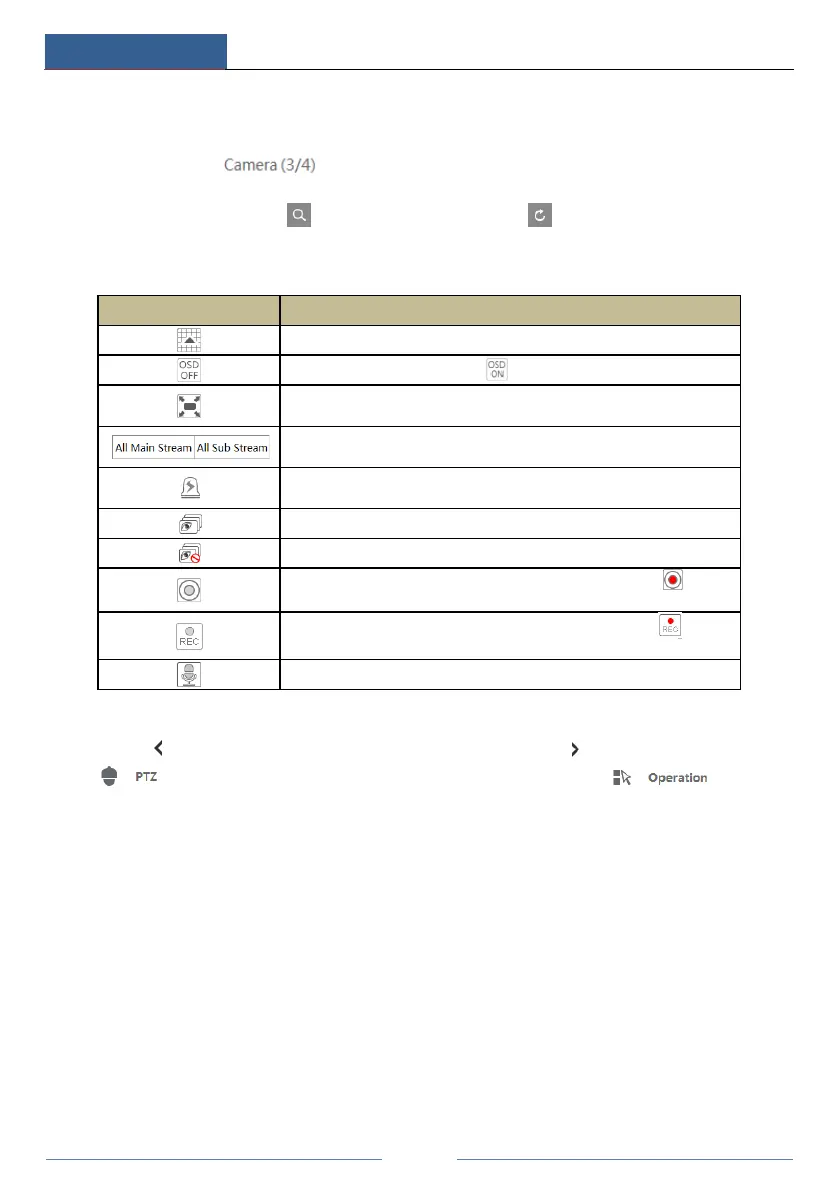
You can view the number of all the added cameras and the online cameras. For instance, the
left number 3 in on the left panel stands for the number of online cameras; the
right number 4 stands for the number of all the added cameras. Enter the camera name in the
search box and then click to search the camera. Click to refresh the camera list.
Tool Bar Introduction
Button Meaning
Screen mode button.
Click it to disable OSD. Click to enable OSD.
Click it to show full screen. Right click on the full screen to exit full
screen.
Click “All Main Stream” or “All Sub Stream” to set the stream of all the
cameras.
Manual alarm button. Click it to pop up a window and then trigger and
clear the alarm-out in the window manually.
Click it to preview all the cameras.
Click it to close all the preview cameras.
Click it to start recording for all cameras to computer. Click
to
Click it to start recording for all cameras to the DVR. Click to stop
Click it to enable talk with the DVR.
Right Panel Introduction
Click on the right panel to show the panel and click to hide the panel. Click
at the bottom of the panel to go to “PTZ” panel. Click to go to
“Operation” panel.



 To Next Page