25
Add Manually
Enter the IP address or domain name (click in the IP address column to pop up the
domain name input window, enter the domain name of the IPC in the window and then click
“OK” button), port, username and password of the camera and then select the protocol. Click
“Test” to test the effectiveness of the input information and then click “Add” button (you can
fill out one camera’s information or above such as IP address, username and password before
clicking “Add” button). Click to delete the camera. Click “Default Password” to set the
default username and password of each camera.
4.2.2 Edit Camera
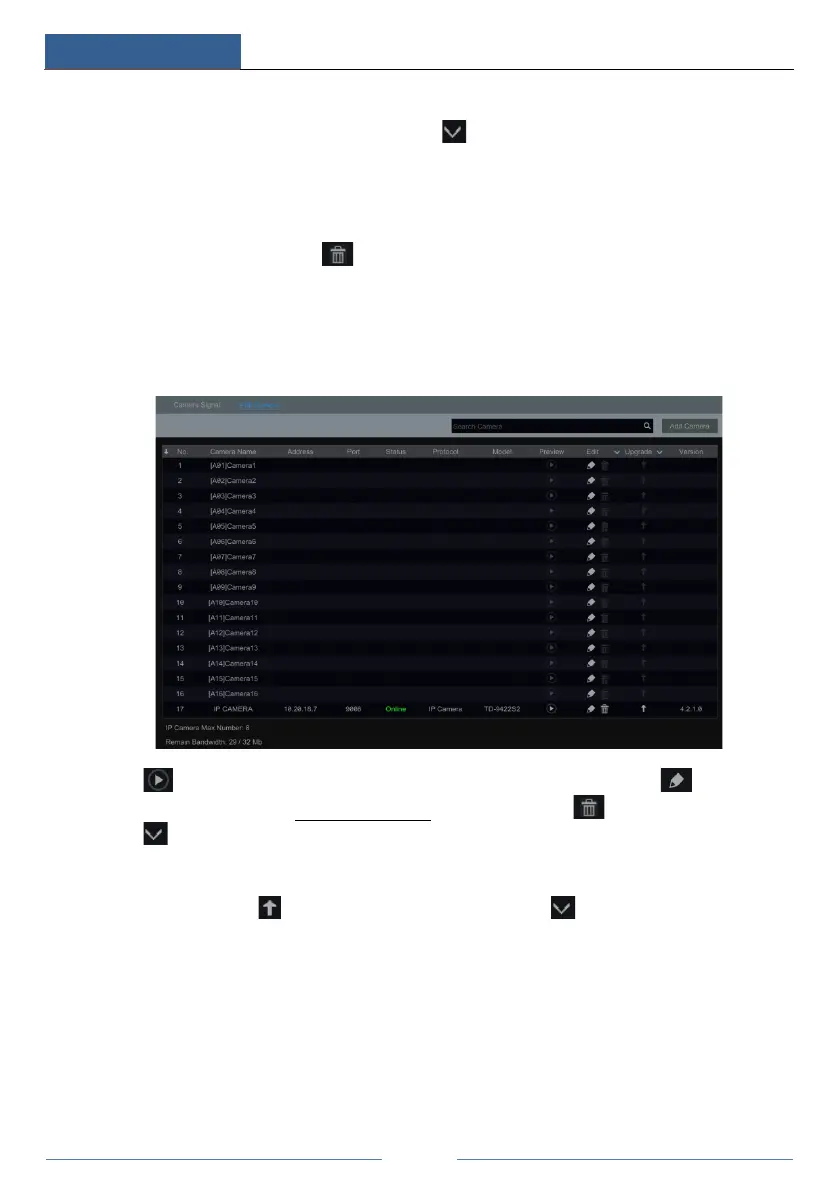
Click “Edit Camera” in the setup panel to go to the interface as shown below.
Click to view the live image of the camera in the popup window. Click to edit the
camera (see Add camera in 3.1 Startup Wizard
for details). Click to delete the IP camera.
Click in the “Operation” header line and then click “Modify IPC Password” to pop up a
window(check the IPCs in the window, set the new password and then click “OK” button; only
the online IPCs’ passwords can be modified and a batch of IPCs’ passwords can be modified at
the same time). Click to upgrade an online IPC ( or click in the “Upgrade” header
line and then click “IPC Batch Upgrade” to upgrade a batch of IPCs), select the device which
stores the upgrade file in the “Device Name” item of the popup window and the upgrade file in
the list(you should select the upgrade IPC model in the window if a batch of IPCs’ passwords
need to be modified) and then click “Upgrade” button to start upgrading(the IPC will restart
automatically after the upgrade is completed successfully).



 To Next Page