9-40
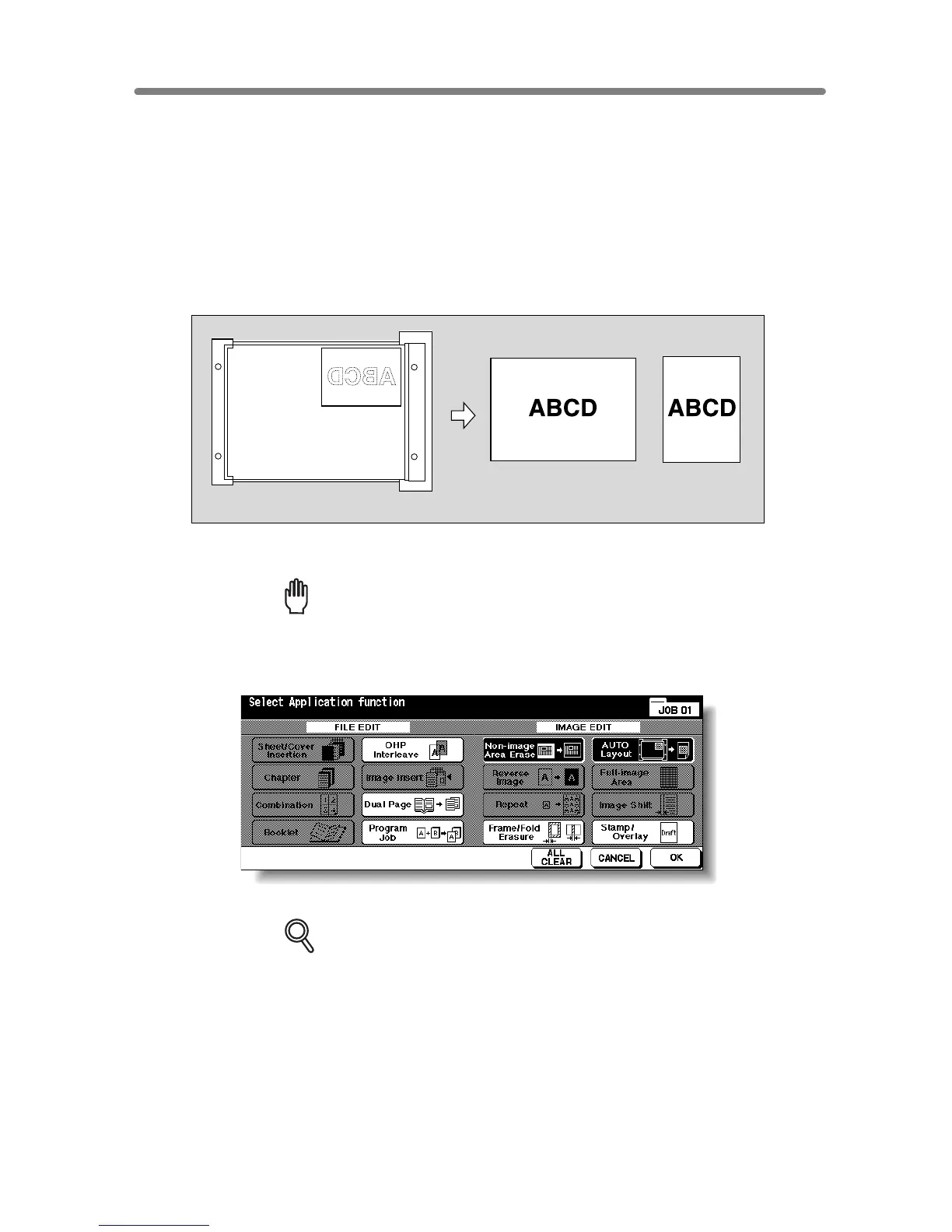
Copying Image in the Centre of Copy Paper (AUTO Layout)
Use this function to detect the image area of the original and centre the whole image on
the copy paper making it easy to copy small pieces of paper.
>>>Specifications for AUTO Layout<<<
❒ Non-Image Area Erase is automatically selected. Release it manually when using
RADF to scan originals.
❒ Incompatible Conditions: 22, 21, APS, AMS, Rotation, Rotation Sort, Rotation
Group, Mixed Original, Z-Folded Original, Sheet/Cover Insertion, Chapter (available
when Non-Image Area Erase is released manually), Combination, Booklet, Image
Insert, Reverse Image, Repeat, Full-Image Area, Image Shift, Overlay, Storing
Image in Overlay Memory
1. Touch APPLICATION on the Basic Screen.
Reminder!
When starting a new copying job, be sure to close the RADF securely, then
press [AUTO RESET].
2. Touch AUTO Layout on the Application Selection Screen.
The incompatible function keys will be dimmed to show inactivity.
DETAILS
• Non-Image Area Erase will be selected automatically. When using RADF
to scan the original, touch to deselect this function.
• When using the Dual Page with this function, the original smaller than the
selected paper size will be printed in the centre of the copy paper without
image division performed.
3. Touch OK on the Application Selection Screen.
The Basic Screen will be restored.
Auto Layout copying
Set original










 To Next Page