3-29
Copying Using Special Paper (Multi-Sheet Bypass Tray)
Use the Multi-sheet bypass tray to copy using special (non-standard) paper. Specify the
paper type and size to be loaded on the Multi-sheet bypass tray, as described below.
HINT
When loading special paper in the main body tray or in the LCT to use on a
regular basis, the paper type and size should be specified in the Key
Operator setting. See p. 13-23 to p. 13-24.
1. Open the Multi-sheet bypass tray, and load the copy paper.
HINT
See p. 2-27 for further details.
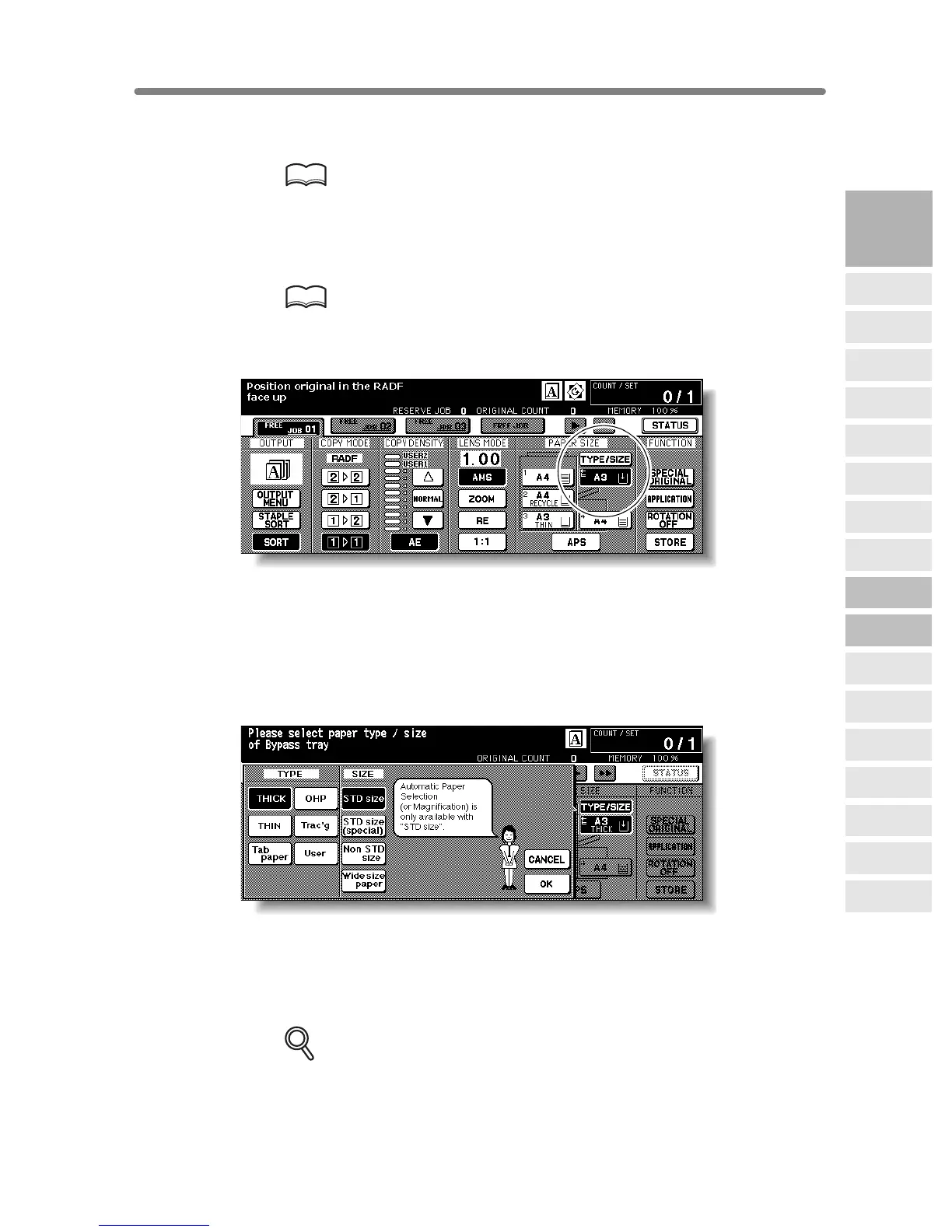
2. Touch the Bypass key to highlight it.
The TYPE/SIZE key will appear above the Bypass key. APS will be deselected, and
AMS will be highlighted on the Basic Screen.
3. Touch TYPE/SIZE.
The Paper Type/Size popup menu will be displayed.
4. Touch the desired paper type key.
When THICK, THIN, Tab paper, OHP, Trac’g, or User is highlighted, a print job will
conform to the selected paper type.
If no paper type indication is needed, touch the highlighted key to clear the selection in
the TYPE area.
The selection will be reflected on the Basic Screen when restored.
DETAILS
When selecting Tab paper, AMS is automatically selected. The STD size
(special) and Non STD size cannot be selected, and the loaded copy paper
cannot be fed in 12 or 22 copying.
3
Copying
Operations
Positioning
Originals
Setting Print
Quantity
Set Job During
Warmup
Stop
Scan/Print
Paper Size
Lens Mode
Density
1-2, 2-2
2-1
Multi-Sheet
Bypass Tray
Using
Memory
Output without
Finisher
FS-111/211
Output Modes
Binding
Mode
Recalling
Previous Job
Check Mode
& Proof Copy
Interrupt
Mode










 To Next Page