3-18
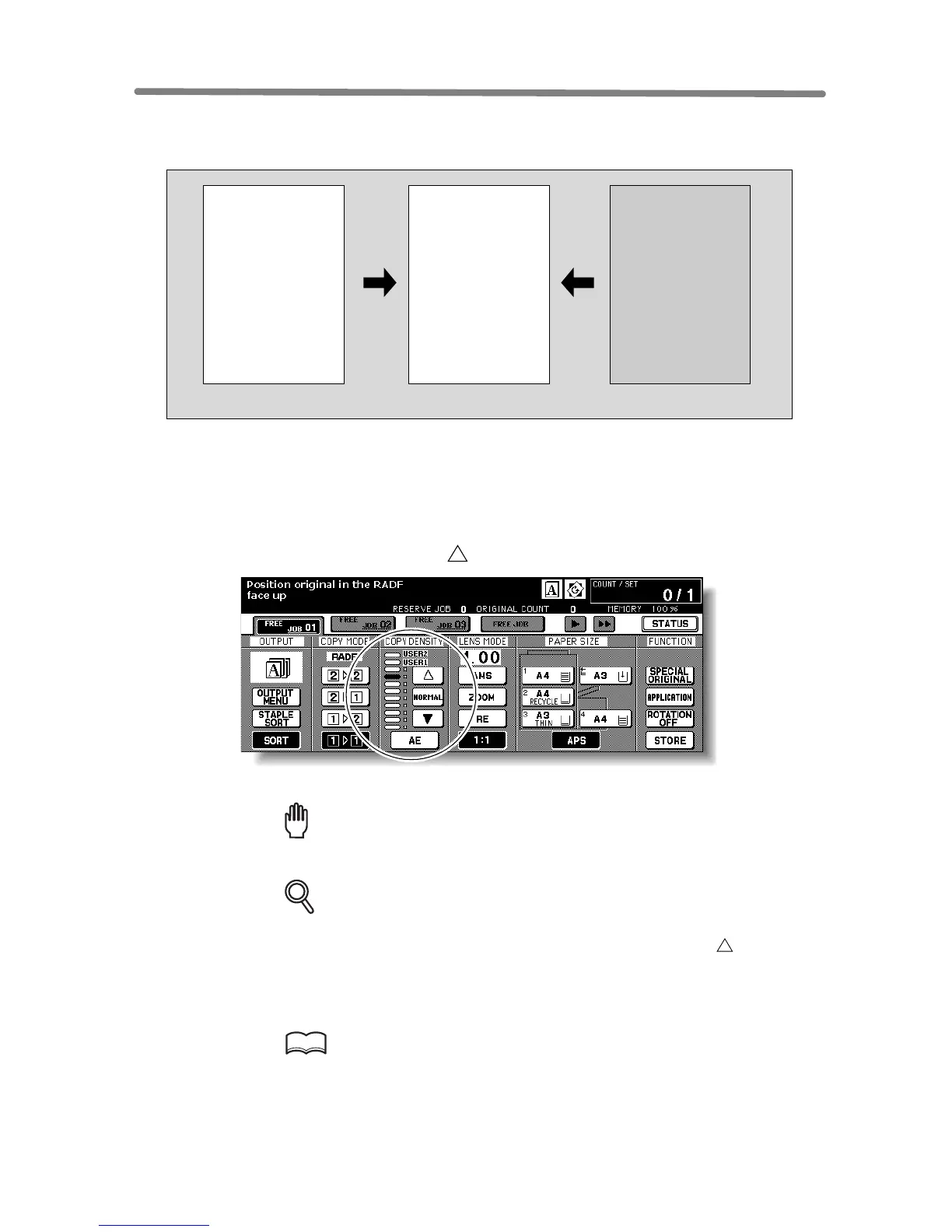
Selecting Density Level
Automatic Exposure (AE) operates with the default settings. It detects the density of the
original image and automatically selects the appropriate exposure for the copy.
To Select Copy Density
Select manual copy density to adjust exposure (density) when originals are too light or
too dark. Manual adjustments can be made in 9 levels on the Basic Screen.
1. Touch to darken, or touch to lighten the copy image.
Highlight the desired exposure level indicator.
Reminder!
When starting a new copying job, be sure to close the RADF securely, then
press [AUTO RESET].
DETAILS
• Touch NORMAL to select the middle density level.
• To select the user-set density (USER1 or USER2), touch to highlight
the desired indicator.
• When resuming AE, touch AE.
2. Select additional copy conditions, as desired.
HINT
See p. 13-12 to p. 13-13 to set the user-set density.
Light original
Normal
Dark original
ABCD
EFGH
IJKLM
NOPQ
RSTUV
WXYZ
ABCD
EFGH
IJKLM
NOPQ
RSTUV
WXYZ
ABCD
EFGH
IJKLM
NOPQ
RSTUV
WXYZ










 To Next Page