Copying Using Memory (continued)
3-34
To Set Next Copying Job (Reserve)
The Reserve function allows you to set up a new job while a current job is in process.
When the current job is finished, the Reserve job starts printing immediately.
>>>Specifications for Reserve<<<
❒ Job settings: Max. 10 (current job plus 9 reserve jobs)
❒ When the current job is in Store mode, Image Insert, or Dual Page, the reserve job
setting will be available after the copier starts to print the current job.
❒ Incompatible Conditions: Interrupt copying, Scanning in Store mode, Proof copy,
Storing image in Overlay Memory
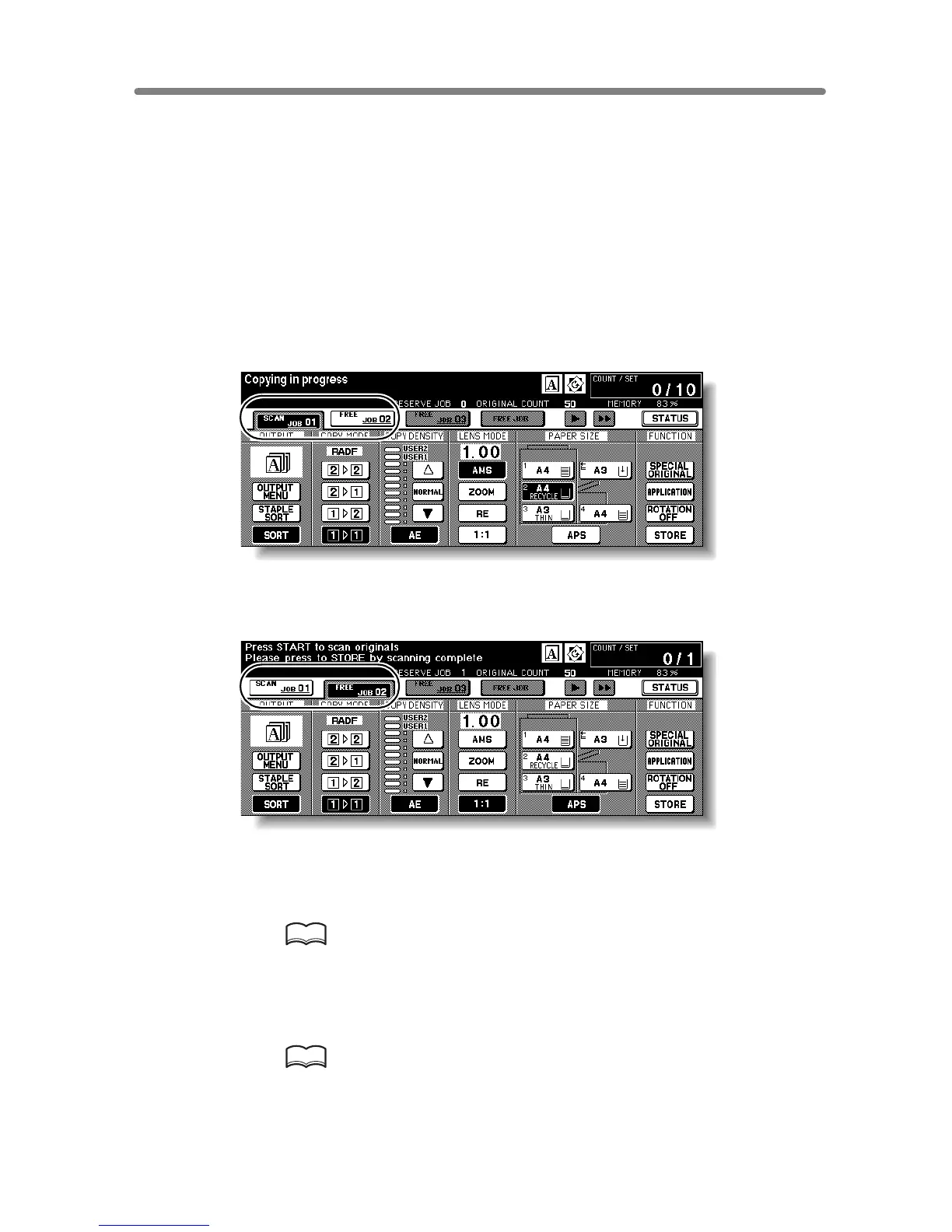
1. Press [START] to start scanning/printing for the current job.
FREE JOB
will become active to show that the reserve job setting is now available
.
2. Touch FREE JOB to highlight it.
The Reserve Job Setting Screen will be displayed.
On the Reserve Job Setting Screen, all keys on the LCD and control panel will function
for the reserve job.
3. Select copy conditions for the reserve job, as desired.
HINT
When trouble occurs while setting the reserve job, the PRINT or SCAN JOB
key on the Basic Screen will change to JAM or ADD PAPER key. See p. 5-8
to p. 5-10.
4. Position original(s) after completing the scan for the current job.
HINT
See p. 3-2 to p. 3-6 for details on positioning originals.










 To Next Page