EasyManua.ls Logo

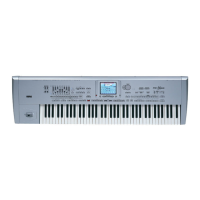
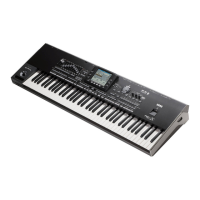
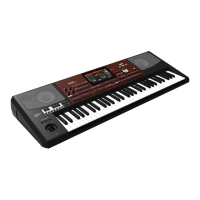
Korg PA800 - User Manual

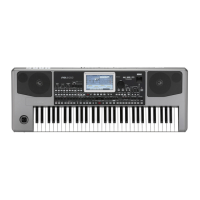
Korg PA800
344 pages
Print Icon
To Next Page IconTo Next Page
Loading...
User’s Manual
ENGLISH
OS Ver. 2.0
MAN00010002
12E

Table of Contents

Other manuals for Korg PA800

Questions and Answers

  • A
    andrewsjoshuaSep 23, 2025
    What to do if the lowest notes are not played on Korg Recording Equipment?
    • A
      Amber CollinsSep 23, 2025
      If the lowest notes are not played on your Korg Recording Equipment, and the SPLIT button is lit, the keyboard is divided into Lower (low notes) and Upper (high notes) sections. Ensure the Lower track is not muted; unmute it if necessary.
  • S
    Scott TurnerAug 25, 2025
    What to do if my Korg Musical Instrument has no sound?
    • J
      Jodi YangAug 25, 2025
      First, check if a jack is connected to the HEADPHONES connector, as this disables the internal speakers. Then, check the connections to your amp or mixer and ensure all components of the amplifying system are powered on. Also, verify that the MASTER VOLUME slider of the Pa800 is not set to '0'. Finally, check if the Local and Speaker parameters are set to On, and that the Attack parameter value isn't too high, and the Volume parameter isn't too low.
  • R
    Rachel RomeroAug 25, 2025
    What to do if the selected Style or Song cannot start on my Korg Musical Instrument?
    • X
      xrhodesAug 26, 2025
      Make sure that the Clock parameter is set to Internal. If you are using the MIDI Clock of another device, you must set the MIDI Clock parameter to MIDI or USB (depending on the port the Pa800 is hooked to the other device through) and make sure that the external device transmits MIDI Clock data.
  • T
    Tina ChapmanAug 26, 2025
    What to do if there is no sound from my Korg Synthesizer?
    • S
      Shawn MyersAug 26, 2025
      If you're not getting any sound from your Korg Synthesizer, here are a few things to check: * Ensure nothing is plugged into the HEADPHONES connector, as this disables the internal speakers. * Verify the connections to your amplifier or mixer. * Confirm that all components of your sound system are powered on. * Check that the MASTER VOLUME slider is not set to “0”. * Make sure the Local and Speaker parameters are turned On. * Adjust the Attack parameter to a lower value if it’s too high, and increase the Volume parameter if it’s too low.
  • M
    maddenandreAug 27, 2025
    How to fix Korg Synthesizer when power does not turn on?
    • R
      Rebecca MartinezAug 27, 2025
      If your Korg Synthesizer isn't powering on, ensure the power cable is securely plugged into both the outlet and the back of the instrument, and that the cable is undamaged. Also, check that the power switch is turned ON. If it still doesn't turn on, it is advisable to contact your dealer or the nearest KORG Service Center.
  • R
    Renee JordanSep 14, 2025
    What to do if Korg Recording Equipment shows 'Over Current Condition Detected on USB port'?
    • T
      Tracy WellsSep 14, 2025
      If your Korg Recording Equipment displays the message “Over Current Condition Detected on USB port: please remove the USB media,” it means the USB device is likely defective due to a short circuit and should be removed. Although this will not damage the Pa800, it's best to remove the device.
  • E
    Eric FrederickSep 12, 2025
    How to fix Korg Musical Instrument when lowest note are not played?
    • M
      Marcus SmithSep 12, 2025
      When the SPLIT button is lit up, the keyboard will be divided into the Lower part (low notes, below the split point) and the Upper part (high notes, above the split point). Check if the Lower track is muted; if so, unmute it.
  • J
    Janet SavageSep 13, 2025
    What to do if Korg Recording Equipment does not respond to MIDI messages?
    • D
      Daniel SnyderSep 13, 2025
      If the Korg Recording Equipment does not respond to MIDI messages, ensure that all MIDI or USB cables are correctly connected. Also, verify that the external device transmits through MIDI channels enabled to receive in the Pa800 and that the MIDI IN Filters of the Pa800 do not prevent the reception of messages.
  • C
    Catherine RobbinsSep 4, 2025
    What does 'Over Current Condition Detected on USB port' mean on Korg Synthesizer?
    • S
      sullivanandrewSep 4, 2025
      If you see the message “Over Current Condition Detected on USB port: please remove the USB media” on your Korg Synthesizer, the USB device is likely defective due to a short circuit and should be removed. While this won't damage the Pa800, removing the device is recommended.
  • D
    Deborah HuntSep 2, 2025
    What to do if the lowest notes are not played on Korg PA800?
    • A
      andrea70Sep 2, 2025
      If the lowest notes are not playing on your Korg Synthesizer, and the SPLIT button is lit, the keyboard is divided into Lower and Upper parts. Check if the Lower track is muted and unmute it.

Summary

Front panel

Rear panel

Welcome!

Data Backup and Management

Guidance on backing up original data, OS, and musical resources.

Start up

Quick Guide

Playing Sounds on the Keyboard

Guide to selecting and playing single sounds on the keyboard.

Layering Multiple Sounds

Instructions for playing two or three sounds simultaneously on the keyboard.

Selecting and playing Styles

Selecting and Saving Performances

Guide to selecting and saving Performances, including saving settings to a Performance.

Selecting and Playing Styles

Instructions for selecting Styles, Style Elements, and Style Controls.

Song Play

Selecting and Playing Songs

Guide to selecting songs for Sequencer 1 and 2, and opening the Song Select window.

Playing Back and Controlling Songs

Instructions for playing back songs using sequencer controls and transport buttons.

The SongBook

Selecting Entries from the Main List

How to open and navigate the SongBook database to select entries.

Adding and Editing SongBook Entries

Instructions for adding new entries and editing existing ones in the SongBook database.

Creating and Using Custom Lists

Guide to creating custom lists of SongBook entries for specific shows.

Singing with a connected microphone

Connecting the Microphone

Instructions for connecting a microphone to AUDIO INPUT 1 and setting initial levels.

Applying Harmony to Your Voice

Guide to selecting Voice Processor Presets and enabling harmony for vocal performances.

Soloing Your Voice (TalkBack)

Instructions for using the TalkBack function to attenuate music for speaking.

Locking Voice Processor Settings

How to lock Voice Processor settings to prevent changes when selecting different presets.

Recording a new Song

Entering Backing Sequence (Quick Record) Mode

Steps to enter the Quick Record mode for recording Styles and performances.

Preparing for Recording

Guide to setting parameters like Style, Tempo, and track status before recording.

Realtime Recording Procedure

Instructions for performing and recording live with Styles, including Intro, Variation, Fill, Ending.

Second-Take Recording (Overdubbing)

Method for re-recording or adding to existing tracks in a song.

Saving a Song to Disk

Procedure for saving recorded songs to a storage device to prevent data loss.

Style Play operating mode

Main Page (Normal View) Description

Detailed description of the main Style Play screen layout and its elements.

Edit Menu and Page Structure

Overview of the Edit menu and the structure of edit pages within Style Play mode.

Mixer;Tuning: Tuning and Sub Scale

Guide to setting octave transpose, fine-tuning, and alternative scales for tracks.

Effects: FX Select and Assignment

How to select and assign effects to internal FX processors (A-D).

Preferences: Style Settings

General parameters for Style Play mode, including Chord Recognition and Velocity Control.

Dialog Boxes for Saving Settings

Explanation of Write Performance and Write Single Touch Setting dialog boxes.

Style Record mode

Saving Changes and Listening to Styles

Instructions for saving or aborting changes and listening to styles during editing.

Realtime and Step Record Procedures

Step-by-step guides for performing realtime and step recording of Styles.

Edit Menu and Event Editing

Overview of the Edit menu and procedures for editing MIDI events.

Style Edit: Transpose and Velocity

Guide to transposing tracks and changing note velocity values.

Copying Style Elements and Tracks

Guide to copying tracks or entire Style Elements/Chord Variations from Styles.

Style Element Track Controls

Parameters for Sound/Expression assignment and Keyboard Range settings.

Importing Standard MIDI Files (SMF)

Guide to importing SMF data to create Chord Variations or entire Styles.

Exporting SMF Files

Instructions for exporting Chord Variations or entire Styles as SMF files.

Pad Record mode

Saving Changes and Listening to Pads

Instructions for saving or aborting changes and listening to pads during editing.

Main Page - Record 1 Overview

Detailed description of the Main page in Pad Record 1 mode.

Main Page - Guitar Mode

Description of Guitar Mode parameters for recording guitar parts.

Edit Menu for Pad Record Mode

Overview of the Edit menu and structure for Pad Record mode.

Pad Edit: Copy Functions

Guide to copying tracks from Styles or Chord Variations from other Pads.

Song Play operating mode

Main Page Layout

Detailed layout of the Song Play main page, including Song areas and controls.

Mixer;Tuning: FX Send

Guide to setting the level of direct signals sent to internal FX processors.

Mixer;Tuning EQ Parameters

Details on setting EQ Gain and EQ Control for song tracks.

SongBook

Organizing Entries with the Book

Overview of the SongBook database for organizing Styles, MIDI files, and MP3 files.

Sequencer operating mode

Sequencer Main Page Layout

Detailed description of the Sequencer Play main page, including song areas and controls.

Multitrack Sequencer Record Mode

Instructions for multitrack recording, including overdub, overwrite, and auto punch.

Step Backing Sequence Record Mode

Guide to step-recording chords and controls for songs.

Backing Sequence (Quick Record) Procedure

Step-by-step guide for performing realtime recording using Styles.

Save Song Window

Instructions for saving songs to a storage device, including overwrite warnings.

Global edit mode

Voice Processor

Accessing Voice Processor Edit Pages

Guide to accessing Voice Processor Setup and Preset pages via the Global mode menu.

Voice Processor Setup: Basic Settings

Explanation of Lead Setting, Harmony Settings, and Low Cut Filter for voice processing.

Voice Processor Setup: Dynamics and EQ

Parameters for Compressor/Gate, Equalizer, and Talk function settings.

Voice Processor Preset: Effects

Guide to adjusting FX Mix, Reverb, Delay, and other effect parameters.

Harmony and Tuning with Voice Processor

Explanation of harmony modes (Notes, Shift, Chordal, Scalic) and tuning.

Voice Processor Preset: Harmony Voices

Parameters for setting up individual harmony voices, including voicing and scale modes.

Media edit mode

Media Edit Mode Main Page

Overview of the Media edit mode's main page, navigation tools, and commands.

MIDI

Connecting Pa800 to External Devices

Instructions for connecting Pa800 to a master keyboard and MIDI accordion.

Connecting Pa800 to a Computer

Guide for connecting Pa800 to a computer via USB for MIDI and file transfer.

Installing the MP3 Board (EXBP-Dual MP3)

Precautions and Installation Procedure

Safety precautions and step-by-step guide for installing the MP3 board.

Playing and Recording MP3 Files

Instructions for playing MP3 files and recording performances as MP3 files.

Installing the Video Interface (VIF4)

Video Interface Installation and Setup

Guide to connecting the Pa800 to a video monitor and selecting video standards.

Installing the Korg USB MIDI Driver

Connecting Pa800 to a Personal Computer

Instructions for connecting Pa800 to a PC via USB and installing the required driver.

Mac OS X: Installing KORG USB-MIDI Driver

Guide for installing the KORG USB-MIDI Driver on Mac OS X systems.

Shortcuts

SHIFT Button Shortcuts

List of functions accessible by pressing SHIFT + other buttons.

Troubleshooting

General Problems and Solutions

Common issues like no power, no sound, and incorrect note playback with solutions.

Media Related Problems

Troubleshooting steps for device formatting, saving, loading, and USB connection issues.

Technical specifications

MIDI Data

Korg PA800 Specifications

General IconGeneral
TypeArranger Workstation
Keyboard61 keys with Velocity and Aftertouch
Sound EngineEDS (Enhanced Definition Synthesis)
MIDIIn, Out, Thru
DisplayColor TouchView™ Graphic Touch Screen
Sequencer16-track
StorageSD Card Slot
Audio Inputs2 x Mic/Line
Audio OutputsHeadphones

Related product manuals